# Ansible AWX
> Author Russ Mckendrick explores Ansible AWX, the open-source version of Ansible Tower. Follow his guide to quickly set up AWX with CentOS 7 using Vagrant.
- Canonical: https://www.russ.cloud/2017/09/24/ansible-awx/
- Published: 2017-09-24
- Author: Russ McKendrick
- Tags: DevOps, Ansible, Linux
---
It has been a while as I have been busy writing, I thought I would spend some of my freetime having a very quick play with [Ansible AWX](http://www.eweek.com/enterprise-apps/red-hat-launches-open-source-ansible-tower-awx-automation-project), which is the Open Source version of [Ansible Tower](https://www.ansible.com/tower/).
I created the following **Vagrantfile** to launch a [CentOS 7](https://www.centos.org/) server;
```bash frame="terminal" title="Ansible AWX 1/3"
# -*- mode: ruby -*-
# vi: set ft=ruby :
VAGRANTFILE_API_VERSION = "2"
Vagrant.configure(VAGRANTFILE_API_VERSION) do |config|
config.vm.box = "centos/7"
config.vm.provider :virtualbox do |v|
v.memory = 4048
v.cpus = 2
v.customize ["modifyvm", :id, "--natdnshostresolver1", "on"]
v.customize ["modifyvm", :id, "--ioapic", "on"]
end
config.vm.define "awx" do |awx|
awx.vm.hostname = "awx.local"
awx.vm.network :forwarded_port, guest: "80", host: "8080"
awx.vm.provision :ansible do |ansible|
ansible.playbook = "playbook.yml"
ansible.become = true
end
end
end
```
This launches the following **playbook.yml** which prepares the CentOS 7 box by installing Docker and the other prerequisites need to build and launch AWX;
```bash frame="terminal" title="Ansible AWX 2/3"
- name: Deploy AWX
hosts: all
become: true
become_user: root
tasks:
- name: sort out the yum repos
yum:
name: "{{ item }}"
state: "latest"
with_items:
- "epel-release"
- "yum-utils"
- name: add the docker ce yum repo
yum_repository:
name: "docker-ce"
alt: "Docker CE YUM repo"
gpgcheck: "yes"
enabled: "yes"
baseurl: "https://download.docker.com/linux/centos/7/$basearch/stable"
gpgkey: "https://download.docker.com/linux/centos/gpg"
- name: install the prerequisites using yum
yum:
name: "{{ item }}"
state: "latest"
with_items:
- "epel-release"
- "libselinux-python"
- "python-wheel"
- "python-pip"
- "git"
- "docker-ce"
- name: start and enable docker
systemd:
name: "docker"
enabled: "yes"
state: "started"
- name: install the python packages using pip
pip:
name: "{{ item }}"
state: "latest"
with_items:
- "pip"
- "ansible"
- "boto"
- "boto3"
- "docker"
- name: check out the awx repo
git:
repo: "https://github.com/ansible/awx.git"
dest: "~/awx"
clone: "yes"
update: "yes"
- name: install awx
command: "ansible-playbook -i inventory install.yml"
args:
chdir: "~/awx/installer"
```
(You can find the files above in a [gist on GitHub](https://gist.github.com/russmckendrick/36d3f131cae273e6c85060a8d172a195)) Running `vagrant up` will launch the CentOS 7 machine and execute the playbook to install AWX, this process takes about 15 minutes.
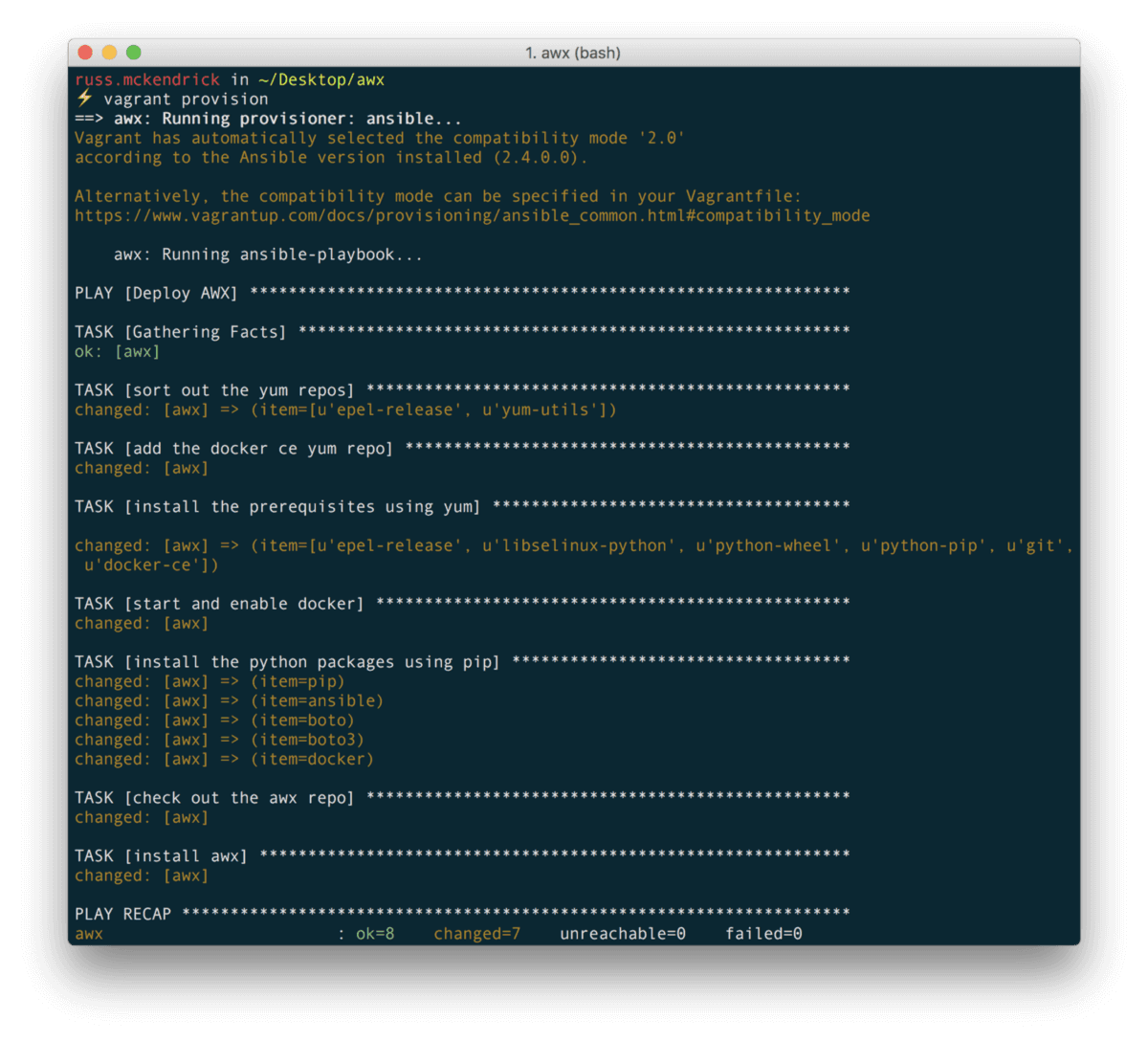 In the background the installer has built and downloaded several Docker images, you can check what is going on the machine by running;
```bash frame="terminal" title="Ansible AWX 3/3"
vagrant ssh
sudo docker image ls
sudo docker container ls
```
Once the build has completed you should the following images;
In the background the installer has built and downloaded several Docker images, you can check what is going on the machine by running;
```bash frame="terminal" title="Ansible AWX 3/3"
vagrant ssh
sudo docker image ls
sudo docker container ls
```
Once the build has completed you should the following images;
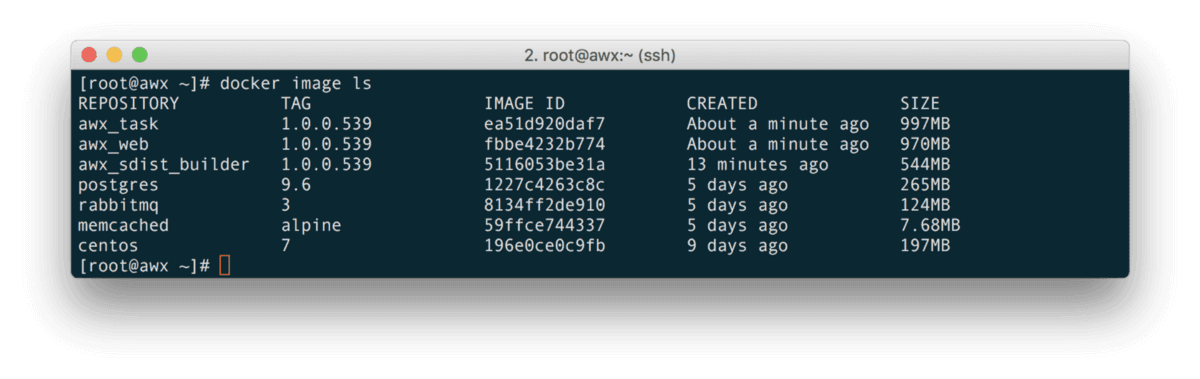 Also, you should have several containers running;
 Once the containers have launched, going to [http://localhost:8080/](http://localhost:8080/) should show you the following;
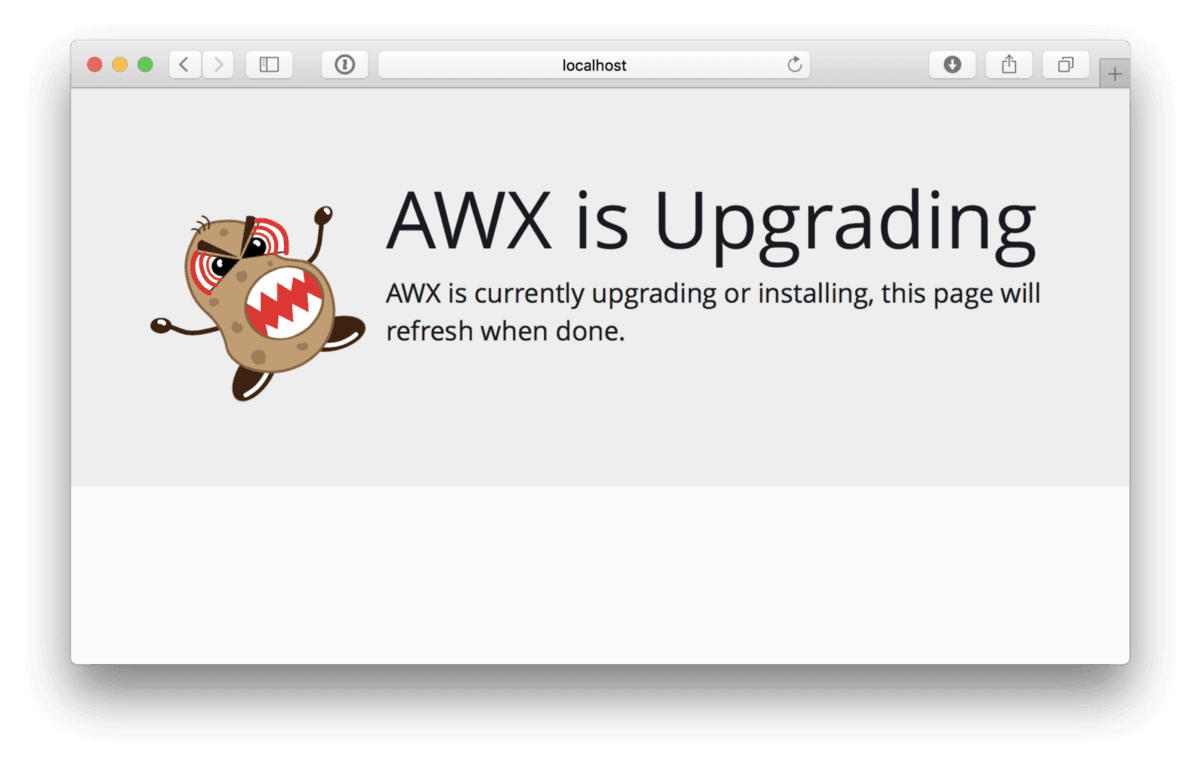 After a while the page will eventually refresh into a login screen, the default user is **admin** and the password is **password**. Once logged in you will be taken to the dashboard, here you can see that there is already a project created, this is a simple test job;
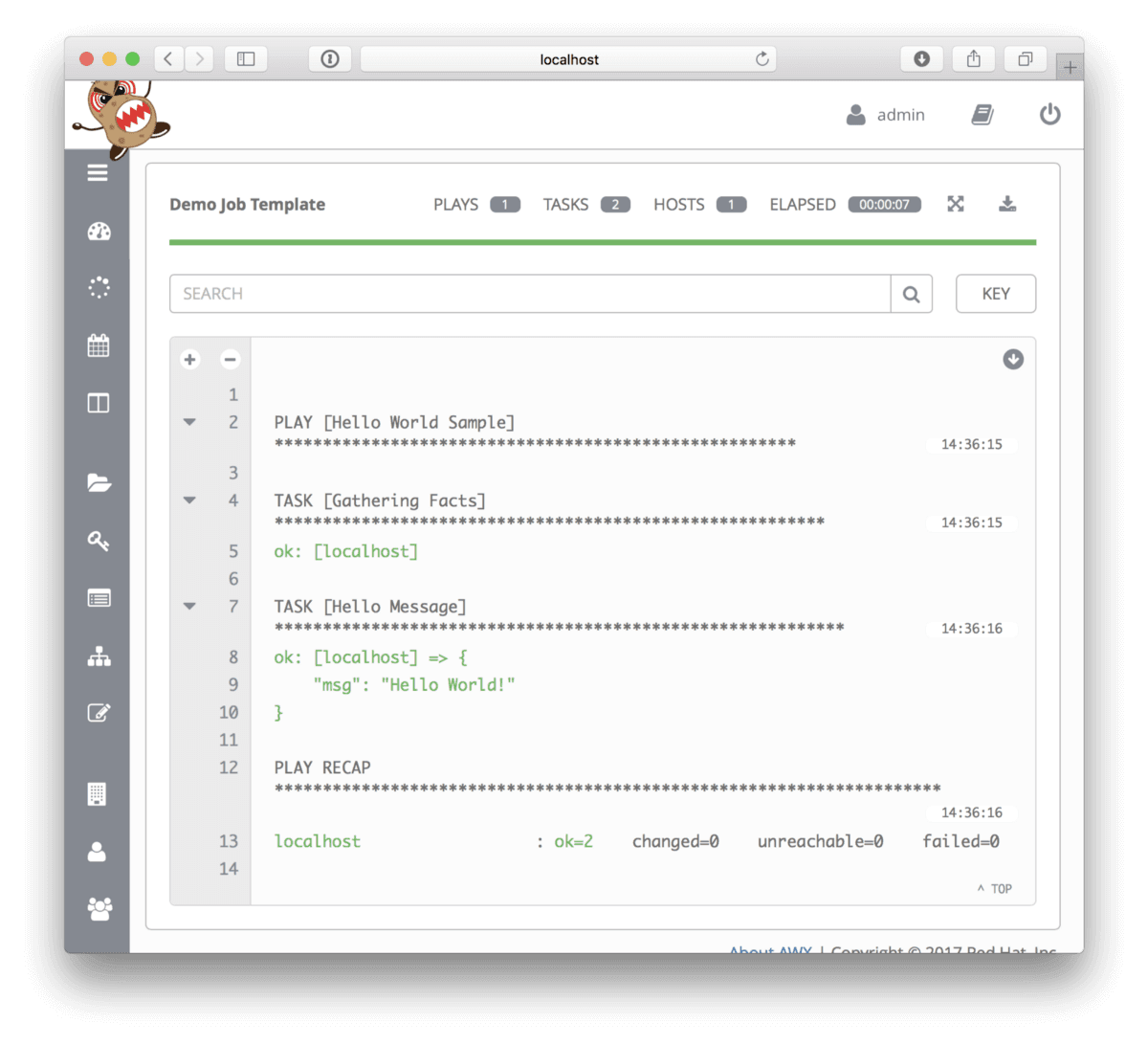
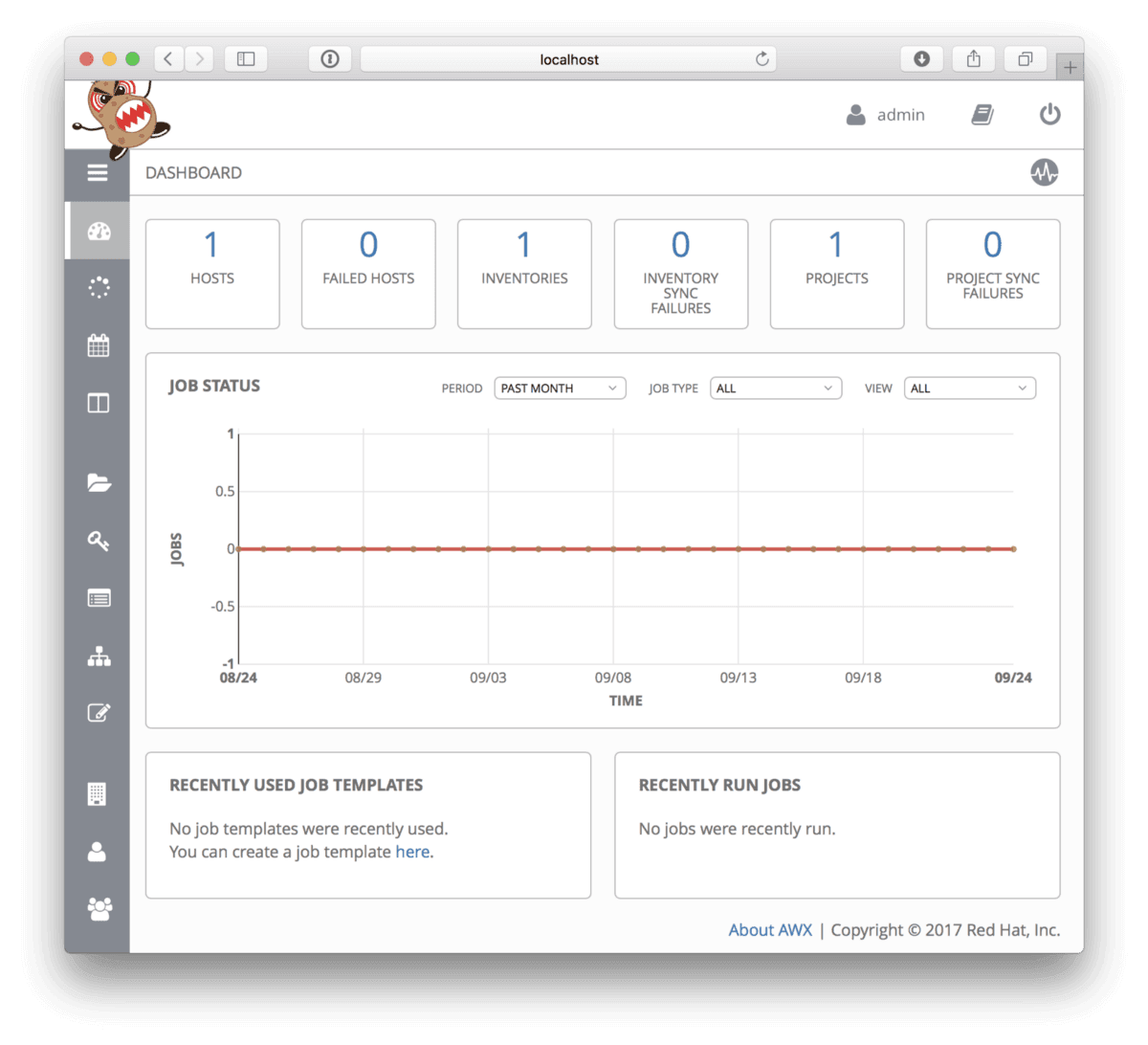 You can test your installation by running the test job, which is the Ansible equivalent of a Hello World, you can see the output of running the template below;
 As I said at the start of this post this was a only a quick post to document how you can get quickly (well sort of quickly) get an AWX host up and running, if you would like more detail on how to use AWX see the [Ansible Tower Document site](http://docs.ansible.com/ansible-tower/index.html).