# Adding a Deploy to Azure Button
> Simplify Azure deployments with a 'Deploy to Azure' button for ARM templates, enabling effortless resource launch directly from GitHub repositories.
- Canonical: https://www.russ.cloud/2019/09/13/adding-a-deploy-to-azure-button/
- Published: 2019-09-13
- Author: Russ McKendrick
- Tags: Azure, Automation
---
I am currently working on a few other blog posts and presentations for work on some Azure features which required me to launch a CentOS 7 Virtual Machine running the latest version of Ansible using an ARM template.
One thing I had noticed which doing reading up on the services I am going to be using is that a lot of the demos and documentation from Microsoft had buttons where you could **Deploy to Azure**, so I decided to create my own - you can see the finished product below;
 The HTML used to generate the button above looks like the following;
Alternatively, you could use markdown, which looks like the following;
```bash frame="terminal" title="Adding a Deploy to Azure Button 1/1"
[](https://azuredeploy.net/?repository=https://github.com/russmckendrick/azure-ansible-centos)
```
All you need to do is make sure that your ARM templates are called `azuredeploy.json` and when a user clicks on the **Deploy to Azure** button, they will be transferred to the launcher which loads in the [ARM template in the provided repository](https://github.com/russmckendrick/azure-ansible-centos).
Once loaded they should be presented with a screen which looks like the following;
The HTML used to generate the button above looks like the following;
Alternatively, you could use markdown, which looks like the following;
```bash frame="terminal" title="Adding a Deploy to Azure Button 1/1"
[](https://azuredeploy.net/?repository=https://github.com/russmckendrick/azure-ansible-centos)
```
All you need to do is make sure that your ARM templates are called `azuredeploy.json` and when a user clicks on the **Deploy to Azure** button, they will be transferred to the launcher which loads in the [ARM template in the provided repository](https://github.com/russmckendrick/azure-ansible-centos).
Once loaded they should be presented with a screen which looks like the following;
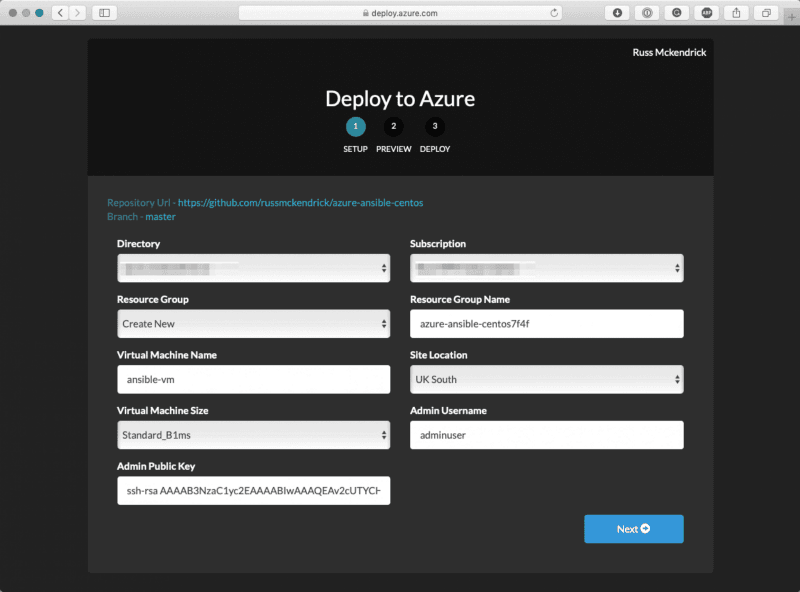 Once the required information has been filled in, clicking **Next** starts the validation, once passed they will be given an overview of the resources are about to be launched;
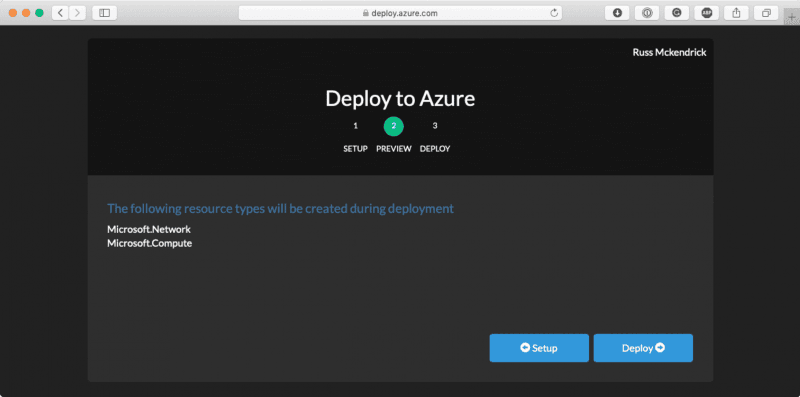 Clicking on the **Deploy** button will deploy the resources, and after several minutes they should see something like the following;
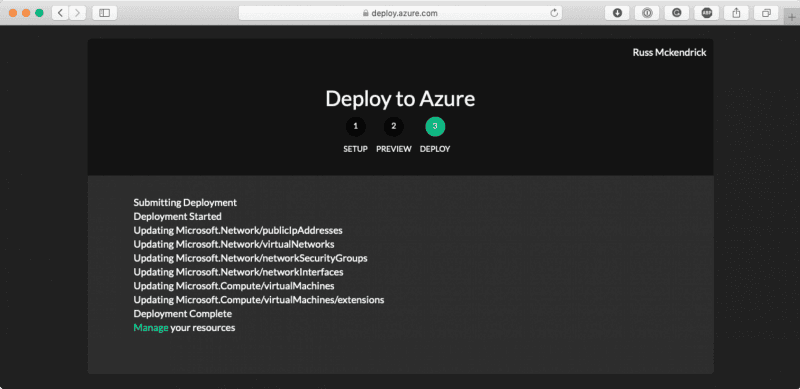 This is a nice and simple way to allow your users to launch your ARM template powered application in Azure ☁️.