# Azure DevOps Terraform Pipeline with Checkov & Approvals
> Setting up an Azure DevOps pipeline for Terraform deployments with Checkov scans, validation, and manual approval steps.
- Canonical: https://www.russ.cloud/2021/06/08/azure-devops-terraform-pipeline-with-checkov-approvals/
- Published: 2021-06-08
- Author: Russ McKendrick
- Tags: Terraform, Devops, Azure, Security, Infrastructure as Code
---
It’s been just over a year since I [first posted about the Azure DevOps Terraform Pipeline I used to use](https://mediaglasses.blog/azure-devops-terraform-pipeline-e50f1721ea1), I say used to use, because that pipeline is now a little outdated. This posts covers the updated Pipeline I am starting to deploy along side my Terraform code.
## Pipeline Overview
The pipeline itself has expanded a little and it now not only uses stages but also depending what Terraform is planning on doing it will trigger a manual approval process should there be any resources being destroyed.
The stages in the pipeline are as follows;
- **Checkov Scan**, this stage run [Checkov](http://checkov.io/), a tool by [BridgeCrew](https://bridgecrew.io/) which scans Terraform configuration to find common misconfigurations before they’re deployed. The results of the scan are uploaded to the Pipeline run and are available as a report.
- **Terraform Validate**, this stage run the `terraform validate` command to check that the Terraform files are valid, if there are any problems the pipeline errors.
- **Terraform Plan**, this stage runs the `terraform plan` command. Depending in the state of resources it finds variables are set which are used to determine the next stage which is executed. The output of the `terraform plan` command is also upload to Azure DevOps.
- **Terraform Apply (Auto Approval)**, if the Terraform Plan stage determines that the only changes to the state are additions then this stage is ran, it performs the `terraform apply` and effects the change.
- **Terraform Apply (Manual Approval)**, if the Terraform Plan stage determines that the changes to the state includes any resources being destroyed then this stage is ran, it triggers a manual approval task prompting someone to check before the `terraform apply` command is executed.
The Whole workflow can be found below (click on it for a larger view);
 As well as the addition of the stages detailed above, the pipeline has moved to using the [Terraform Azure DevOps extension from Microsoft DevLabs](https://marketplace.visualstudio.com/items?itemName=ms-devlabs.custom-terraform-tasks&ssr=false#overview) to the [Terraform Azure DevOps extension by Charles Zipp](https://marketplace.visualstudio.com/items?itemName=charleszipp.azure-pipelines-tasks-terraform).
The reasoning for this is that the extension by [Charles Zipp](https://github.com/charleszipp/azure-pipelines-tasks-terraform) enables a lot of the functionality I needed to enable the two different approval stages without having to code the logic myself - which I am always a fan of 😉
## The Stages
Now that we have an idea of what should happen, let’s take a look at what the pipeline looks like.
### Stage: Checkov Scan
The first stage to run downloads and executes a scan of the Terraform files using [Checkov](http://checkov.io/), you will notice the YAML below that we are pulling the [Checkov container from Dockerhub](https://hub.docker.com/r/bridgecrew/checkov) and the running it;
```yaml title="Checkov - Scan Terraform files"
- stage: "runCheckov"
displayName: "Checkov - Scan Terraform files"
jobs:
- job: "runCheckov"
displayName: "Checkov > Pull, run and publish results of Checkov scan"
steps:
- bash: |
docker pull bridgecrew/checkov
workingDirectory: $(System.DefaultWorkingDirectory)
displayName: "Pull > bridgecrew/checkov"
- bash: |
docker run \
--volume $(pwd):/tf bridgecrew/checkov \
--directory /tf \
--output junitxml \
--soft-fail > $(pwd)/CheckovReport.xml
workingDirectory: $(System.DefaultWorkingDirectory)
displayName: "Run > checkov"
- task: PublishTestResults@2
inputs:
testRunTitle: "Checkov Results"
failTaskOnFailedTests: true
testResultsFormat: "JUnit"
testResultsFiles: "CheckovReport.xml"
searchFolder: "$(System.DefaultWorkingDirectory)"
displayName: "Publish > Checkov scan results"
```
The command to run a Checkov scan locally on your own machine using Docker is below, just make sure you run it within same folder as your Terraform code;
```bash frame="terminal" title="Run Checkov locally"
docker run \
--volume $(pwd):/tf \
bridgecrew/checkov \
--directory /tf \
--output junitxml \
--soft-fail \
> $(pwd)/CheckovReport.xml
```
As you can see we are mounting the current folder (the `$(pwd) `variable) which as we have set the `workingDirectory` to be where the code has been checked out using the`$(System.DefaultWorkingDirectory)` variable. We are also setting the `--output` to be `junitxml` and then piping the output to a file called CheckovReport.xml.
The reason for using the `--soft-fail` flag is that if we didn't and Checkov was to find any problems the container would exit with a status which would cause the stage to fail with this task. Instead, we want to fail the task should there be any errors in the report once we have published the results of the scan.
We are publishing the test results using the built in [PublishTestResult](https://docs.microsoft.com/en-us/azure/devops/pipelines/tasks/test/publish-test-results?view=azure-devops&tabs=trx%2Cyaml) task, with the `failTaskOnFailedTests` option set as `true`.
We will set what happens when, or if, this stage fails later in the post.
### Stage: Terraform Validate
This stage run the `terraform validate` command, and if there are any problems it will fail. As you can see the from YAML below, the stage dependsOn the `runCheckov` stage and we are also installing Terraform and running `terraform init` before the `terraform validate` command is executed;
```yaml title="Terraform - Validate"
- stage: "validateTerraform"
displayName: "Terraform - Validate"
dependsOn:
- "runCheckov"
jobs:
- job: "TerraformJobs"
displayName: "Terraform > install, init and validate"
continueOnError: false
steps:
- task: TerraformInstaller@0
inputs:
terraformVersion: "$(tf_version)"
displayName: "Install > terraform"
- task: TerraformCLI@0
inputs:
command: "init"
backendType: "azurerm"
backendServiceArm: "$(SUBSCRIPTION_NAME)"
ensureBackend: true
backendAzureRmResourceGroupName: "$(tf_environment)-$(tf_state_rg)"
backendAzureRmResourceGroupLocation: "$(tz_state_location)"
backendAzureRmStorageAccountName: "$(tf_state_sa_name)"
backendAzureRmStorageAccountSku: "$(tf_state_sku)"
backendAzureRmContainerName: $(tf_state_container_name)
backendAzureRmKey: "$(tf_environment).terraform.tstate"
displayName: "Run > terraform init"
- task: TerraformCLI@0
inputs:
command: "validate"
environmentServiceName: "$(SUBSCRIPTION_NAME)"
displayName: "Run > terraform validate"
```
One of the other things which will happen when this stage is executed happens as part of the `terraform init` task, as we are setting `ensureBackend` to `true` the task will check for the presence of the Azure Storage Account we wish to use to store our Terraform state file in, if it is not there then the task will helpfully create it for us.
Once your code has been validated we can move onto the next stage.
### Stage: Terraform Plan
This stage is where things get a little more interesting, eventually, as our environment does not persist across stages we need to install Terraform and run `terraform init` again.
Once that has been done we are running the `terraform plan` command, thanks to some of the features in the [Terraform Azure DevOps extension by Charles Zipp](https://marketplace.visualstudio.com/items?itemName=charleszipp.azure-pipelines-tasks-terraform) we are able to publish the results of running` terraform plan` to our pipeline run by setting the `publishPlanResults` option.
Before we look at the last tasks of this stage lets look at the code for the full stage;
```yaml title="Terraform - Plan"
- stage: "planTerraform"
displayName: "Terraform - Plan"
dependsOn:
- "validateTerraform"
jobs:
- job: "TerraformJobs"
displayName: "Terraform > install, init & plan"
steps:
- task: TerraformInstaller@0
inputs:
terraformVersion: "$(tf_version)"
displayName: "Install > terraform"
- task: TerraformCLI@0
inputs:
command: "init"
backendType: "azurerm"
backendServiceArm: "$(SUBSCRIPTION_NAME)"
ensureBackend: true
backendAzureRmResourceGroupName: "$(tf_environment)-$(tf_state_rg)"
backendAzureRmResourceGroupLocation: "$(tz_state_location)"
backendAzureRmStorageAccountName: "$(tf_state_sa_name)"
backendAzureRmStorageAccountSku: "$(tf_state_sku)"
backendAzureRmContainerName: $(tf_state_container_name)
backendAzureRmKey: "$(tf_environment).terraform.tstate"
displayName: "Run > terraform init"
- task: TerraformCLI@0
inputs:
command: "plan"
environmentServiceName: "$(SUBSCRIPTION_NAME)"
publishPlanResults: "PlanResults"
commandOptions: "-out=$(System.DefaultWorkingDirectory)/terraform.tfplan -detailed-exitcode"
name: "plan"
displayName: "Run > terraform plan"
- task: TerraformCLI@0
inputs:
command: "show"
environmentServiceName: "$(SUBSCRIPTION_NAME)"
inputTargetPlanOrStateFilePath: "$(System.DefaultWorkingDirectory)/terraform.tfplan"
displayName: "Run > terraform show"
- bash: |
if [ "$TERRAFORM_PLAN_HAS_CHANGES" = true ] && [ "$TERRAFORM_PLAN_HAS_DESTROY_CHANGES" = false ] ; then
echo "##vso[task.setvariable variable=HAS_CHANGES_ONLY;isOutput=true]true"
echo "##vso[task.logissue type=warning]Changes with no destroys detected, it is safe for the pipeline to proceed automatically"
fi
if [ "$TERRAFORM_PLAN_HAS_CHANGES" = true ] && [ "$TERRAFORM_PLAN_HAS_DESTROY_CHANGES" = true ] ; then
echo "##vso[task.setvariable variable=HAS_DESTROY_CHANGES;isOutput=true]true"
echo "##vso[task.logissue type=warning]Changes with Destroy detected, pipeline will require a manual approval to proceed"
fi
if [ "$TERRAFORM_PLAN_HAS_CHANGES" != true ] ; then
echo "##vso[task.logissue type=warning]No changes detected, terraform apply will not run"
fi
name: "setvar"
displayName: "Vars > Set Variables for next stage"
```
As you can see, after we have ran `terraform plan` we are immediately running `terraform show` using the `terraform.tfplan` file we just generated.
You maybe think to yourself, why do that? Well, when using the [Terraform Azure DevOps extension by Charles Zipp](https://marketplace.visualstudio.com/items?itemName=charleszipp.azure-pipelines-tasks-terraform) it actually sets a few really useful variables. To start with, if there are any changes as a result of the `terraform plan` command a variable called `TERRAFORM_PLAN_HAS_CHANGES` is set as `true`.
When the `terraform show` command is executed against a `.tfplan` a second variable named`TERRAFORM_PLAN_HAS_DESTROY_CHANGES` will be set as `true` if the `.tfplan` contains any resources which are being destroyed.
In the final task of the stage we are using bash to set some variables which will help decide which, if any, of the following stages will be executed.
So if …
- `TERRAFORM_PLAN_HAS_CHANGES` = `true`
- `TERRAFORM_PLAN_HAS_DESTROY_CHANGES` = `false`
… then it is safe to proceed automatically execute the next stage, so we can pick this up in the next stages we are setting a variable named `HAS_CHANGES_ONLY` to `true`.
But, if we get …
- `TERRAFORM_PLAN_HAS_CHANGES` = `true`
- `TERRAFORM_PLAN_HAS_DESTROY_CHANGES` = `true`
… then we should prompt someone to check that what is going to be destroyed is expected, so by setting a variable called `HAS_DESTROY_CHANGES` to `true`.
Finally, if …
- `TERRAFORM_PLAN_HAS_CHANGES` is not `true`
… then we are just printing a message which will be displayed within the pipeline run to say that no changes were detected.
### Stage: Terraform Apply (Auto Approval)
As you may have already guessed, this stage is only executed if the following condition is met;
```yaml title="condition"
condition: |
and
(
succeeded(),
eq(dependencies.planTerraform.outputs['TerraformJobs.setvar.HAS_CHANGES_ONLY'], 'true')
)
```
As you can see, we are referencing the variable which was set in the previous stage using the following `echo` command;
```bash frame="terminal" title="echo"
echo "##vso[task.setvariable variable=HAS_CHANGES_ONLY;isOutput=true]true"
```
The variable is then referenced by adding the names of the stage, job, task and the variable itself, so something like;
```yaml title="dependencies"
dependencies.STAGE_NAME.outputs['JOB_NAME.TASK_NAME.VARIABLE_NAME']
```
The full stage looks like the following;
```yaml title="Terraform - Auto Approval"
- stage: "autoTerraform"
displayName: "Terraform - Auto Approval"
dependsOn:
- "planTerraform"
condition: |
and
(
succeeded(),
eq(dependencies.planTerraform.outputs['TerraformJobs.setvar.HAS_CHANGES_ONLY'], 'true')
)
jobs:
- job: "TerraformAuto"
displayName: "Terraform > install, init & apply"
steps:
- task: TerraformInstaller@0
inputs:
terraformVersion: "$(tf_version)"
displayName: "Install > terraform"
- task: TerraformCLI@0
inputs:
command: "init"
backendType: "azurerm"
backendServiceArm: "$(SUBSCRIPTION_NAME)"
ensureBackend: true
backendAzureRmResourceGroupName: "$(tf_environment)-$(tf_state_rg)"
backendAzureRmResourceGroupLocation: "$(tz_state_location)"
backendAzureRmStorageAccountName: "$(tf_state_sa_name)"
backendAzureRmStorageAccountSku: "$(tf_state_sku)"
backendAzureRmContainerName: $(tf_state_container_name)
backendAzureRmKey: "$(tf_environment).terraform.tstate"
displayName: "Run > terraform init"
- task: TerraformCLI@0
inputs:
command: "apply"
environmentServiceName: "$(SUBSCRIPTION_NAME)"
displayName: "Run > terraform apply"
```
As you can see, we are again installing Terraform and running `terraform init` before finally running `terraform apply`.
### Stage: Terraform Apply (Manual Approval)
This stage is almost exactly the same as the Auto Approval apart from the inclusion of a job which runs before the Terraform job;
```yaml title="Terraform - Manual Approval"
- stage: "approveTerraform"
displayName: "Terraform - Manual Approval"
dependsOn:
- "planTerraform"
condition: |
and
(
succeeded(),
eq(dependencies.planTerraform.outputs['TerraformJobs.setvar.HAS_DESTROY_CHANGES'], 'true')
)
jobs:
- job: "waitForValidation"
displayName: "Wait > Wait for manual appoval"
pool: "server"
timeoutInMinutes: "4320" # job times out in 3 days
steps:
- task: ManualValidation@0
timeoutInMinutes: "1440" # task times out in 1 day
inputs:
notifyUsers: |
azure@mckendrick.io
instructions: "There are resources being destroyed as part of this deployment, please review the output of Terraform plan before approving."
onTimeout: "reject"
- job: "TerraformApprove"
displayName: "Terraform > install, init & apply"
dependsOn: "waitForValidation"
steps:
- task: TerraformInstaller@0
inputs:
terraformVersion: "$(tf_version)"
displayName: "Install > terraform"
- task: TerraformCLI@0
inputs:
command: "init"
backendType: "azurerm"
backendServiceArm: "$(SUBSCRIPTION_NAME)"
ensureBackend: true
backendAzureRmResourceGroupName: "$(tf_environment)-$(tf_state_rg)"
backendAzureRmResourceGroupLocation: "$(tz_state_location)"
backendAzureRmStorageAccountName: "$(tf_state_sa_name)"
backendAzureRmStorageAccountSku: "$(tf_state_sku)"
backendAzureRmContainerName: $(tf_state_container_name)
backendAzureRmKey: "$(tf_environment).terraform.tstate"
displayName: "Run > terraform init"
- task: TerraformCLI@0
inputs:
command: "apply"
environmentServiceName: "$(SUBSCRIPTION_NAME)"
displayName: "Run > terraform apply"
```
This job basically stalls the pipeline execution for 24 hours, after which, if no-one approves the run, the job will fail. The job utilises the `ManualValidation@0` task, more detail on which can be found at [https://docs.microsoft.com/en-us/azure/devops/pipelines/tasks/utility/manual-validation](https://docs.microsoft.com/en-us/azure/devops/pipelines/tasks/utility/manual-validation?view=azure-devops&tabs=yaml).
Once approved the Terraform job will be executed which will ultimately run `terraform apply` which will result in at least one of the resources in your Terraform state file being destroyed.
## Running the Pipeline
Let’t now take a look at running the pipeline, first let’s check in some code which adds a basic Resource Group.
The Terraform code for this looks like the following;
```hcl title="main.tf"
resource "azurecaf_name" "rg_example" {
name = "demogroup"
resource_type = "azurerm_resource_group"
prefixes = ["dev"]
clean_input = true
}
resource "azurerm_resource_group" "resource_group" {
name = azurecaf_name.rg_example.result
location = "uksouth"
tags = merge(var.default_tags, tomap({ "type" = "resource" }))
}
```
I am using the [Azure CAF Name provider](https://registry.terraform.io/providers/aztfmod/azurecaf/latest/docs/resources/azurecaf_name) to generate the name of the resource group and then the [AzureRM provider](https://registry.terraform.io/providers/hashicorp/azurerm/latest/docs) to create it.
### Initial Run
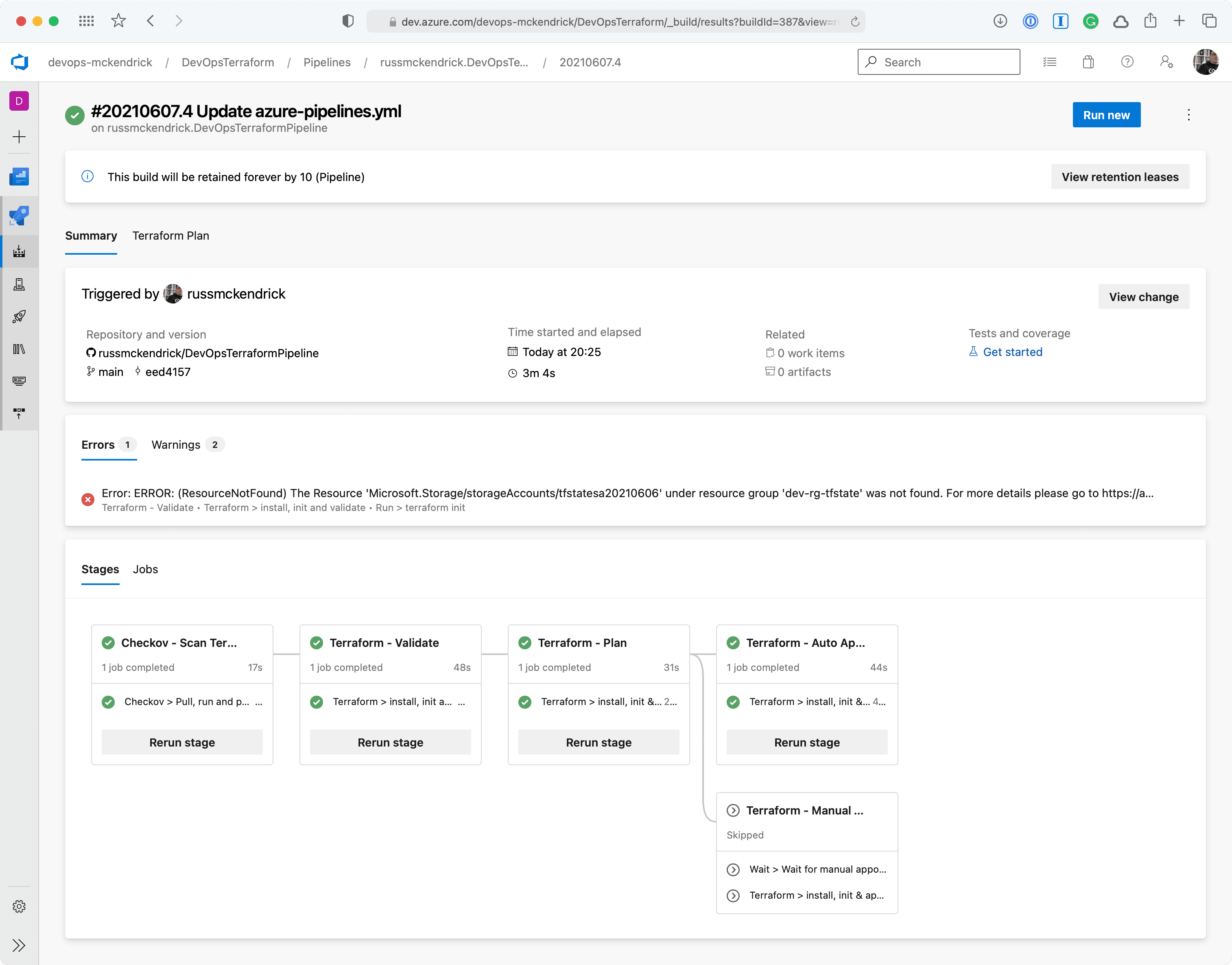
As you can from the screen below, there was a single error, which stated that the storage account for the Terraform state file did not exist, buts that OK as that will be created for us.
As well as the addition of the stages detailed above, the pipeline has moved to using the [Terraform Azure DevOps extension from Microsoft DevLabs](https://marketplace.visualstudio.com/items?itemName=ms-devlabs.custom-terraform-tasks&ssr=false#overview) to the [Terraform Azure DevOps extension by Charles Zipp](https://marketplace.visualstudio.com/items?itemName=charleszipp.azure-pipelines-tasks-terraform).
The reasoning for this is that the extension by [Charles Zipp](https://github.com/charleszipp/azure-pipelines-tasks-terraform) enables a lot of the functionality I needed to enable the two different approval stages without having to code the logic myself - which I am always a fan of 😉
## The Stages
Now that we have an idea of what should happen, let’s take a look at what the pipeline looks like.
### Stage: Checkov Scan
The first stage to run downloads and executes a scan of the Terraform files using [Checkov](http://checkov.io/), you will notice the YAML below that we are pulling the [Checkov container from Dockerhub](https://hub.docker.com/r/bridgecrew/checkov) and the running it;
```yaml title="Checkov - Scan Terraform files"
- stage: "runCheckov"
displayName: "Checkov - Scan Terraform files"
jobs:
- job: "runCheckov"
displayName: "Checkov > Pull, run and publish results of Checkov scan"
steps:
- bash: |
docker pull bridgecrew/checkov
workingDirectory: $(System.DefaultWorkingDirectory)
displayName: "Pull > bridgecrew/checkov"
- bash: |
docker run \
--volume $(pwd):/tf bridgecrew/checkov \
--directory /tf \
--output junitxml \
--soft-fail > $(pwd)/CheckovReport.xml
workingDirectory: $(System.DefaultWorkingDirectory)
displayName: "Run > checkov"
- task: PublishTestResults@2
inputs:
testRunTitle: "Checkov Results"
failTaskOnFailedTests: true
testResultsFormat: "JUnit"
testResultsFiles: "CheckovReport.xml"
searchFolder: "$(System.DefaultWorkingDirectory)"
displayName: "Publish > Checkov scan results"
```
The command to run a Checkov scan locally on your own machine using Docker is below, just make sure you run it within same folder as your Terraform code;
```bash frame="terminal" title="Run Checkov locally"
docker run \
--volume $(pwd):/tf \
bridgecrew/checkov \
--directory /tf \
--output junitxml \
--soft-fail \
> $(pwd)/CheckovReport.xml
```
As you can see we are mounting the current folder (the `$(pwd) `variable) which as we have set the `workingDirectory` to be where the code has been checked out using the`$(System.DefaultWorkingDirectory)` variable. We are also setting the `--output` to be `junitxml` and then piping the output to a file called CheckovReport.xml.
The reason for using the `--soft-fail` flag is that if we didn't and Checkov was to find any problems the container would exit with a status which would cause the stage to fail with this task. Instead, we want to fail the task should there be any errors in the report once we have published the results of the scan.
We are publishing the test results using the built in [PublishTestResult](https://docs.microsoft.com/en-us/azure/devops/pipelines/tasks/test/publish-test-results?view=azure-devops&tabs=trx%2Cyaml) task, with the `failTaskOnFailedTests` option set as `true`.
We will set what happens when, or if, this stage fails later in the post.
### Stage: Terraform Validate
This stage run the `terraform validate` command, and if there are any problems it will fail. As you can see the from YAML below, the stage dependsOn the `runCheckov` stage and we are also installing Terraform and running `terraform init` before the `terraform validate` command is executed;
```yaml title="Terraform - Validate"
- stage: "validateTerraform"
displayName: "Terraform - Validate"
dependsOn:
- "runCheckov"
jobs:
- job: "TerraformJobs"
displayName: "Terraform > install, init and validate"
continueOnError: false
steps:
- task: TerraformInstaller@0
inputs:
terraformVersion: "$(tf_version)"
displayName: "Install > terraform"
- task: TerraformCLI@0
inputs:
command: "init"
backendType: "azurerm"
backendServiceArm: "$(SUBSCRIPTION_NAME)"
ensureBackend: true
backendAzureRmResourceGroupName: "$(tf_environment)-$(tf_state_rg)"
backendAzureRmResourceGroupLocation: "$(tz_state_location)"
backendAzureRmStorageAccountName: "$(tf_state_sa_name)"
backendAzureRmStorageAccountSku: "$(tf_state_sku)"
backendAzureRmContainerName: $(tf_state_container_name)
backendAzureRmKey: "$(tf_environment).terraform.tstate"
displayName: "Run > terraform init"
- task: TerraformCLI@0
inputs:
command: "validate"
environmentServiceName: "$(SUBSCRIPTION_NAME)"
displayName: "Run > terraform validate"
```
One of the other things which will happen when this stage is executed happens as part of the `terraform init` task, as we are setting `ensureBackend` to `true` the task will check for the presence of the Azure Storage Account we wish to use to store our Terraform state file in, if it is not there then the task will helpfully create it for us.
Once your code has been validated we can move onto the next stage.
### Stage: Terraform Plan
This stage is where things get a little more interesting, eventually, as our environment does not persist across stages we need to install Terraform and run `terraform init` again.
Once that has been done we are running the `terraform plan` command, thanks to some of the features in the [Terraform Azure DevOps extension by Charles Zipp](https://marketplace.visualstudio.com/items?itemName=charleszipp.azure-pipelines-tasks-terraform) we are able to publish the results of running` terraform plan` to our pipeline run by setting the `publishPlanResults` option.
Before we look at the last tasks of this stage lets look at the code for the full stage;
```yaml title="Terraform - Plan"
- stage: "planTerraform"
displayName: "Terraform - Plan"
dependsOn:
- "validateTerraform"
jobs:
- job: "TerraformJobs"
displayName: "Terraform > install, init & plan"
steps:
- task: TerraformInstaller@0
inputs:
terraformVersion: "$(tf_version)"
displayName: "Install > terraform"
- task: TerraformCLI@0
inputs:
command: "init"
backendType: "azurerm"
backendServiceArm: "$(SUBSCRIPTION_NAME)"
ensureBackend: true
backendAzureRmResourceGroupName: "$(tf_environment)-$(tf_state_rg)"
backendAzureRmResourceGroupLocation: "$(tz_state_location)"
backendAzureRmStorageAccountName: "$(tf_state_sa_name)"
backendAzureRmStorageAccountSku: "$(tf_state_sku)"
backendAzureRmContainerName: $(tf_state_container_name)
backendAzureRmKey: "$(tf_environment).terraform.tstate"
displayName: "Run > terraform init"
- task: TerraformCLI@0
inputs:
command: "plan"
environmentServiceName: "$(SUBSCRIPTION_NAME)"
publishPlanResults: "PlanResults"
commandOptions: "-out=$(System.DefaultWorkingDirectory)/terraform.tfplan -detailed-exitcode"
name: "plan"
displayName: "Run > terraform plan"
- task: TerraformCLI@0
inputs:
command: "show"
environmentServiceName: "$(SUBSCRIPTION_NAME)"
inputTargetPlanOrStateFilePath: "$(System.DefaultWorkingDirectory)/terraform.tfplan"
displayName: "Run > terraform show"
- bash: |
if [ "$TERRAFORM_PLAN_HAS_CHANGES" = true ] && [ "$TERRAFORM_PLAN_HAS_DESTROY_CHANGES" = false ] ; then
echo "##vso[task.setvariable variable=HAS_CHANGES_ONLY;isOutput=true]true"
echo "##vso[task.logissue type=warning]Changes with no destroys detected, it is safe for the pipeline to proceed automatically"
fi
if [ "$TERRAFORM_PLAN_HAS_CHANGES" = true ] && [ "$TERRAFORM_PLAN_HAS_DESTROY_CHANGES" = true ] ; then
echo "##vso[task.setvariable variable=HAS_DESTROY_CHANGES;isOutput=true]true"
echo "##vso[task.logissue type=warning]Changes with Destroy detected, pipeline will require a manual approval to proceed"
fi
if [ "$TERRAFORM_PLAN_HAS_CHANGES" != true ] ; then
echo "##vso[task.logissue type=warning]No changes detected, terraform apply will not run"
fi
name: "setvar"
displayName: "Vars > Set Variables for next stage"
```
As you can see, after we have ran `terraform plan` we are immediately running `terraform show` using the `terraform.tfplan` file we just generated.
You maybe think to yourself, why do that? Well, when using the [Terraform Azure DevOps extension by Charles Zipp](https://marketplace.visualstudio.com/items?itemName=charleszipp.azure-pipelines-tasks-terraform) it actually sets a few really useful variables. To start with, if there are any changes as a result of the `terraform plan` command a variable called `TERRAFORM_PLAN_HAS_CHANGES` is set as `true`.
When the `terraform show` command is executed against a `.tfplan` a second variable named`TERRAFORM_PLAN_HAS_DESTROY_CHANGES` will be set as `true` if the `.tfplan` contains any resources which are being destroyed.
In the final task of the stage we are using bash to set some variables which will help decide which, if any, of the following stages will be executed.
So if …
- `TERRAFORM_PLAN_HAS_CHANGES` = `true`
- `TERRAFORM_PLAN_HAS_DESTROY_CHANGES` = `false`
… then it is safe to proceed automatically execute the next stage, so we can pick this up in the next stages we are setting a variable named `HAS_CHANGES_ONLY` to `true`.
But, if we get …
- `TERRAFORM_PLAN_HAS_CHANGES` = `true`
- `TERRAFORM_PLAN_HAS_DESTROY_CHANGES` = `true`
… then we should prompt someone to check that what is going to be destroyed is expected, so by setting a variable called `HAS_DESTROY_CHANGES` to `true`.
Finally, if …
- `TERRAFORM_PLAN_HAS_CHANGES` is not `true`
… then we are just printing a message which will be displayed within the pipeline run to say that no changes were detected.
### Stage: Terraform Apply (Auto Approval)
As you may have already guessed, this stage is only executed if the following condition is met;
```yaml title="condition"
condition: |
and
(
succeeded(),
eq(dependencies.planTerraform.outputs['TerraformJobs.setvar.HAS_CHANGES_ONLY'], 'true')
)
```
As you can see, we are referencing the variable which was set in the previous stage using the following `echo` command;
```bash frame="terminal" title="echo"
echo "##vso[task.setvariable variable=HAS_CHANGES_ONLY;isOutput=true]true"
```
The variable is then referenced by adding the names of the stage, job, task and the variable itself, so something like;
```yaml title="dependencies"
dependencies.STAGE_NAME.outputs['JOB_NAME.TASK_NAME.VARIABLE_NAME']
```
The full stage looks like the following;
```yaml title="Terraform - Auto Approval"
- stage: "autoTerraform"
displayName: "Terraform - Auto Approval"
dependsOn:
- "planTerraform"
condition: |
and
(
succeeded(),
eq(dependencies.planTerraform.outputs['TerraformJobs.setvar.HAS_CHANGES_ONLY'], 'true')
)
jobs:
- job: "TerraformAuto"
displayName: "Terraform > install, init & apply"
steps:
- task: TerraformInstaller@0
inputs:
terraformVersion: "$(tf_version)"
displayName: "Install > terraform"
- task: TerraformCLI@0
inputs:
command: "init"
backendType: "azurerm"
backendServiceArm: "$(SUBSCRIPTION_NAME)"
ensureBackend: true
backendAzureRmResourceGroupName: "$(tf_environment)-$(tf_state_rg)"
backendAzureRmResourceGroupLocation: "$(tz_state_location)"
backendAzureRmStorageAccountName: "$(tf_state_sa_name)"
backendAzureRmStorageAccountSku: "$(tf_state_sku)"
backendAzureRmContainerName: $(tf_state_container_name)
backendAzureRmKey: "$(tf_environment).terraform.tstate"
displayName: "Run > terraform init"
- task: TerraformCLI@0
inputs:
command: "apply"
environmentServiceName: "$(SUBSCRIPTION_NAME)"
displayName: "Run > terraform apply"
```
As you can see, we are again installing Terraform and running `terraform init` before finally running `terraform apply`.
### Stage: Terraform Apply (Manual Approval)
This stage is almost exactly the same as the Auto Approval apart from the inclusion of a job which runs before the Terraform job;
```yaml title="Terraform - Manual Approval"
- stage: "approveTerraform"
displayName: "Terraform - Manual Approval"
dependsOn:
- "planTerraform"
condition: |
and
(
succeeded(),
eq(dependencies.planTerraform.outputs['TerraformJobs.setvar.HAS_DESTROY_CHANGES'], 'true')
)
jobs:
- job: "waitForValidation"
displayName: "Wait > Wait for manual appoval"
pool: "server"
timeoutInMinutes: "4320" # job times out in 3 days
steps:
- task: ManualValidation@0
timeoutInMinutes: "1440" # task times out in 1 day
inputs:
notifyUsers: |
azure@mckendrick.io
instructions: "There are resources being destroyed as part of this deployment, please review the output of Terraform plan before approving."
onTimeout: "reject"
- job: "TerraformApprove"
displayName: "Terraform > install, init & apply"
dependsOn: "waitForValidation"
steps:
- task: TerraformInstaller@0
inputs:
terraformVersion: "$(tf_version)"
displayName: "Install > terraform"
- task: TerraformCLI@0
inputs:
command: "init"
backendType: "azurerm"
backendServiceArm: "$(SUBSCRIPTION_NAME)"
ensureBackend: true
backendAzureRmResourceGroupName: "$(tf_environment)-$(tf_state_rg)"
backendAzureRmResourceGroupLocation: "$(tz_state_location)"
backendAzureRmStorageAccountName: "$(tf_state_sa_name)"
backendAzureRmStorageAccountSku: "$(tf_state_sku)"
backendAzureRmContainerName: $(tf_state_container_name)
backendAzureRmKey: "$(tf_environment).terraform.tstate"
displayName: "Run > terraform init"
- task: TerraformCLI@0
inputs:
command: "apply"
environmentServiceName: "$(SUBSCRIPTION_NAME)"
displayName: "Run > terraform apply"
```
This job basically stalls the pipeline execution for 24 hours, after which, if no-one approves the run, the job will fail. The job utilises the `ManualValidation@0` task, more detail on which can be found at [https://docs.microsoft.com/en-us/azure/devops/pipelines/tasks/utility/manual-validation](https://docs.microsoft.com/en-us/azure/devops/pipelines/tasks/utility/manual-validation?view=azure-devops&tabs=yaml).
Once approved the Terraform job will be executed which will ultimately run `terraform apply` which will result in at least one of the resources in your Terraform state file being destroyed.
## Running the Pipeline
Let’t now take a look at running the pipeline, first let’s check in some code which adds a basic Resource Group.
The Terraform code for this looks like the following;
```hcl title="main.tf"
resource "azurecaf_name" "rg_example" {
name = "demogroup"
resource_type = "azurerm_resource_group"
prefixes = ["dev"]
clean_input = true
}
resource "azurerm_resource_group" "resource_group" {
name = azurecaf_name.rg_example.result
location = "uksouth"
tags = merge(var.default_tags, tomap({ "type" = "resource" }))
}
```
I am using the [Azure CAF Name provider](https://registry.terraform.io/providers/aztfmod/azurecaf/latest/docs/resources/azurecaf_name) to generate the name of the resource group and then the [AzureRM provider](https://registry.terraform.io/providers/hashicorp/azurerm/latest/docs) to create it.
### Initial Run
As you can from the screen below, there was a single error, which stated that the storage account for the Terraform state file did not exist, buts that OK as that will be created for us.
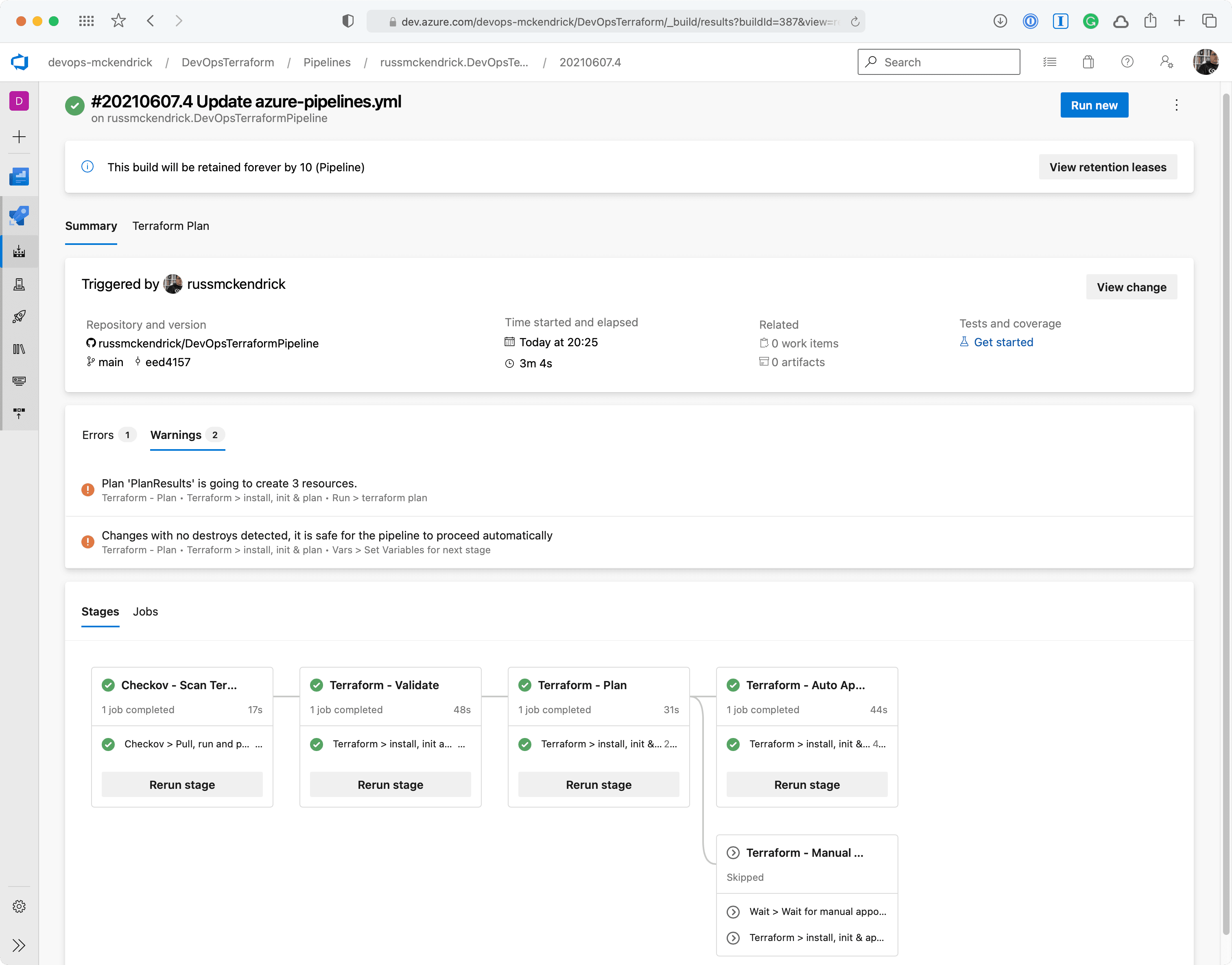
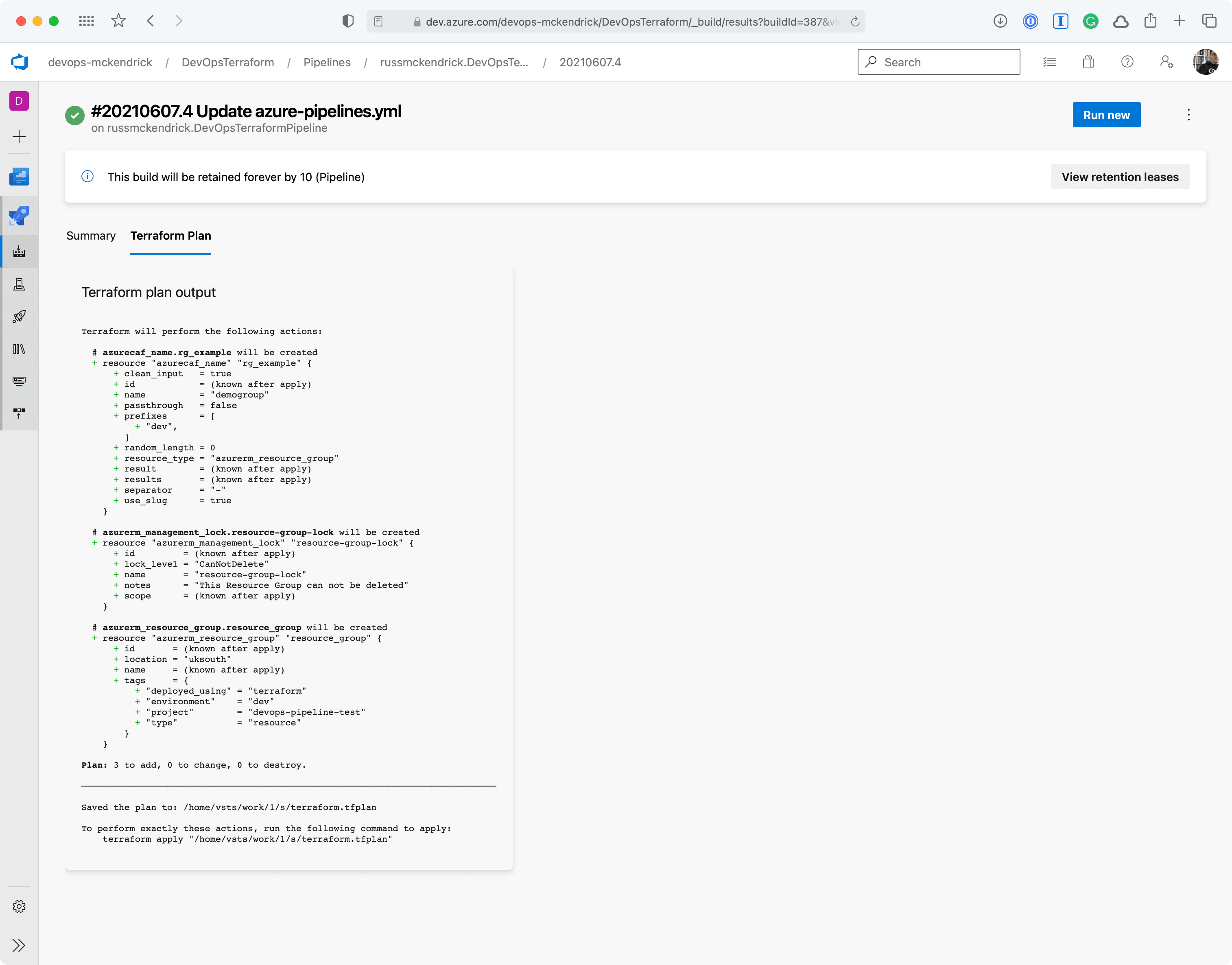
 The two screens below show the warnings;
{/* Old gallery removed - please add images manually if needed */}
The two screens below show the warnings;
{/* Old gallery removed - please add images manually if needed */}
 ### No Changes Run
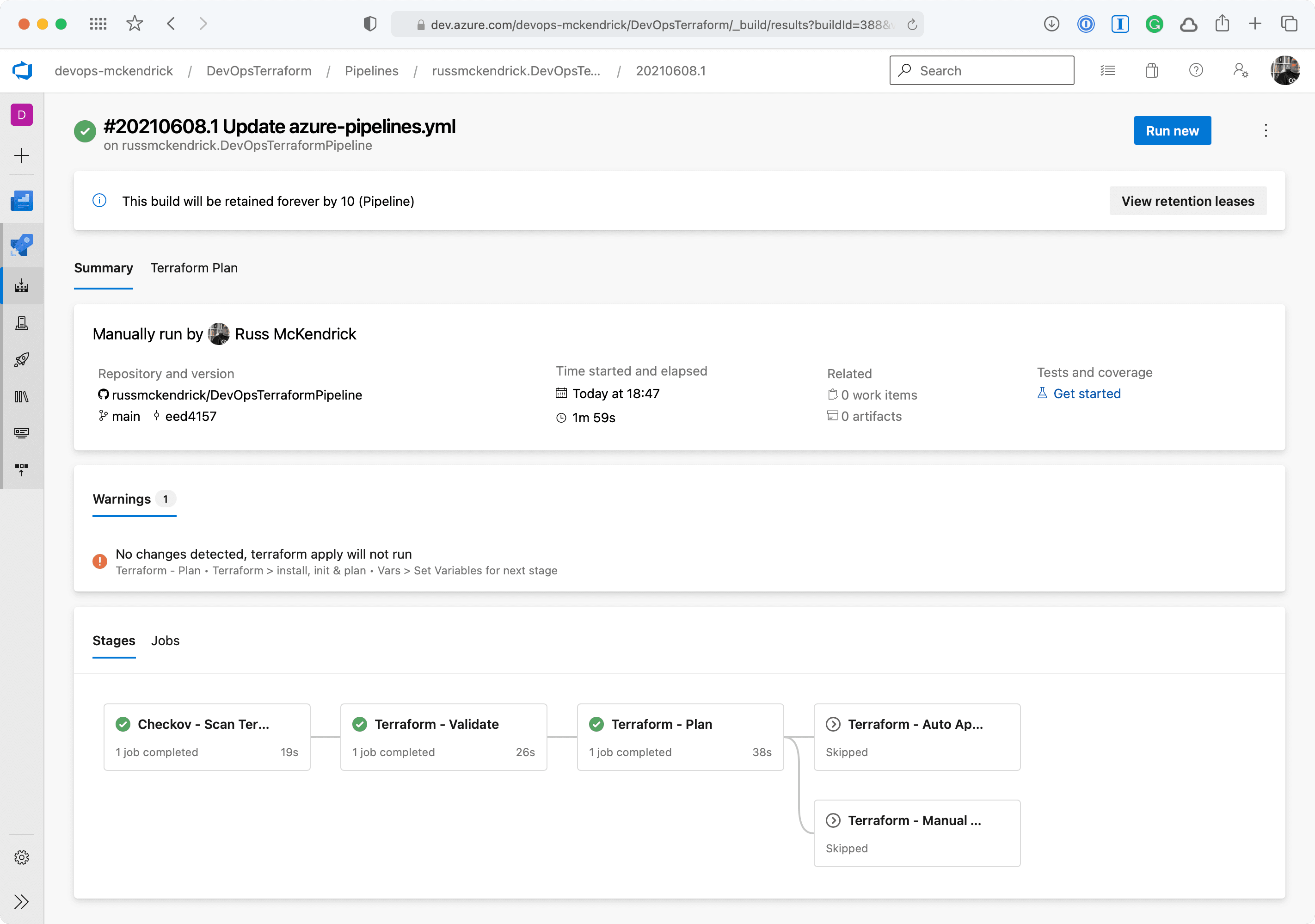
The next run didn’t add, change or remove any resources which meant that neither the `HAS_CHANGES_ONLY` or `HAS_DESTROY_CHANGES` variables were set to `true`, so the `terraform apply` stages did not run this time;
### No Changes Run
The next run didn’t add, change or remove any resources which meant that neither the `HAS_CHANGES_ONLY` or `HAS_DESTROY_CHANGES` variables were set to `true`, so the `terraform apply` stages did not run this time;
 ### Introducing some mistakes
One thing which hasn’t happened yet is that we have not added anything which Checkov would scan, let’s do that now by adding a Network Security Group to our Terraform file;
```hcl title="Bad main.tf"
resource "azurecaf_name" "nsg" {
name = "demo"
resource_type = "azurerm_network_security_group"
prefixes = ["dev"]
clean_input = true
}
resource "azurecaf_name" "ssh" {
name = "ssh"
resource_type = "azurerm_network_security_rule"
prefixes = ["dev"]
clean_input = true
}
resource "azurecaf_name" "rdp" {
name = "rdp"
resource_type = "azurerm_network_security_rule"
prefixes = ["dev"]
clean_input = true
}
resource azurerm_network_security_group "nsg" {
name = azurecaf_name.nsg.result
resource_group_name = azurerm_resource_group.resource_group.name
location = azurerm_resource_group.resource_group.location
security_rule {
access = "Allow"
direction = "Inbound"
name = azurecaf_name.ssh.result
priority = 200
protocol = "TCP"
source_address_prefix = "*"
source_port_range = "*"
destination_port_range = "22-22"
destination_address_prefix = "*"
}
security_rule {
access = "Allow"
direction = "Inbound"
name = azurecaf_name.rdp.result
priority = 300
protocol = "TCP"
source_address_prefix = "*"
source_port_range = "*"
destination_port_range = "3389-3389"
destination_address_prefix = "*"
}
}
```
Nothing to bad on the face of it you maybe thinking, let’s commit the change which will trigger a run of the pipeline;
### Introducing some mistakes
One thing which hasn’t happened yet is that we have not added anything which Checkov would scan, let’s do that now by adding a Network Security Group to our Terraform file;
```hcl title="Bad main.tf"
resource "azurecaf_name" "nsg" {
name = "demo"
resource_type = "azurerm_network_security_group"
prefixes = ["dev"]
clean_input = true
}
resource "azurecaf_name" "ssh" {
name = "ssh"
resource_type = "azurerm_network_security_rule"
prefixes = ["dev"]
clean_input = true
}
resource "azurecaf_name" "rdp" {
name = "rdp"
resource_type = "azurerm_network_security_rule"
prefixes = ["dev"]
clean_input = true
}
resource azurerm_network_security_group "nsg" {
name = azurecaf_name.nsg.result
resource_group_name = azurerm_resource_group.resource_group.name
location = azurerm_resource_group.resource_group.location
security_rule {
access = "Allow"
direction = "Inbound"
name = azurecaf_name.ssh.result
priority = 200
protocol = "TCP"
source_address_prefix = "*"
source_port_range = "*"
destination_port_range = "22-22"
destination_address_prefix = "*"
}
security_rule {
access = "Allow"
direction = "Inbound"
name = azurecaf_name.rdp.result
priority = 300
protocol = "TCP"
source_address_prefix = "*"
source_port_range = "*"
destination_port_range = "3389-3389"
destination_address_prefix = "*"
}
}
```
Nothing to bad on the face of it you maybe thinking, let’s commit the change which will trigger a run of the pipeline;
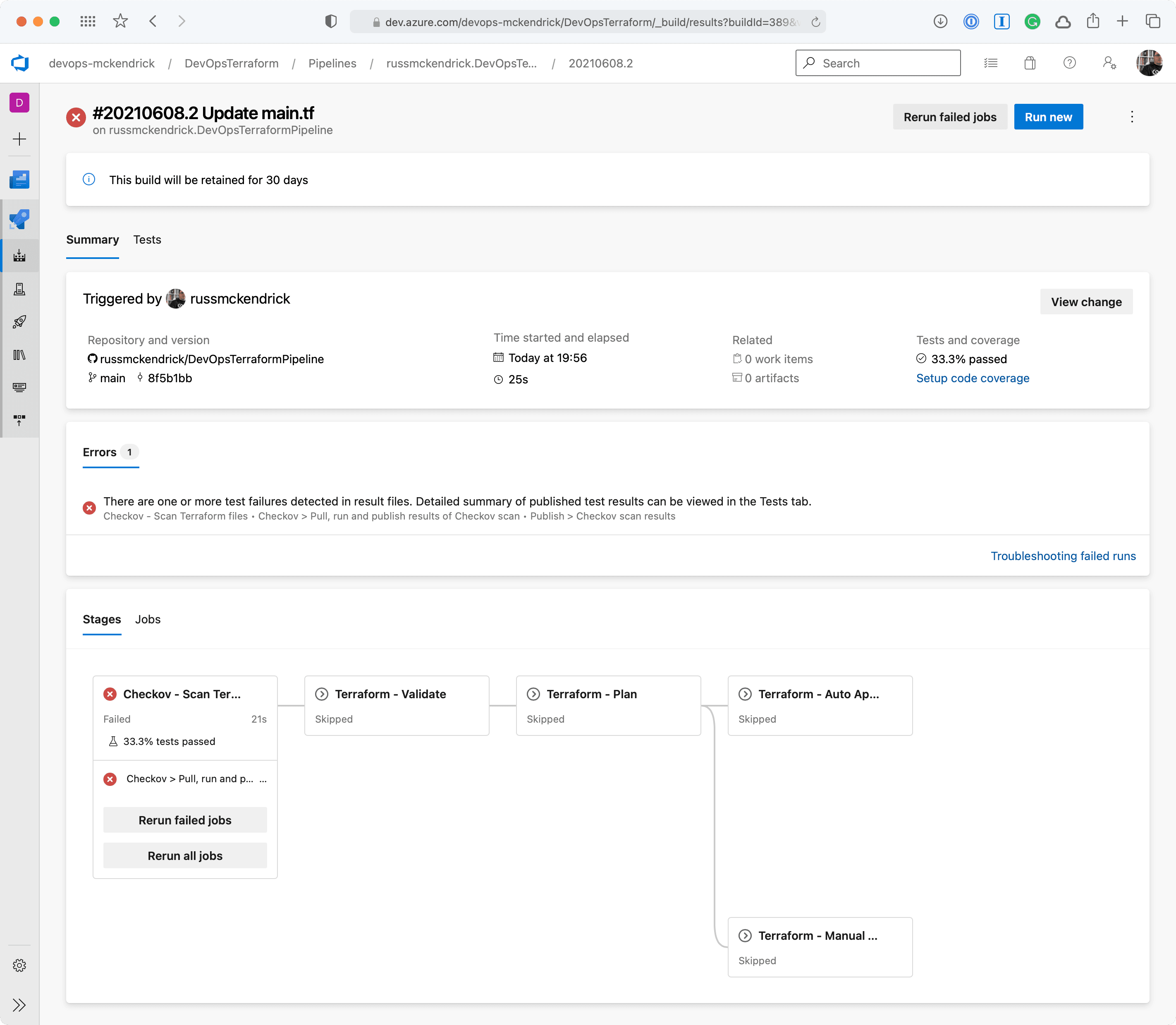 Whoops, the Checkov stage failed, clicking on **Tests** should give us more information as to why;
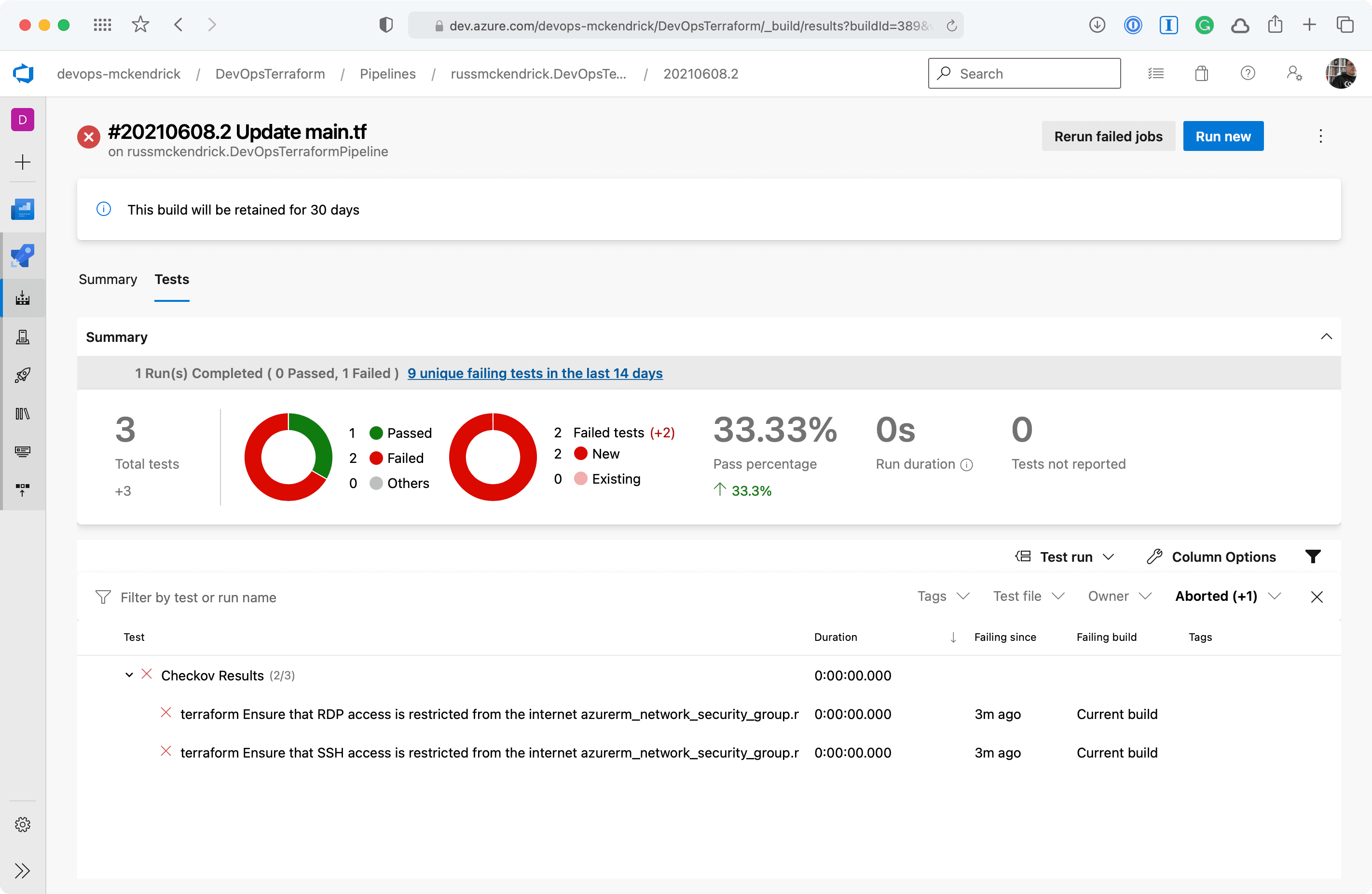 Clicking on either the two results will give a more information;
{/* Old gallery removed - please add images manually if needed */}
Clicking on either the two results will give a more information;
{/* Old gallery removed - please add images manually if needed */}
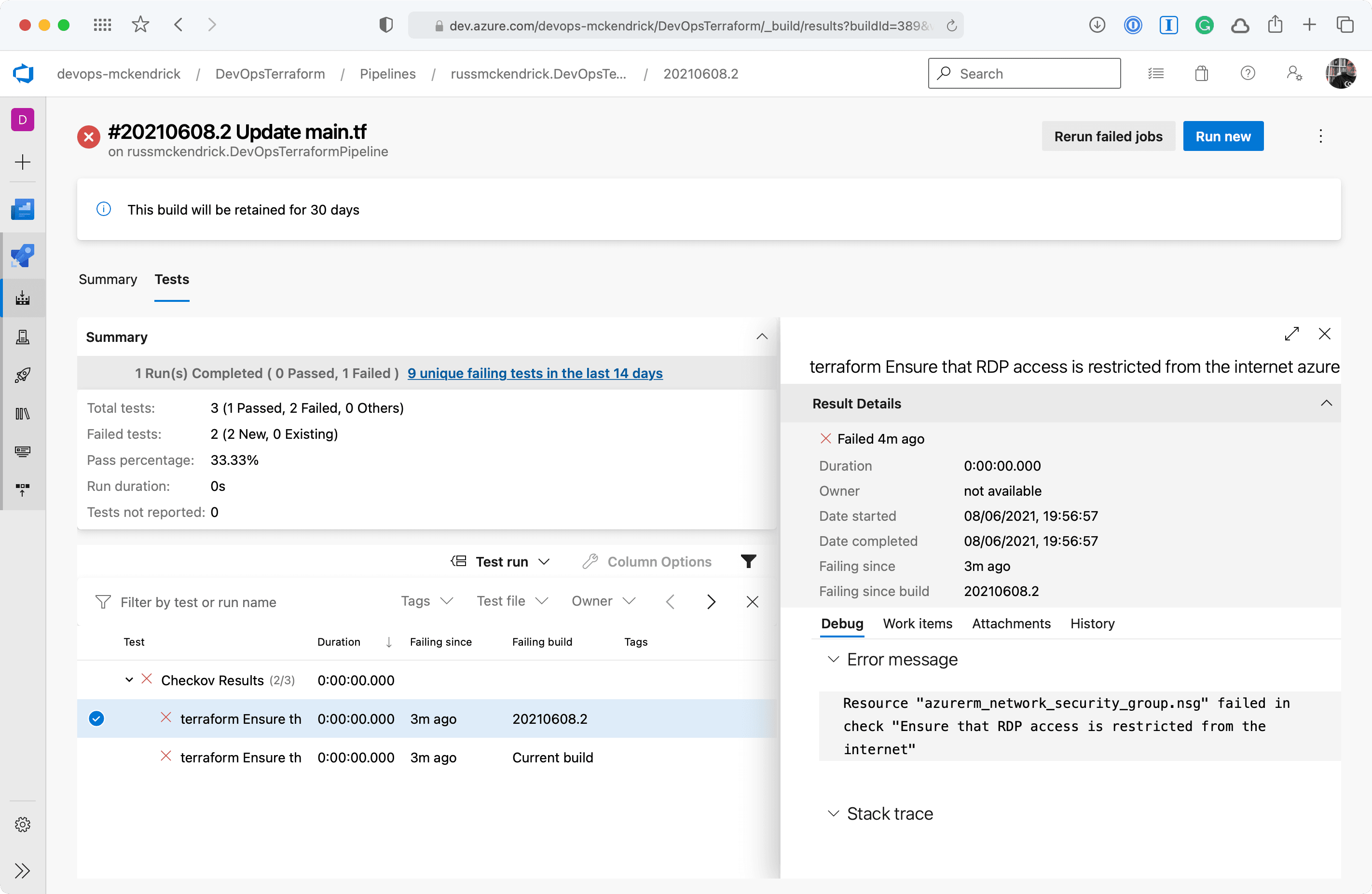
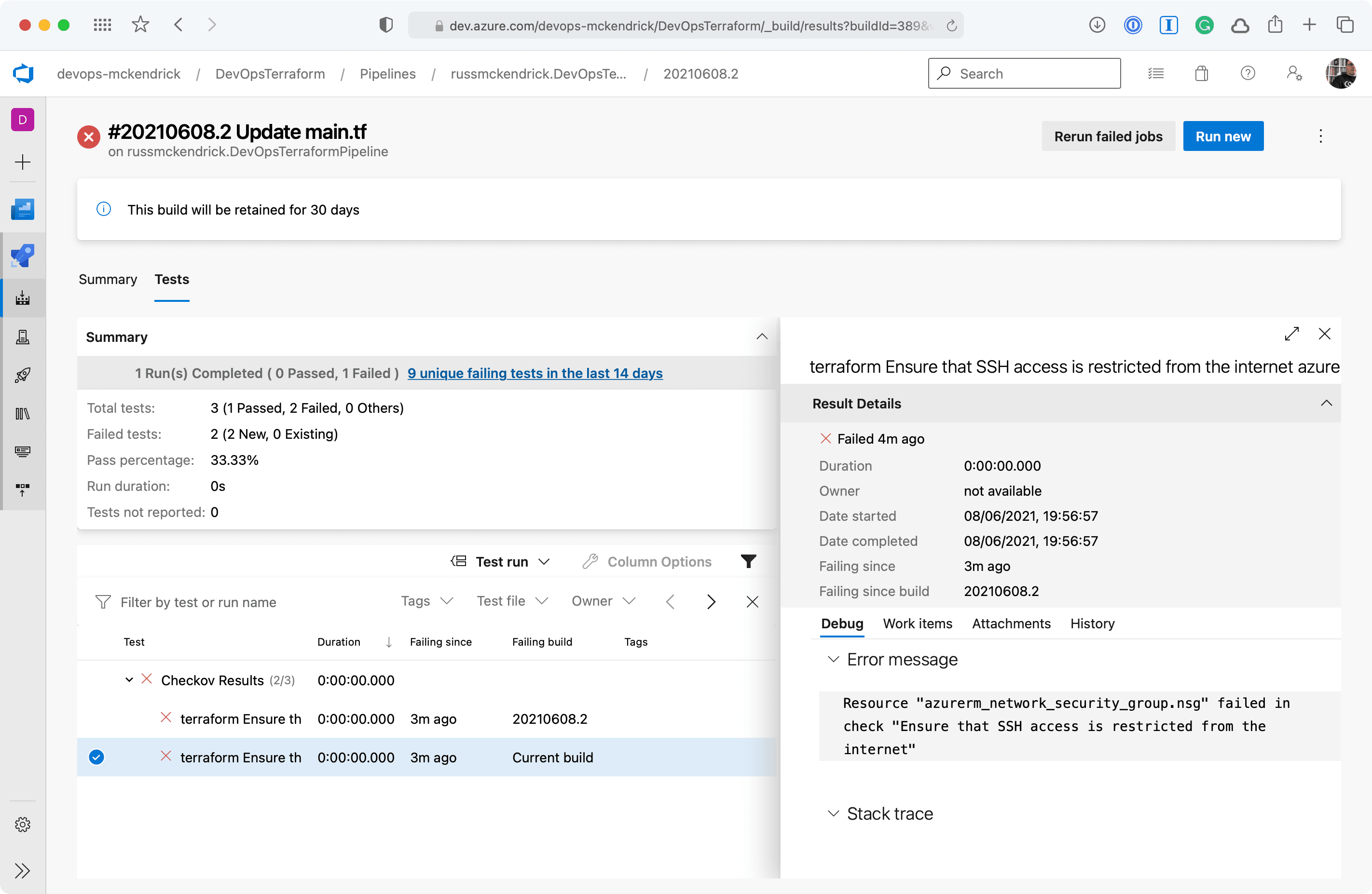 As you can see, we are allow full access to both SSH and RDP to the whole internet - not a great idea so we will need to update the code to lock those two rules down to an IP address. Thankfully, the Checkov stage errored before any of the Terraform stages were executed meaning that our mistake never made it as far as being deployed.
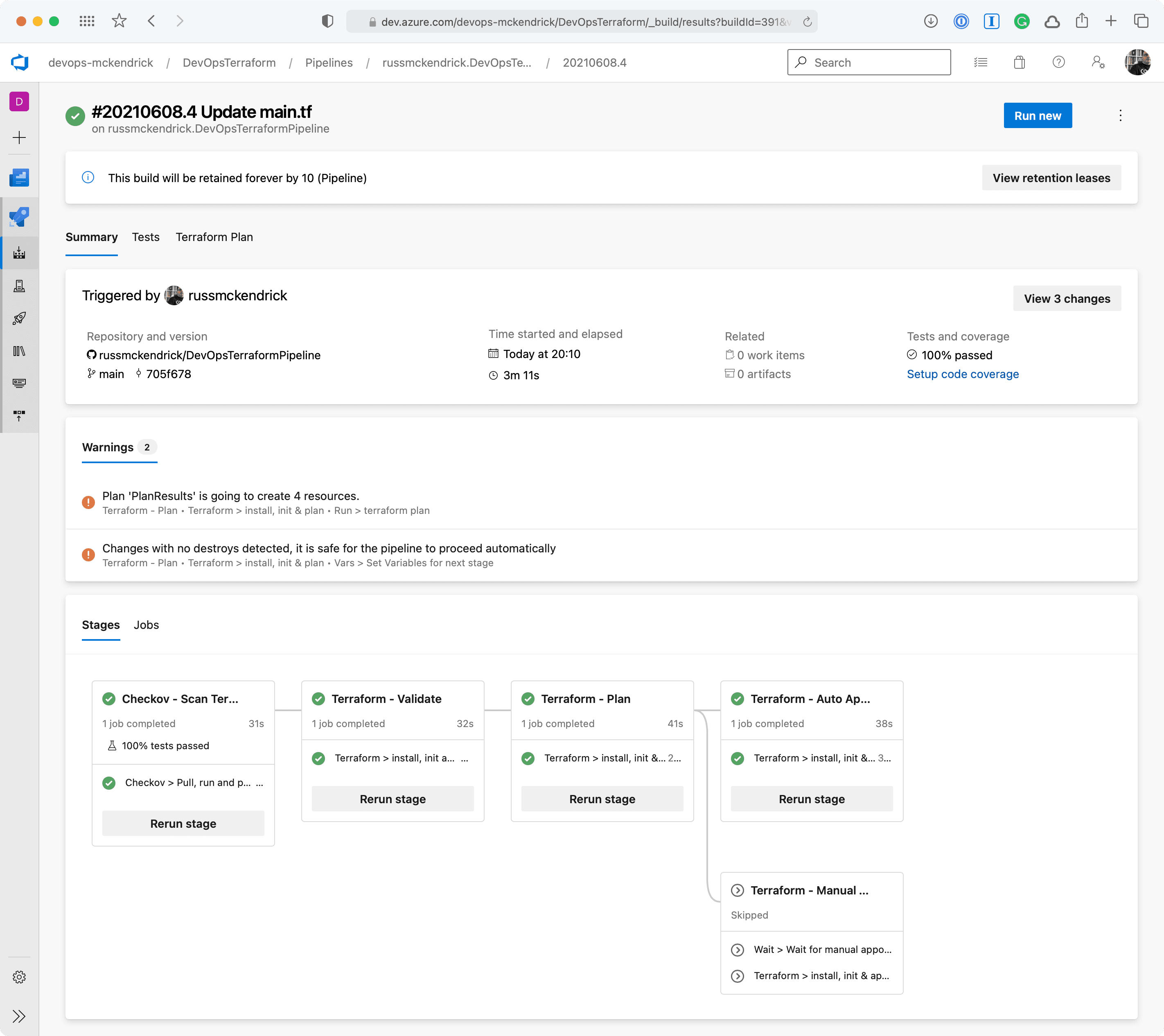
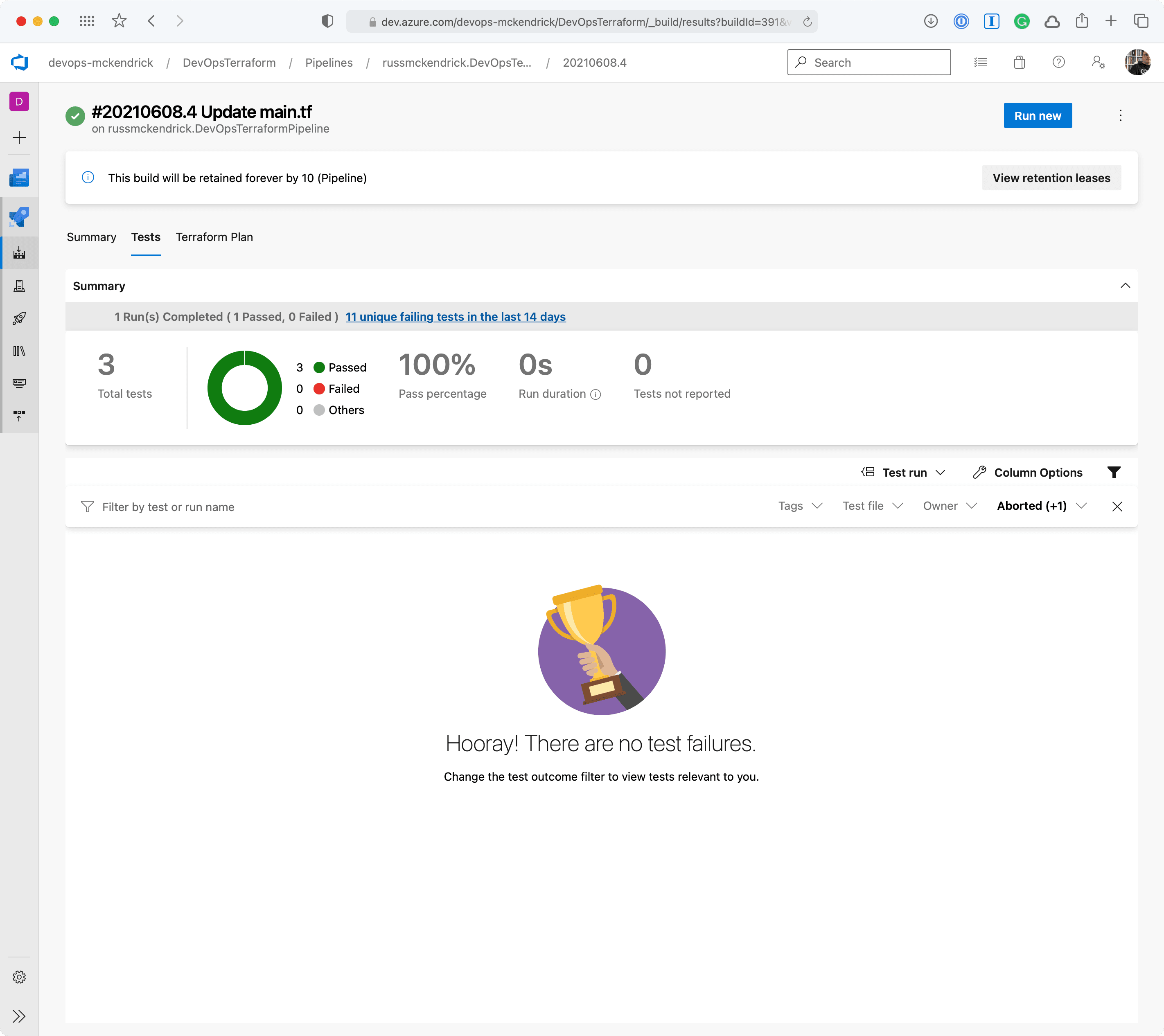
A quick code change & commit later and we have the tests passing and the changes being automatically deployed - which is expected as there is only the addition of the network security group;
{/* Old gallery removed - please add images manually if needed */}
As you can see, we are allow full access to both SSH and RDP to the whole internet - not a great idea so we will need to update the code to lock those two rules down to an IP address. Thankfully, the Checkov stage errored before any of the Terraform stages were executed meaning that our mistake never made it as far as being deployed.
A quick code change & commit later and we have the tests passing and the changes being automatically deployed - which is expected as there is only the addition of the network security group;
{/* Old gallery removed - please add images manually if needed */}
 Let’s now look at removing the network security group we just added.
### Manual Approval
Commenting out the network security group configuration in the Terraform code and committing it should be enough to trigger a run which will resource in resources being removed.
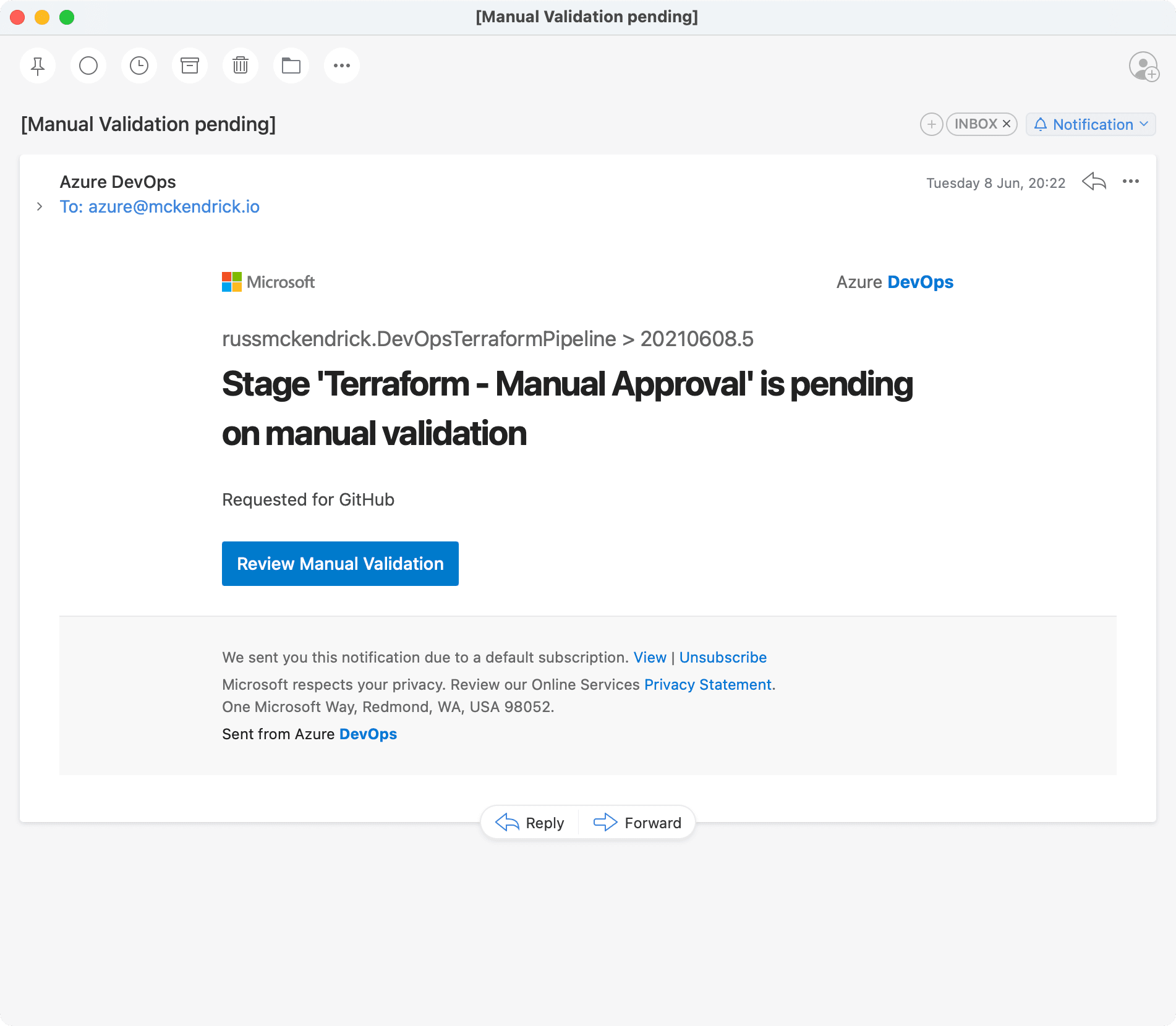
This will result in an e-mail;
Let’s now look at removing the network security group we just added.
### Manual Approval
Commenting out the network security group configuration in the Terraform code and committing it should be enough to trigger a run which will resource in resources being removed.
This will result in an e-mail;
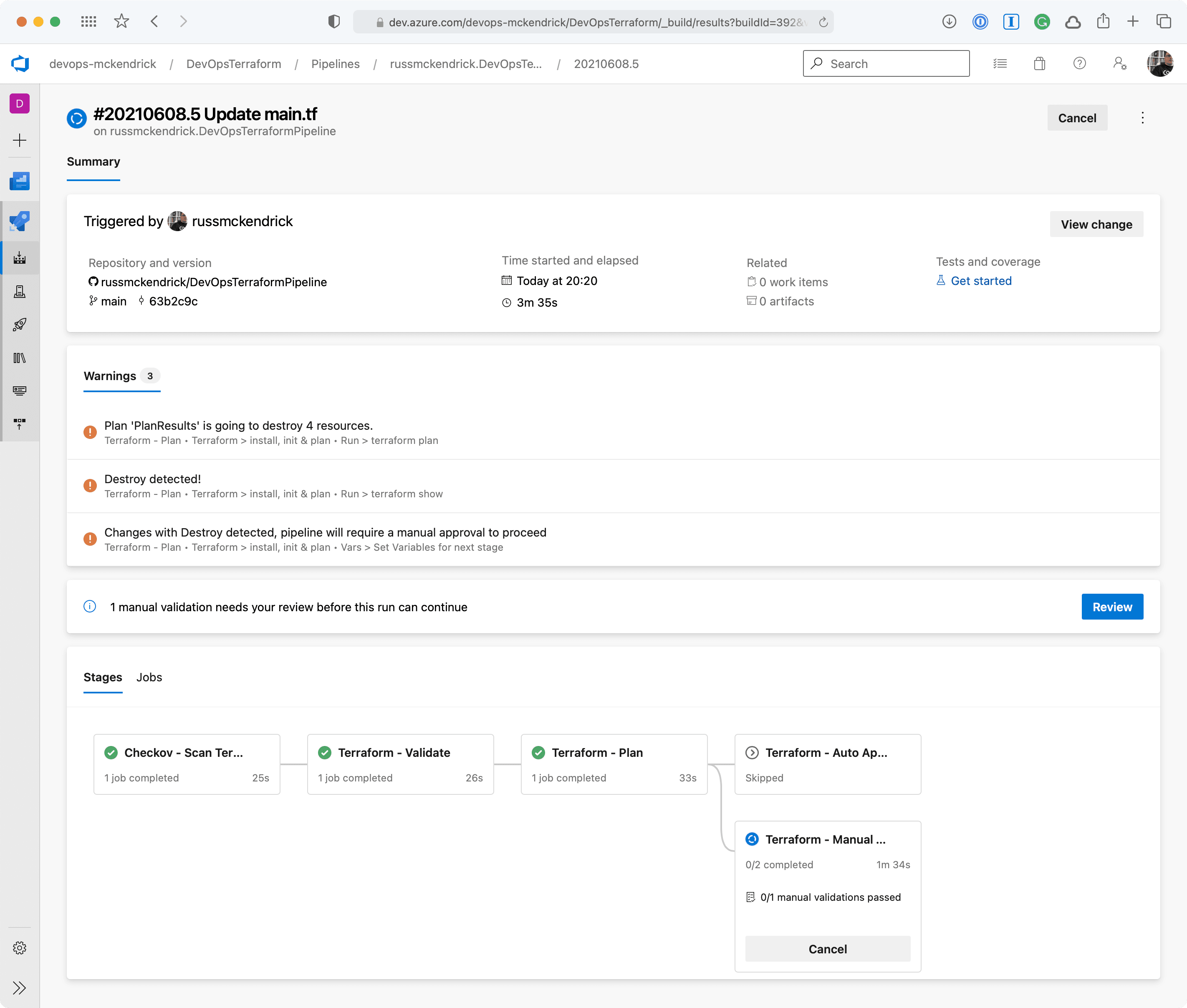
 Going to the pipeline, clicking on **Review**, entering a comment then pressing the **Resume** button will then trigger the `terraform apply` stage;
{/* Old gallery removed - please add images manually if needed */}
Going to the pipeline, clicking on **Review**, entering a comment then pressing the **Resume** button will then trigger the `terraform apply` stage;
{/* Old gallery removed - please add images manually if needed */}
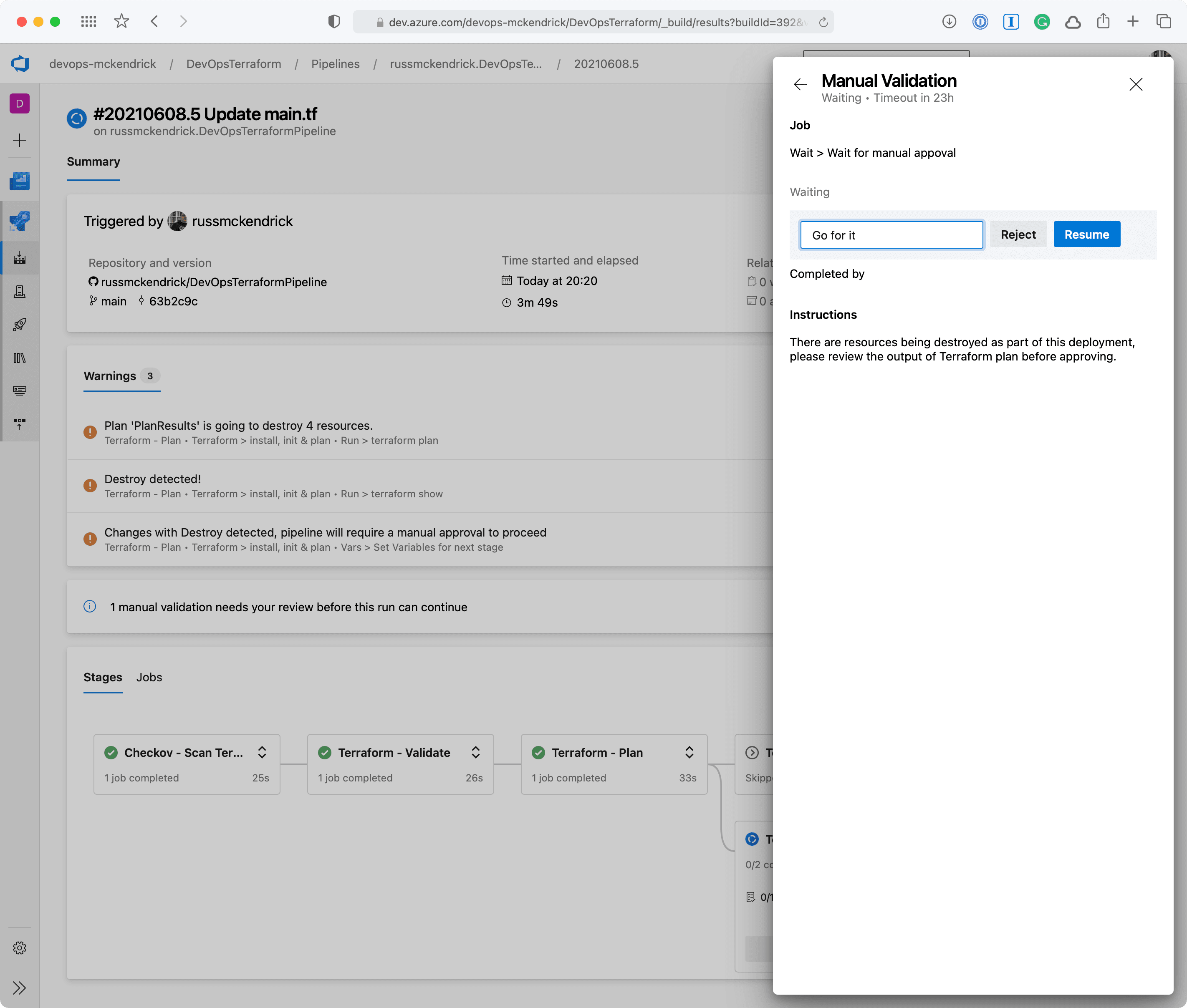
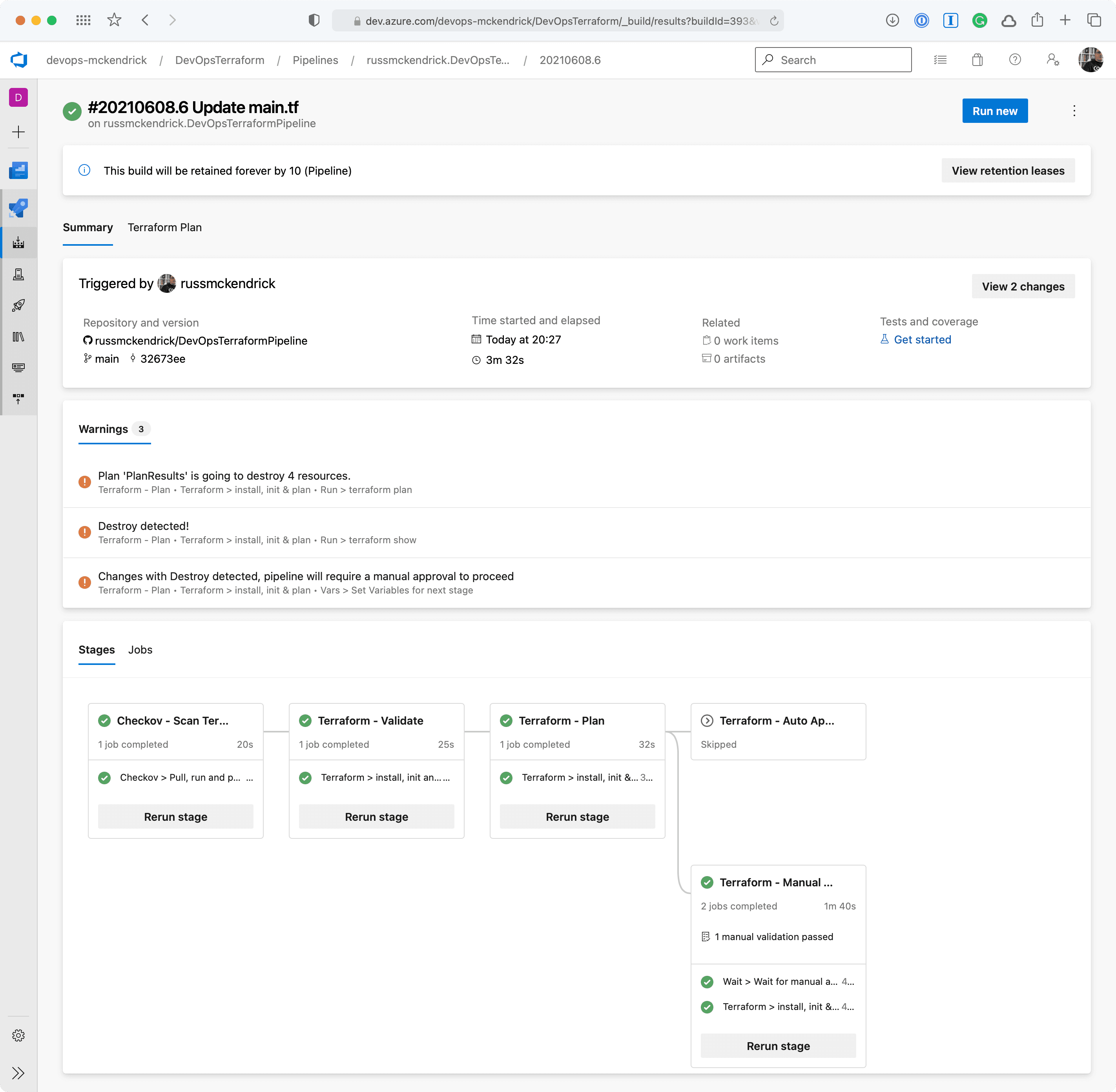 Once complete the network security group will have been destroyed, which is what we expected to happen, however, sometimes something unexpected may have happened and resources which you thought were not being touched by your changes maybe being destroyed so that they can be redeployed to make a change which isn’t possible any other way, this is where having your pipeline prompt you that it is going to remove resources comes in extremely useful 😊
## Summary
As I find myself collaborating on more and more complex Terraform deployments it can get a little scary for all involved if you have a pipeline triggering automatically when you commit.
This means having checks in place which not only make sure that simple mistakes, like opening up management ports to the internet, but also to check that the code is valid before it gets executed is a good safety net.
An even bigger safety net is triggering the `terraform apply` command based on the results of a `terraform plan` so that checks can be made to ensure that nothing bad or unexpected is going to happen as a result of the changes you are applying -after all, stoping an outage before it becomes an outage is always the best option 👍
You can find the full pipeline along with the Terraform code at [https://github.com/russmckendrick/DevOpsTerraformPipeline](https://github.com/russmckendrick/DevOpsTerraformPipeline).
Once complete the network security group will have been destroyed, which is what we expected to happen, however, sometimes something unexpected may have happened and resources which you thought were not being touched by your changes maybe being destroyed so that they can be redeployed to make a change which isn’t possible any other way, this is where having your pipeline prompt you that it is going to remove resources comes in extremely useful 😊
## Summary
As I find myself collaborating on more and more complex Terraform deployments it can get a little scary for all involved if you have a pipeline triggering automatically when you commit.
This means having checks in place which not only make sure that simple mistakes, like opening up management ports to the internet, but also to check that the code is valid before it gets executed is a good safety net.
An even bigger safety net is triggering the `terraform apply` command based on the results of a `terraform plan` so that checks can be made to ensure that nothing bad or unexpected is going to happen as a result of the changes you are applying -after all, stoping an outage before it becomes an outage is always the best option 👍
You can find the full pipeline along with the Terraform code at [https://github.com/russmckendrick/DevOpsTerraformPipeline](https://github.com/russmckendrick/DevOpsTerraformPipeline).