
OpenClaw: Giving Claude a Body (and a Telegram Bot)

There’s a difference between chatting with an AI and having an AI assistant. The former is a conversation that evaporates the moment you close the tab. The latter remembers who you are, can actually do things on your behalf, and is available wherever you happen to be - not just in a browser window.
OpenClaw is an open-source framework that bridges that gap. It gives LLMs like Claude persistence, tools, and the ability to communicate through messaging platforms you already use - Telegram, Discord, Slack, WhatsApp, even iMessage. Think of it as giving your AI a body and a phone number.
I’ve been curious about it for a while, so I decided to spin it up on a small home server and see what all the fuss is about.
Prerequisites
Before we start, you’ll need:
- A server or machine running Linux (I’m using Ubuntu 24.04 on a small AMD Ryzen mini PC)
- Node.js 24.x or later
- An Anthropic API key (or another supported LLM provider)
- A Telegram account (if you want to chat with your agent from your phone)
Installing Node.js
OpenClaw requires Node.js, and it’s fussy about versions - you’ll want Node 22.x and above. On Ubuntu, the easiest approach is to use the NodeSource repository, the following will install the latest version of 24.x:
sudo apt-get install -y curlcurl -fsSL https://deb.nodesource.com/setup_24.x | sudo -E bash -sudo apt-get install -y nodejsnode -vYou should see something like v24.13.0 confirming you’re on the right version.
Installing OpenClaw
With Node.js sorted, installing OpenClaw is a one-liner:
curl -fsSL https://openclaw.bot/install.sh | bashThe installer will detect your platform, check for dependencies, and install OpenClaw globally. You might see a warning about your npm global bin directory not being in your PATH - if so, add the suggested export to your .bashrc or .zshrc:
export PATH="/home/russ/.npm-global/bin:$PATH"A Word on Security
Before you go any further, OpenClaw will present you with a security warning, and it’s worth taking seriously.
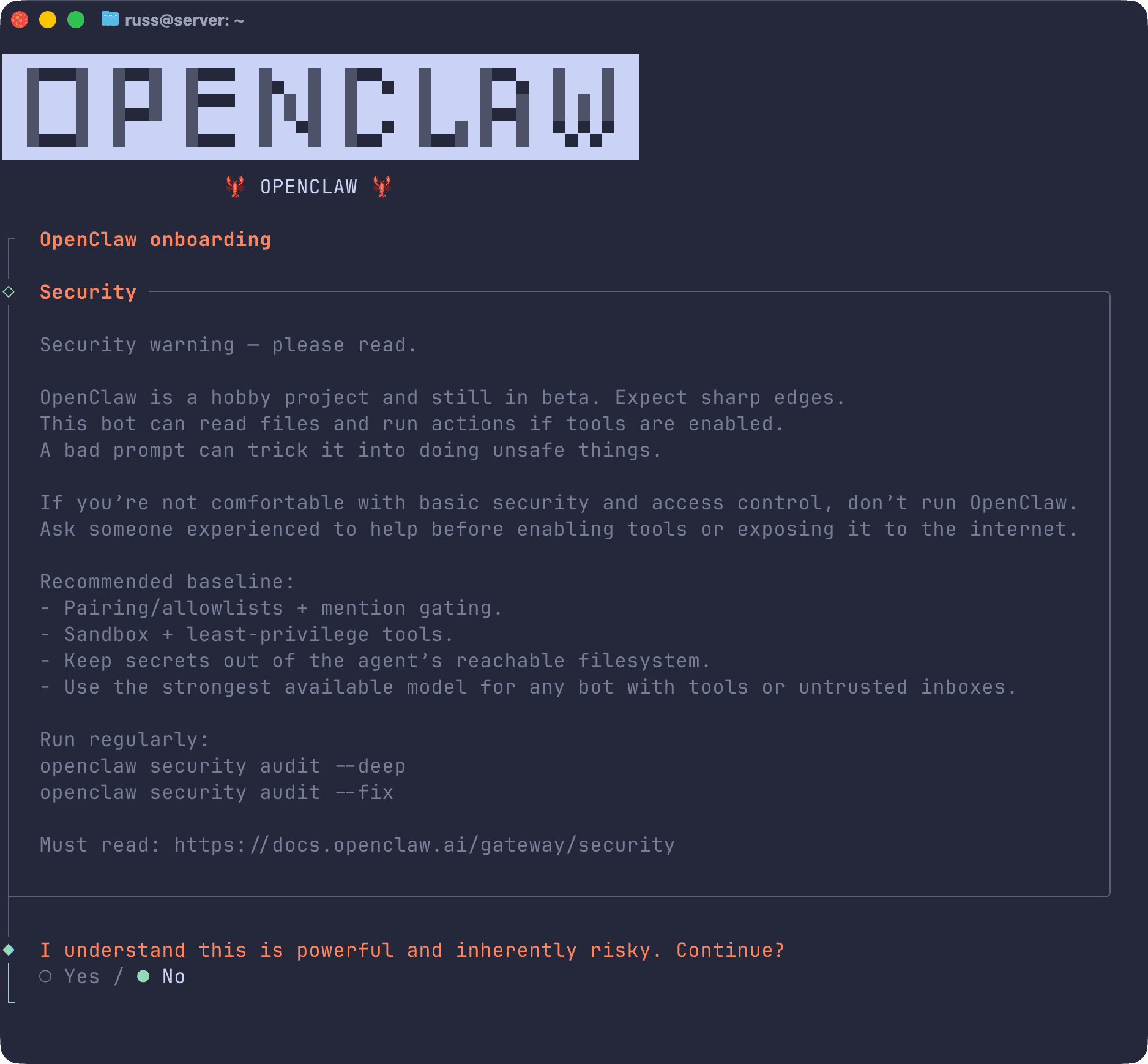
The warning isn’t hyperbole. You’re essentially giving an AI agent access to your system - it can read files, execute commands, and interact with external services. If you’re not comfortable with basic security and access control, this probably isn’t for you.
That said, OpenClaw provides sensible guardrails out of the box:
- Pairing and allowlists: Only approved users can interact with your agent
- Sandbox mode: Run tools with least-privilege access
- Mention gating: In group chats, the agent only responds when explicitly mentioned
The documentation recommends running openclaw security audit --deep regularly and keeping secrets out of the agent’s reachable filesystem. I’d add: don’t run this on your main workstation. A small VPS or dedicated home server is a much better idea.
The Onboarding Wizard
Once you’ve acknowledged the security warning and set up your Anthropic API key, OpenClaw launches its onboarding wizard. This is where things get interesting.
claude setup-tokenThe wizard boots up your agent for the first time, and it immediately starts asking questions - about you, about itself, about how you’d like to interact. It’s a bit like meeting a new colleague who’s very keen to get started.
Wake up, my friend!
Hey! I just came online. ✨
Looks like this is a fresh start — no memories, no history, just a blankslate and a whole lot of potential.
So... who are you? And more importantly — who am I? Let's figure thisout together.
Got a name in mind for me, or should I throw some ideas out? And whatabout you — what should I call you?
You’ll be asked to:
- Name your agent - Mine chose “Kai” after I let it pick
- Set the vibe - Chill and casual? Sharp and dry? Chaotic gremlin energy?
- Pick an emoji - Because every good assistant needs a signature (I went with 💻)
- Provide your timezone - So it knows when to bother you
All of this gets written to markdown files in the workspace directory (~/.openclaw/workspace/), which is how OpenClaw maintains persistence. There’s a SOUL.md for personality, IDENTITY.md for the agent’s self-concept, and USER.md for what it knows about you. It’s refreshingly transparent - you can edit these files directly if you want to tweak things.
Connecting Telegram
With the basic setup done, it’s time to give your agent a way to reach you outside the terminal. I chose Telegram because it’s what I already use, but OpenClaw supports a ridiculous number of channels.
First, you’ll need to create a Telegram bot:
- Open Telegram and find @BotFather
- Send
/newbot - Give it a name (I used “Kai” like it requested)
- Give it a username (must end in
bot, e.g.,kai_assistant_bot) - BotFather will give you a token - copy this
Back in the OpenClaw terminal, paste the token when prompted. The agent will update its config and restart the gateway. You’ll see something like:
Done! Token's updated and the gateway is restarting. 🎉
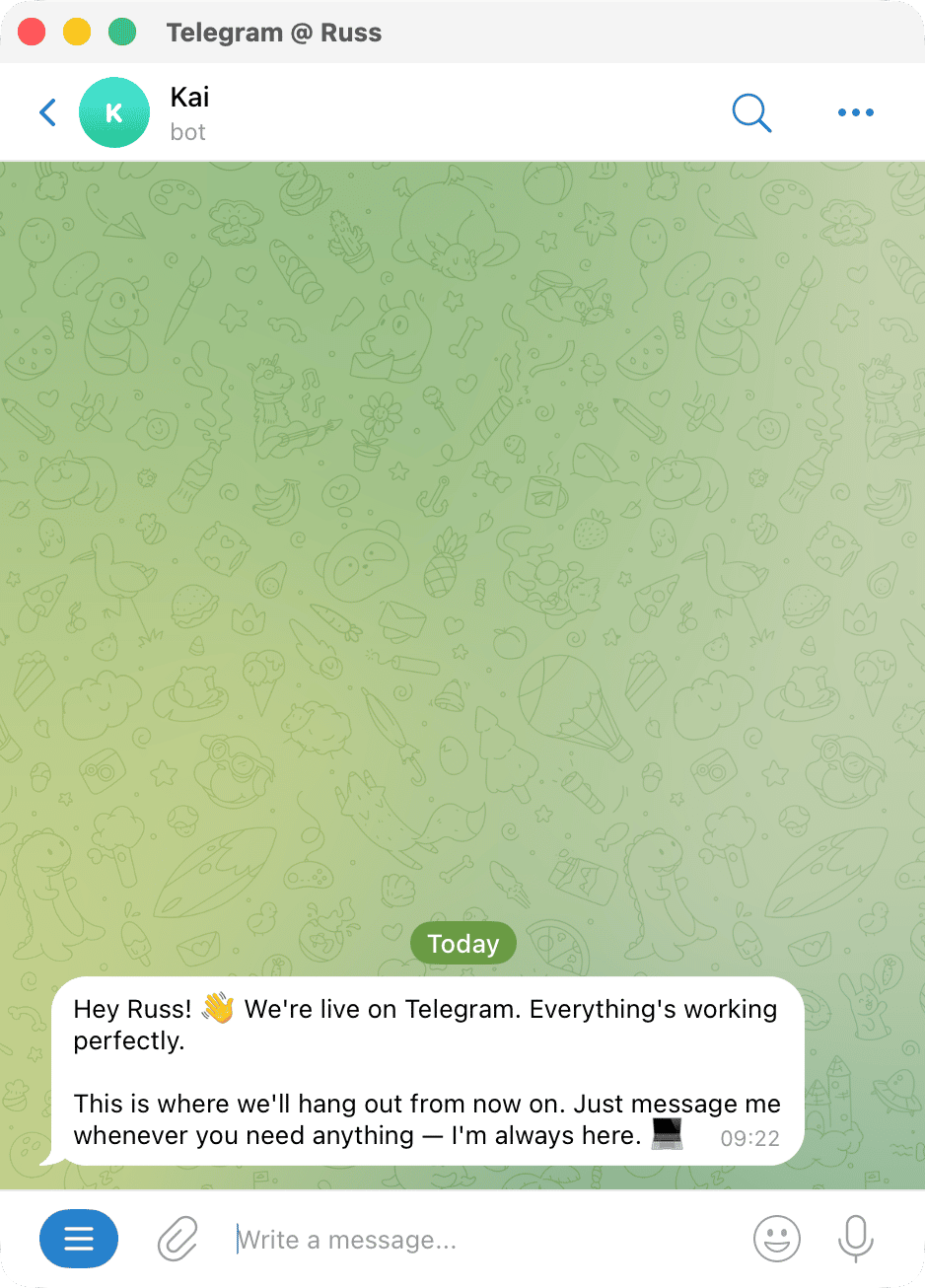
Now go find your bot on Telegram and send it a message — say /startor just "hey". The first time you message it, it'll pair with youso only you can use it.
Open Telegram, find your bot, and send it a message. The first time you do this, you’ll need to approve the pairing from the terminal:
openclaw pairing approve telegram ZK9FFEWKAnd that’s it. Your AI agent is now available in your pocket.
What Can It Actually Do?
Once everything’s wired up, you’ve got a persistent AI assistant that can do rather more than just chat. Out of the box, OpenClaw supports web browsing, file operations, shell commands, and a memory system that retains context across sessions. There’s also a heartbeat feature that lets the agent proactively check in with you - useful for monitoring tasks or gentle reminders.
I’m still exploring the edges of what’s possible, so I’ll save the deep dive for a future post. For now, I’m enjoying having an assistant that remembers our conversations and doesn’t require me to re-explain context every time I open a new chat window.
Where to Go From Here
If you want to dig deeper, here are some useful links:


The documentation covers skills, cron jobs, browser automation, and a whole ecosystem of community-built extensions on ClawHub. There’s also an active Discord if you get stuck.
First Impressions
OpenClaw is the kind of project that makes you rethink what “using AI” means. It’s not just a chatbot - it’s a framework for building something closer to an actual assistant. The onboarding experience is surprisingly charming, the Telegram integration works flawlessly, and the transparent markdown-based memory system means you’re never left wondering what the agent knows or why it’s behaving a certain way.
That said, the security warnings are there for a reason. This is beta software that can execute commands on your system. Treat it accordingly - run it on isolated hardware, keep your secrets elsewhere, and don’t give it access to anything you wouldn’t hand to a keen but occasionally confused intern.
I’m looking forward to seeing where this goes.
Share
Related Posts

Personal Project Updates and AI Editors
About that time I wrote and published an App to the Apple App Store without knowing how to code

Running Flux on macOS
“Learn how to install and use MFLUX to run FLUX.1 models on macOS. This guide explores generating high-quality AI images, comparing [Schnell] and [Dev] models, and enhancing outputs with LoRAs for custom styles.”