
Introducing ssl-toolkit

During the day job, I spend a fair amount of time checking SSL certificates — validating chains, comparing certs across different IPs, checking expiry dates, and generally troubleshooting TLS issues. Over the years, I’d built up a long document filled with random notes, one-liners, and half-remembered OpenSSL incantations. It worked, but it wasn’t exactly elegant.
So I decided to consolidate all of that into a vibe-coded tool. The result is ssl-toolkit, a comprehensive SSL/TLS diagnostic tool built in Rust.
What it does
At its core, ssl-toolkit performs the checks I find myself doing repeatedly: DNS resolution across multiple providers, TLS handshake analysis, certificate chain validation, WHOIS lookups, and cipher suite enumeration. It then rolls everything up into an overall security grade (A+ through F) so you can quickly gauge the health of a certificate.
The tool supports both an interactive mode with a guided menu system and a non-interactive mode for scripting and CI/CD pipelines. There’s also JSON output if you need to parse results programmatically.
Installation
The easiest way to install ssl-toolkit on macOS is via Homebrew:
brew install russmckendrick/tap/ssl-toolkitFor Linux, you can download the latest release directly. The following command detects your architecture and downloads the appropriate binary:
ARCH=$(uname -m | sed 's/x86_64/amd64/;s/aarch64/arm64/')curl -sL "https://github.com/russmckendrick/ssl-toolkit/releases/latest/download/ssl-toolkit-linux-${ARCH}" -o ssl-toolkitchmod +x ssl-toolkitsudo mv ssl-toolkit /usr/local/bin/On Windows, use PowerShell to download and install:
Invoke-WebRequest -Uri "https://github.com/russmckendrick/ssl-toolkit/releases/latest/download/ssl-toolkit-windows-amd64.exe" -OutFile "ssl-toolkit.exe"You can then move ssl-toolkit.exe to a directory in your PATH, or run it directly from the download location.
All releases are available on the GitHub releases page.
Interactive mode
Running ssl-toolkit without any arguments launches an interactive menu:
ssl-toolkitThis presents a top-level menu with options to check a domain, inspect certificate files, verify certificate and key pairs, or convert between certificate formats. Each option guides you through the required inputs and displays results in a scrollable pager.
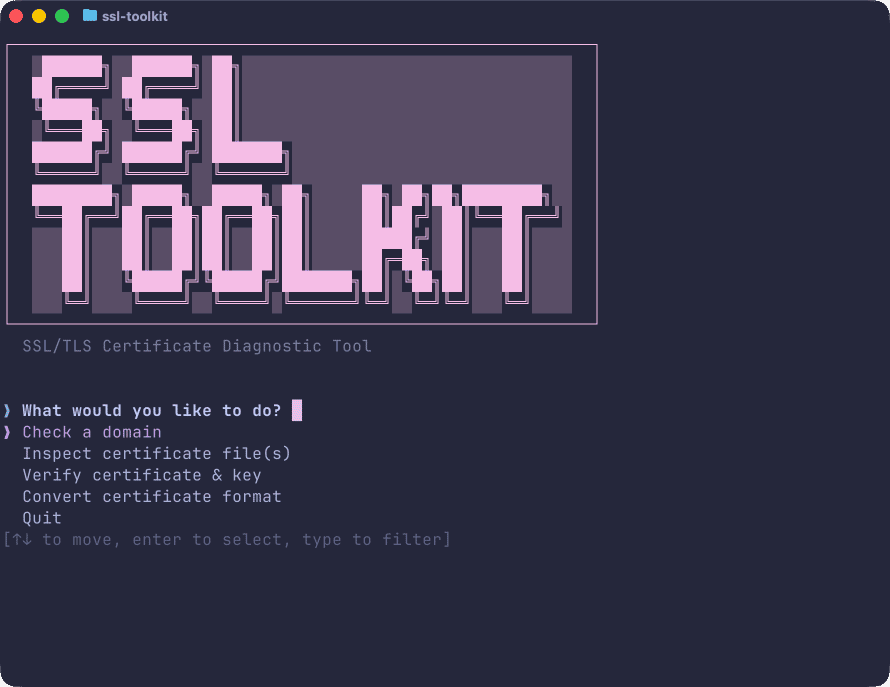
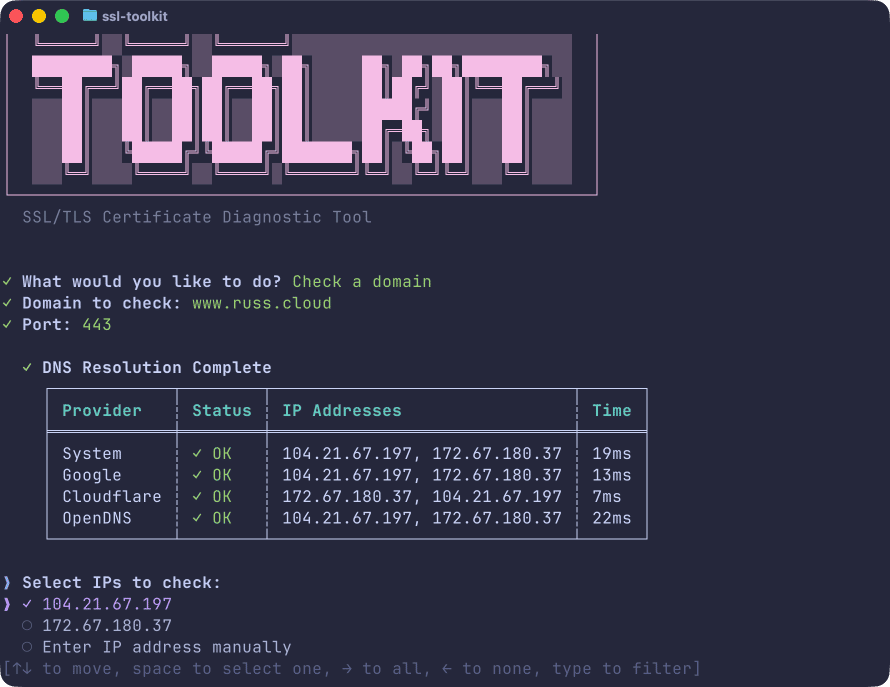
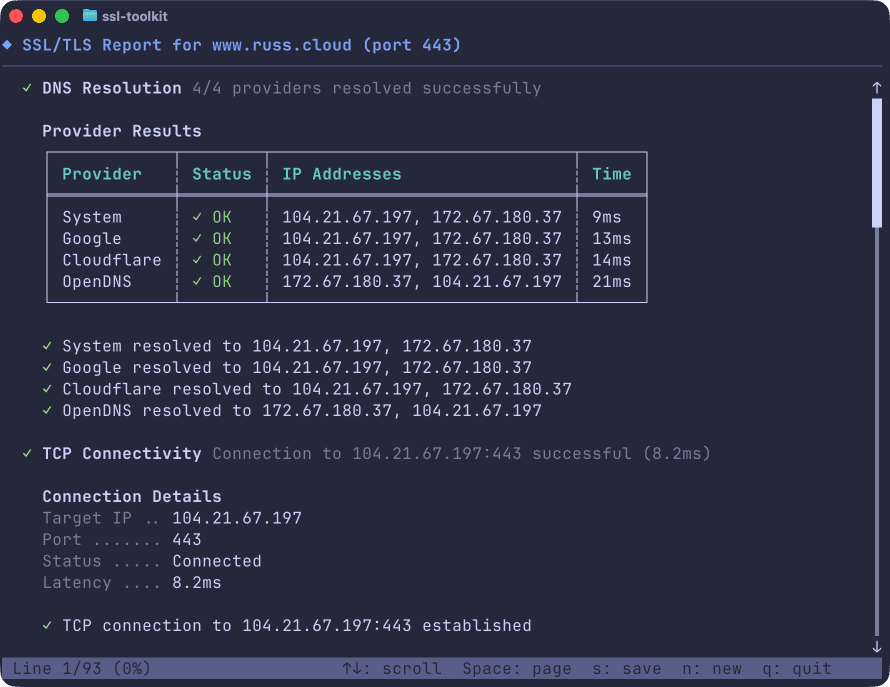
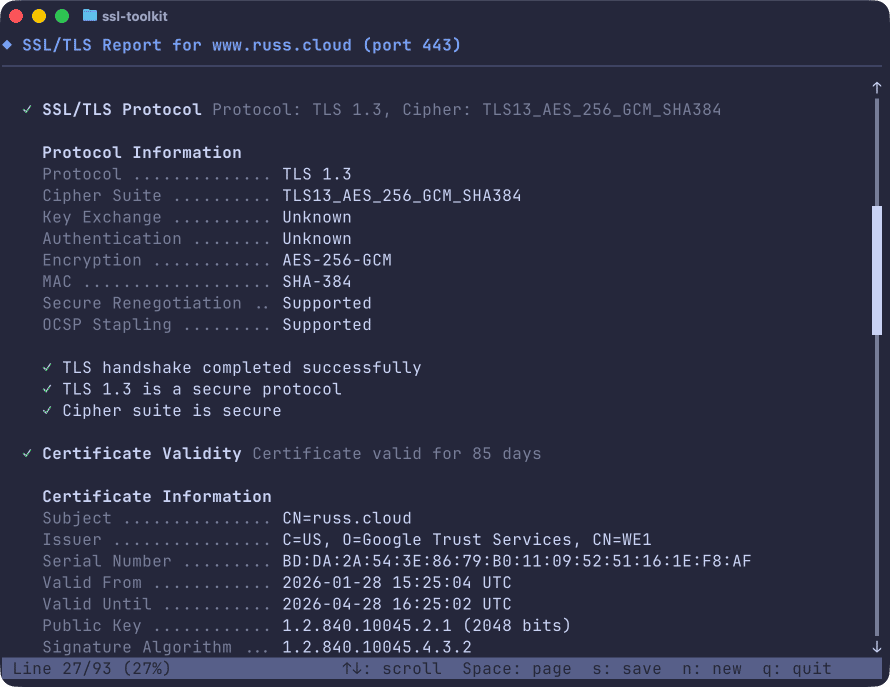
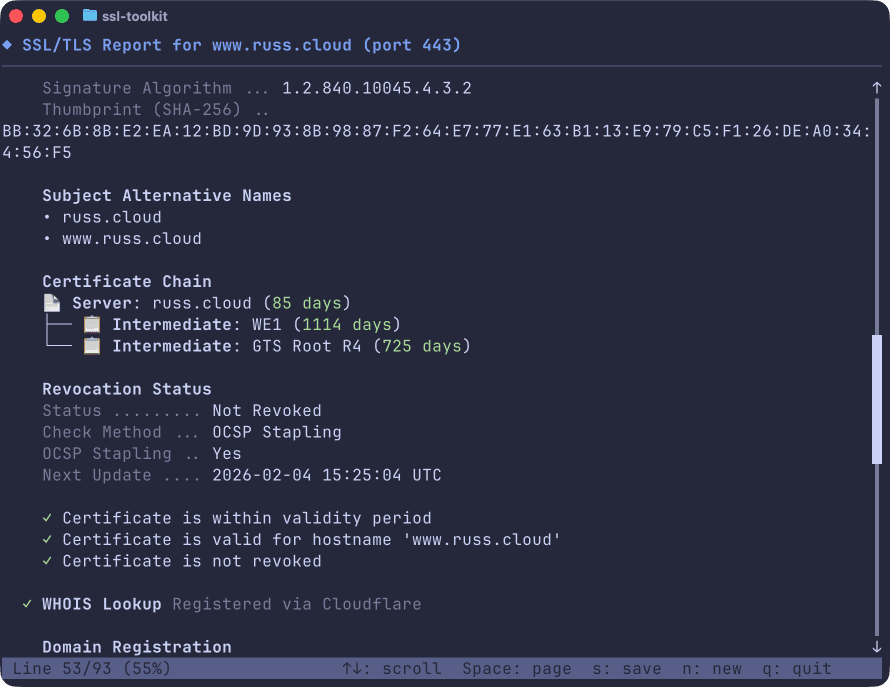
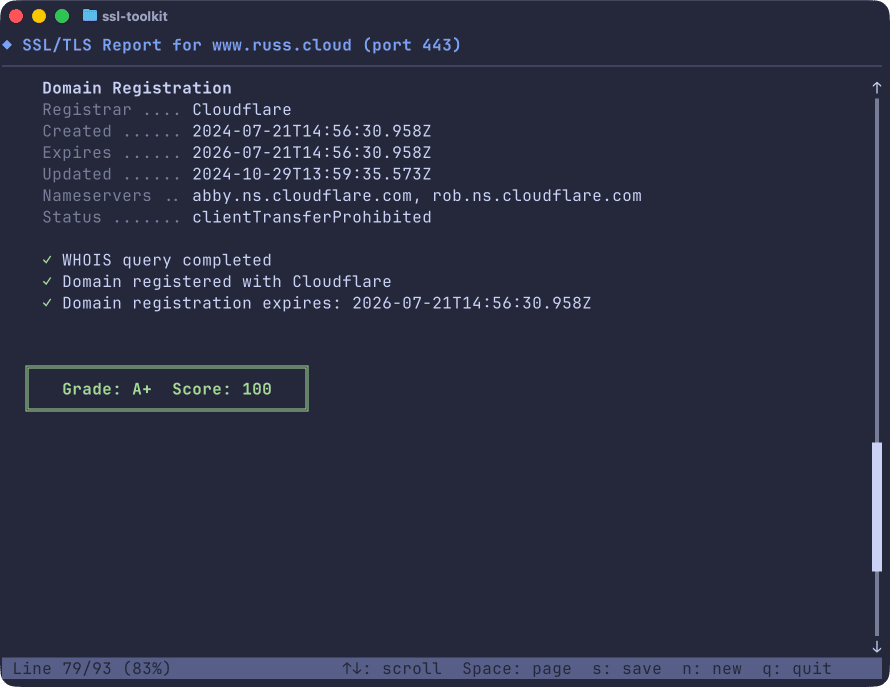
I went with a Tokyo Night Storm colour scheme for the interface because, well, it looks nice and matches my terminal setup. The pager supports the usual navigation keys — arrow keys, j/k for vim users, Space for page down, and g/G to jump to the start or end.
Checking a domain
For a quick check, you can pass the domain directly:
ssl-toolkit -d github.com --non-interactiveThis runs through all the checks and outputs a detailed report covering DNS resolution from multiple providers (Google, Cloudflare, OpenDNS, and your system resolver), TCP connectivity, TLS protocol and cipher analysis, certificate chain validation, and WHOIS information.
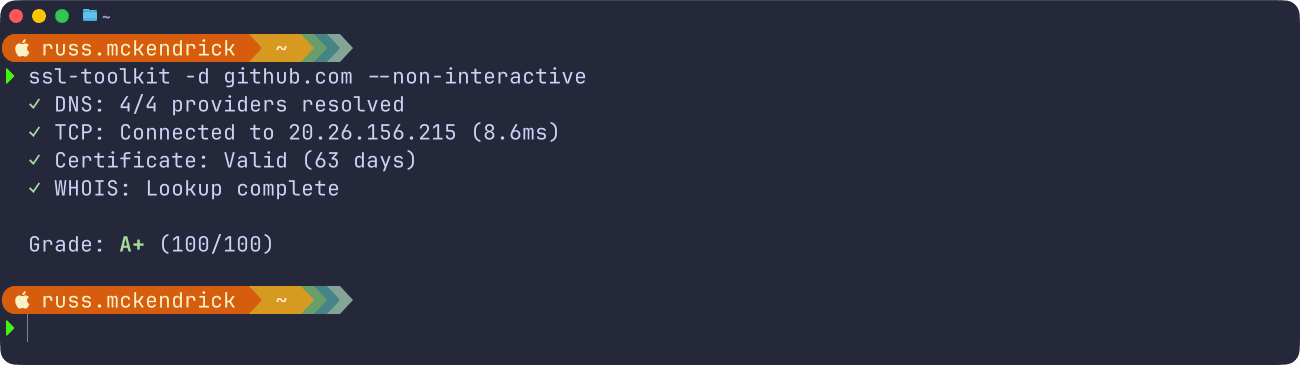
The tool compares certificates across all resolved IPs to flag any inconsistencies — useful when you’re dealing with load balancers or CDNs where different endpoints might be serving different certificates.
If you just want the grade without all the detail:
ssl-toolkit -d example.com --quietCertificate file operations
Beyond live domain checks, ssl-toolkit can work with certificate files directly. This is handy when you’re preparing certificates for deployment or troubleshooting issues with certificate bundles.
To inspect a certificate file:
ssl-toolkit cert info cert.pemTo verify that a certificate and private key match:
ssl-toolkit cert verify --cert cert.pem --key key.pemTo validate a certificate chain against a hostname:
ssl-toolkit cert verify --chain fullchain.pem --hostname example.comAnd to convert between formats:
# PEM to DERssl-toolkit cert convert cert.pem --to der -o cert.der
# Create a PKCS#12 bundlessl-toolkit cert convert --to p12 --cert cert.pem --key key.pem
CI/CD integration
The tool uses meaningful exit codes for scripting: 0 for all checks passed, 1 for warnings (like a certificate expiring within 30 days), and 2 for failures (expired certificate, connection failed, etc.).
Combined with JSON output, this makes it straightforward to integrate into monitoring or deployment pipelines:
ssl-toolkit -d www.russ.cloud --json --non-interactiveThis gives you the following output:
{ "domain": "www.russ.cloud", "ip": "104.21.67.197", "port": 443, "grade": "A+", "score": 100, "report": { "domain": "www.russ.cloud", "ip": "104.21.67.197", "port": 443, "grade": "APlus", "score": 100, "dns_result": { "title": "DNS Resolution", "status": "Pass", "summary": "4/4 providers resolved successfully", "details": [ { "Table": { "title": "Provider Results", "headers": [ "Provider", "Status", "IP Addresses", "Time" ], "rows": [ [ "System", "✓ OK", "172.67.180.37, 104.21.67.197", "2ms" ], [ "Google", "✓ OK", "104.21.67.197, 172.67.180.37", "9ms" ], [ "Cloudflare", "✓ OK", "104.21.67.197, 172.67.180.37", "12ms" ], [ "OpenDNS", "✓ OK", "104.21.67.197, 172.67.180.37", "7ms" ] ] } } ], "test_steps": [ { "description": "System resolved to 172.67.180.37, 104.21.67.197", "status": "Pass", "details": null }, { "description": "Google resolved to 104.21.67.197, 172.67.180.37", "status": "Pass", "details": null }, { "description": "Cloudflare resolved to 104.21.67.197, 172.67.180.37", "status": "Pass", "details": null }, { "description": "OpenDNS resolved to 104.21.67.197, 172.67.180.37", "status": "Pass", "details": null } ], "recommendations": [] }, "tcp_result": { "title": "TCP Connectivity", "status": "Pass", "summary": "Connection to 104.21.67.197:443 successful (140.6ms)", "details": [ { "KeyValue": { "title": "Connection Details", "pairs": [ [ "Target IP", "104.21.67.197" ], [ "Port", "443" ], [ "Status", "Connected" ], [ "Latency", "140.6ms" ] ] } } ], "test_steps": [ { "description": "TCP connection to 104.21.67.197:443 established", "status": "Pass", "details": null } ], "recommendations": [] }, "ssl_result": { "title": "SSL/TLS Protocol", "status": "Pass", "summary": "Protocol: TLS 1.3, Cipher: TLS13_AES_256_GCM_SHA384", "details": [ { "KeyValue": { "title": "Protocol Information", "pairs": [ [ "Protocol", "TLS 1.3" ], [ "Cipher Suite", "TLS13_AES_256_GCM_SHA384" ], [ "Key Exchange", "Unknown" ], [ "Authentication", "Unknown" ], [ "Encryption", "AES-256-GCM" ], [ "MAC", "SHA-384" ], [ "Secure Renegotiation", "Supported" ], [ "OCSP Stapling", "Supported" ] ] } } ], "test_steps": [ { "description": "TLS handshake completed successfully", "status": "Pass", "details": null }, { "description": "TLS 1.3 is a secure protocol", "status": "Pass", "details": null }, { "description": "Cipher suite is secure", "status": "Pass", "details": null } ], "recommendations": [] }, "certificate_result": { "title": "Certificate Validity", "status": "Pass", "summary": "Certificate valid for 85 days", "details": [ { "KeyValue": { "title": "Certificate Information", "pairs": [ [ "Subject", "CN=russ.cloud" ], [ "Issuer", "C=US, O=Google Trust Services, CN=WE1" ], [ "Serial Number", "BD:DA:2A:54:3E:86:79:B0:11:09:52:51:16:1E:F8:AF" ], [ "Valid From", "2026-01-28 15:25:04 UTC" ], [ "Valid Until", "2026-04-28 16:25:02 UTC" ], [ "Public Key", "1.2.840.10045.2.1 (2048 bits)" ], [ "Signature Algorithm", "1.2.840.10045.4.3.2" ], [ "Thumbprint (SHA-256)", "BB:32:6B:8B:E2:EA:12:BD:9D:93:8B:98:87:F2:64:E7:77:E1:63:B1:13:E9:79:C5:F1:26:DE:A0:34:94:56:F5" ] ] } }, { "List": { "title": "Subject Alternative Names", "items": [ "russ.cloud", "www.russ.cloud" ] } }, { "CertificateChain": { "certificates": [ { "cert_type": "Leaf", "subject_cn": "russ.cloud", "issuer_cn": "WE1", "valid_from": "2026-01-28", "valid_until": "2026-04-28", "days_until_expiry": 85, "is_valid": true }, { "cert_type": "Intermediate", "subject_cn": "WE1", "issuer_cn": "GTS Root R4", "valid_from": "2023-12-13", "valid_until": "2029-02-20", "days_until_expiry": 1114, "is_valid": true }, { "cert_type": "Intermediate", "subject_cn": "GTS Root R4", "issuer_cn": "GlobalSign Root CA", "valid_from": "2023-11-15", "valid_until": "2028-01-28", "days_until_expiry": 725, "is_valid": true } ] } }, { "KeyValue": { "title": "Revocation Status", "pairs": [ [ "Status", "Not Revoked" ], [ "Check Method", "OCSP Stapling" ], [ "OCSP Stapling", "Yes" ], [ "Next Update", "2026-02-04 15:25:04 UTC" ] ] } } ], "test_steps": [ { "description": "Certificate is within validity period", "status": "Pass", "details": null }, { "description": "Certificate is valid for hostname 'www.russ.cloud'", "status": "Pass", "details": null }, { "description": "Certificate is not revoked", "status": "Pass", "details": null } ], "recommendations": [] }, "whois_result": { "title": "WHOIS Lookup", "status": "Pass", "summary": "Registered via Cloudflare", "details": [ { "KeyValue": { "title": "Domain Registration", "pairs": [ [ "Registrar", "Cloudflare" ], [ "Created", "2024-07-21T14:56:30.958Z" ], [ "Expires", "2026-07-21T14:56:30.958Z" ], [ "Updated", "2024-10-29T13:59:35.573Z" ], [ "Nameservers", "abby.ns.cloudflare.com, rob.ns.cloudflare.com" ], [ "Status", "clientTransferProhibited" ] ] } } ], "test_steps": [ { "description": "WHOIS query completed", "status": "Pass", "details": null }, { "description": "Domain registered with Cloudflare", "status": "Pass", "details": null }, { "description": "Domain registration expires: 2026-07-21T14:56:30.958Z", "status": "Pass", "details": null } ], "recommendations": [] }, "timestamp": "2026-02-01T17:38:40.104701Z" }, "cert_comparison": { "reference_ip": "104.21.67.197", "entries": [ { "ip": "104.21.67.197", "thumbprint": "BB:32:6B:8B:E2:EA:12:BD:9D:93:8B:98:87:F2:64:E7:77:E1:63:B1:13:E9:79:C5:F1:26:DE:A0:34:94:56:F5", "subject": "CN=russ.cloud", "issuer": "C=US, O=Google Trust Services, CN=WE1", "days_until_expiry": 85, "serial": "BD:DA:2A:54:3E:86:79:B0:11:09:52:51:16:1E:F8:AF", "is_different": false, "differences": [], "error": null }, { "ip": "172.67.180.37", "thumbprint": "BB:32:6B:8B:E2:EA:12:BD:9D:93:8B:98:87:F2:64:E7:77:E1:63:B1:13:E9:79:C5:F1:26:DE:A0:34:94:56:F5", "subject": "CN=russ.cloud", "issuer": "C=US, O=Google Trust Services, CN=WE1", "days_until_expiry": 85, "serial": "BD:DA:2A:54:3E:86:79:B0:11:09:52:51:16:1E:F8:AF", "is_different": false, "differences": [], "error": null } ], "has_differences": false, "summary": "All 2 IPs return identical certificates" }}You can also generate self-contained HTML reports with embedded styles and downloadable certificate chains:
ssl-toolkit -d example.com --non-interactive -o report.htmlSummary
ssl-toolkit has replaced my sprawling notes document and given me a single tool for the SSL/TLS checks I do regularly. It’s open source and available on GitHub:
The documentation site has more details on all the available options:
If you find yourself doing similar certificate wrangling, give it a try. And if you spot any issues or have feature suggestions, pull requests are always welcome.
Share
Related Posts

Day to Day Tools, the 2025 edition
The 2025 edition of my day-to-day tools: Ghostty, Claude Code, Google's Antigravity IDE, and the AI services that have become central to how I work.

Personal Project Updates and AI Editors
About that time I wrote and published an App to the Apple App Store without knowing how to code

Zsh Conda Environment Selector Function
Streamline your Python workflow on macOS with a custom Zsh function for quickly selecting and activating Conda environments. Simplify environment management with this interactive and efficient solution!