Install n8n locally using Cloudflare

Learn to install n8n locally with Docker and Cloudflare Tunnel. Includes PostgreSQL setup and Zero Trust security for home lab deployment.

Russ McKendrick · · 11 min read
I finally got around to getting a small AMD Ryzen 7 Mini PC with 32GB of RAM to use as part of my home lab to replace some aging Raspberry Pis.
While it came with Windows 11 (which i am sure was fine and not dodgy in any way) I instead opted to run the server version of Ubuntu 24.04 LTS and immediately trashed the Windows install. Given everyone is making videos about running n8n on VPS servers I decided to do the same and run it locally on my new machine.
Installing Docker
As I was running a fresh Ubuntu 24.04 install I needed to install Docker before I could run n8n locally, To do this I first needed to install the prerequisites and then setup the official Docker repository:
sudo apt updatesudo apt install apt-transport-https ca-certificates curl software-properties-common -ycurl -fsSL https://download.docker.com/linux/ubuntu/gpg | sudo gpg --dearmor -o /usr/share/keyrings/docker-archive-keyring.gpgecho "deb [arch=$(dpkg --print-architecture) signed-by=/usr/share/keyrings/docker-archive-keyring.gpg] https://download.docker.com/linux/ubuntu $(lsb_release -cs) stable" | sudo tee /etc/apt/sources.list.d/docker.list > /dev/nullsudo apt updateOnce the repository is setup I could install Docker itself and configure it to run as the current user:
sudo apt install docker-ce docker-ce-cli containerd.io docker-compose-plugin -ysudo usermod -aG docker $USERnewgrp dockerFinally, I checked the Docker version to ensure it was installed correctly:
docker --versionDocker version 28.5.0, build 887030fWith that done I could start to install n8n locally.
Preparing the environment
As I will be running a few different services locally on the same machine I decided to use Docker Compose and keep all of the services needed for n8n in one file. We will be running the following containers:
- docker.n8n.io/n8nio/n8n: The main n8n service
- postgres:16: The PostgreSQL database for n8n
- cloudflare/cloudflared:latest: The Cloudflare Tunnel for n8n
Setting up Cloudflare Tunnel
I host all of my domains via Cloudflare (as well as this blog) so using their Tunnel service for routing the traffic to my local n8n instance was a no-brainer.
To do this signup for their Zero Trust service, using the free tier is fine, once you have signed up you need to create a new tunnel, you can this by going Network > Tunnels > Create a Tunnel.
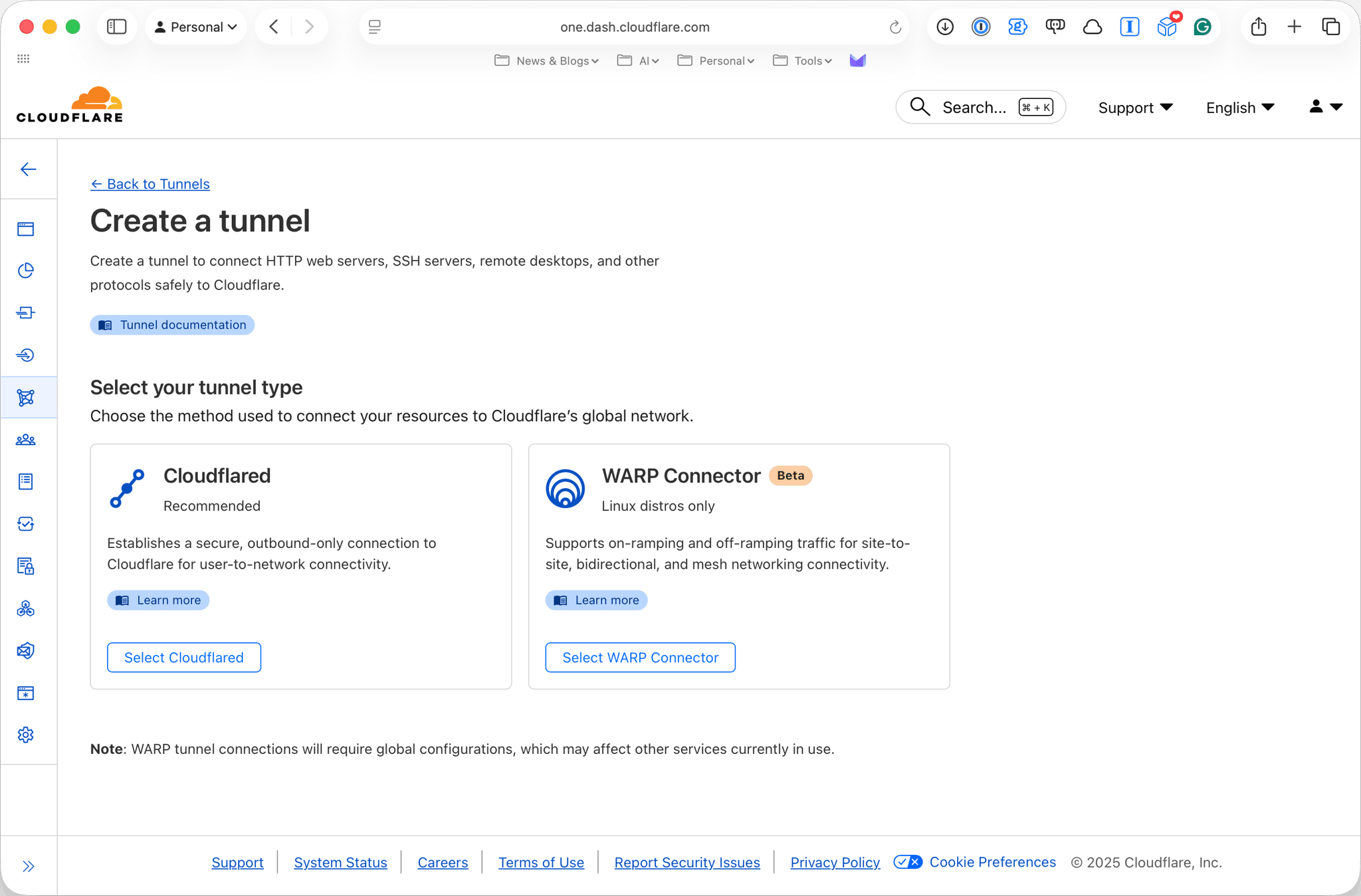
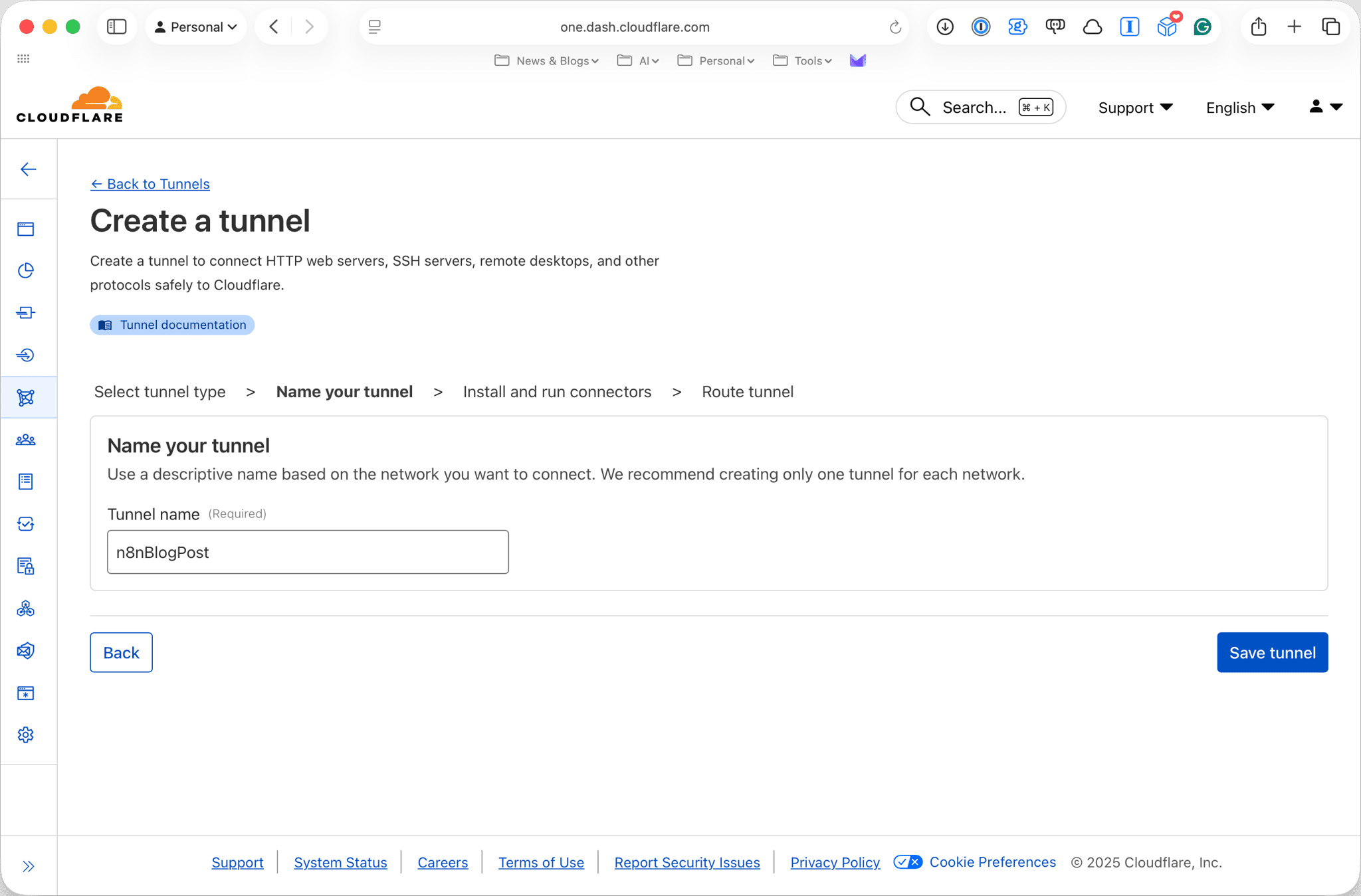
On the Select your tunnel type screen select Cloudflare. Next you will be asked to name the tunnel, in the screens below I have called mine n8nBlogPost.
Next you will be taken to the Install and run connectors screen, here select Docker, copy and page the command you get given as this contains the --token parameter you will need to use later the command will look something like this:
docker run cloudflare/cloudflared:latest tunnel \ --no-autoupdate run \ --token eyJhIjoiMzQwODksoTHingRealyLong5YzNotaR4alTok3N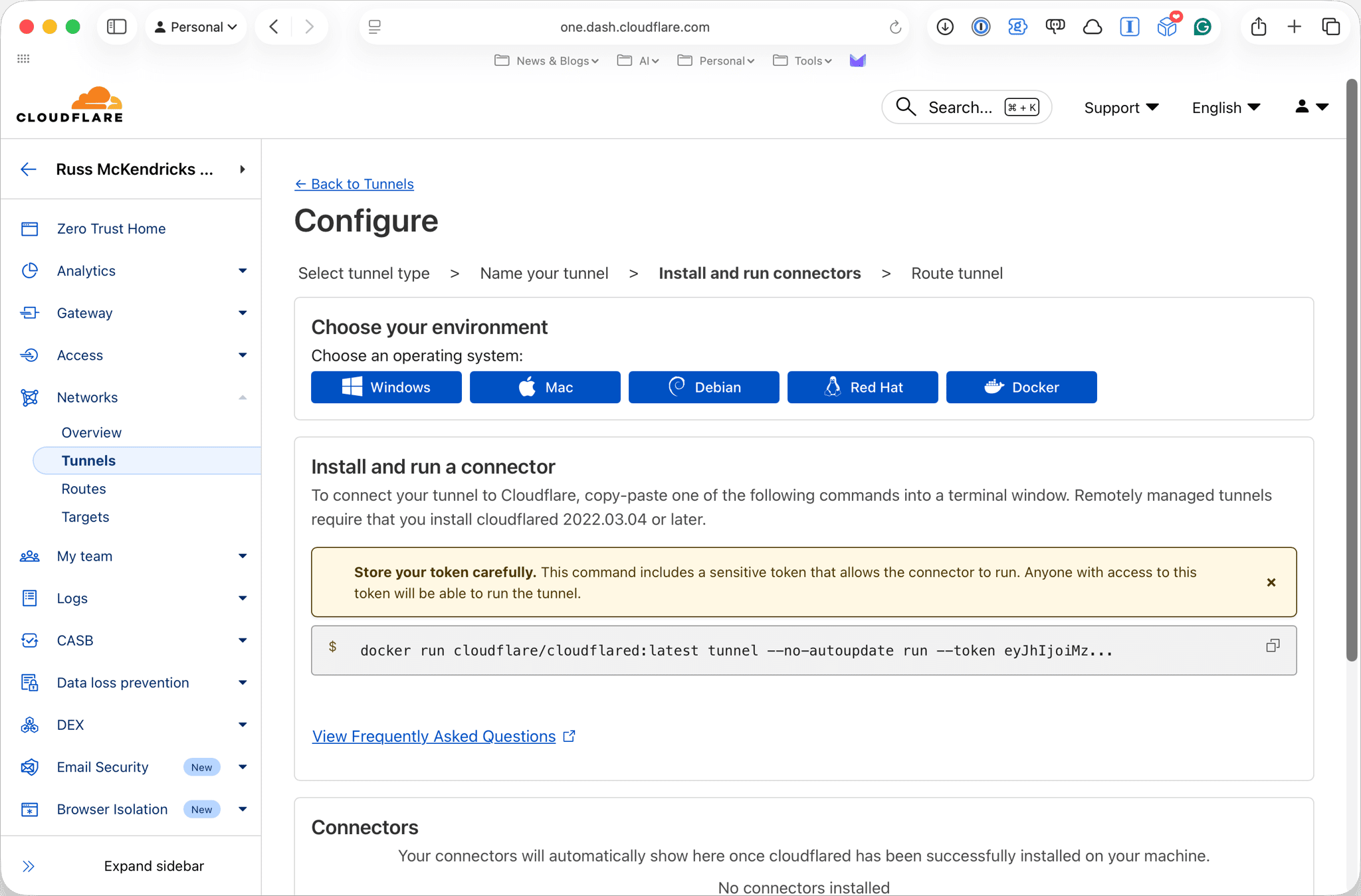
We won’t be bringing the tunnel up here, we will do that later when we setup the Docker Compose file so just move onto the next screen.
Here, we will be setting up the domain and ports for the tunnel, in the screens below I have called mine n8n.domain.com and have used the service we will be tunnelling to:
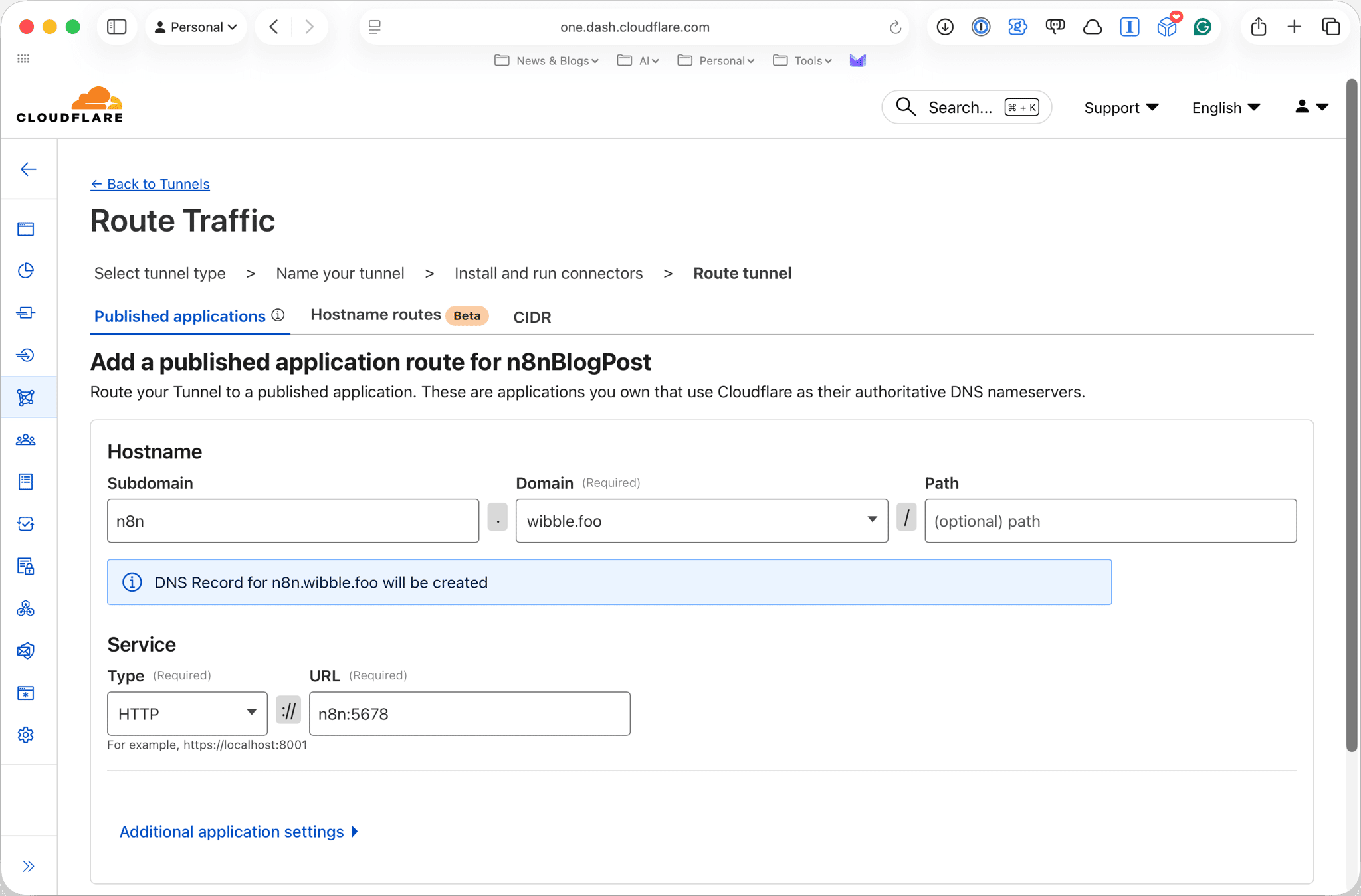
As you can see from the screenshot above I have set the Hostname as n8n.wibble.foo (Yes wibble.foo is a real domain I own) and as we will be proxying to our local n8n instance on port 5678 I set the type to HTTP and URL as n8n:5678.
Once setup we can click on Complete setup and you will be taken back to the Cloudflare Tunnel screen where you will see your new tunnel listed, as we haven’t brought up the connector you will see it as INACTIVE, don’t worry about this yet.
Setting the folders and .env file
First we need to generate a secure random key for which will be used for encryption, you can do this by running the following command:
openssl rand -hex 32Make a note of the random key and we can move on to creating the folders and setting the permissions:
sudo mkdir -p /opt/n8n/local-filessudo chown -R $USER:$USER /opt/n8nsudo chown -R 1000:1000 /opt/n8n/local-filescd /opt/n8n/vi /opt/n8n/.envInside the .env file we need to set the following variables (make sure you use your own values):
# Domain ConfigurationPUBLIC_DOMAIN=n8n.domain.com
# PostgreSQL ConfigurationPOSTGRES_USER=rootPOSTGRES_PASSWORD=some-secure-password-herePOSTGRES_DB=n8nPOSTGRES_NON_ROOT_USER=n8nPOSTGRES_NON_ROOT_PASSWORD=some-secure-password-here
# TimezoneGENERIC_TIMEZONE=Europe/London
# n8n Configuration# IMPORTANT: Generate a secure random key for encryption# Use: openssl rand -hex 32N8N_ENCRYPTION_KEY=random-key-here
# Cloudflare Tunnel Token (get from Cloudflare dashboard)CLOUDFLARE_TUNNEL_TOKEN=your-cloudflare-tunnel-token
Enter the values you generated for the encryption key, set some passwords for the PostgreSQL database and add the Cloudflare Tunnel Token we grabbed earlier (make sure the domain matches the one you set up in Cloudflare) and save the file.
Download the Database setup script
Next we need to create a script to setup the database:
curl -L https://raw.githubusercontent.com/russmckendrick/local-n8n-with-cloudflare/refs/heads/main/init-data.sh > /opt/n8n/init-data.shThis will download the script from my local-n8n-with-cloudflare GitHub repository.
Setup Docker Compose file
Next we need to create a Docker Compose file:
curl -L https://raw.githubusercontent.com/russmckendrick/local-n8n-with-cloudflare/refs/heads/main/docker-compose.yml > /opt/n8n/docker-compose.ymlThis will download the following file:
volumes:  db_storage:    driver: local  n8n_data:    driver: local
networks:  backend:    driver: bridge  cloudflare:    driver: bridge
services:  postgres:    image: postgres:16    restart: unless-stopped    networks:      - backend    environment:      POSTGRES_USER: ${POSTGRES_USER}      POSTGRES_PASSWORD: ${POSTGRES_PASSWORD}      POSTGRES_DB: ${POSTGRES_DB}      POSTGRES_NON_ROOT_USER: ${POSTGRES_NON_ROOT_USER}      POSTGRES_NON_ROOT_PASSWORD: ${POSTGRES_NON_ROOT_PASSWORD}    volumes:      - db_storage:/var/lib/postgresql/data      - ./init-data.sh:/docker-entrypoint-initdb.d/init-data.sh    healthcheck:      test: ['CMD-SHELL', 'pg_isready -h localhost -U ${POSTGRES_USER} -d ${POSTGRES_DB}']      interval: 10s      timeout: 5s      retries: 5      start_period: 10s
  n8n:    image: docker.n8n.io/n8nio/n8n    container_name: n8n    restart: unless-stopped    networks:      - backend      - cloudflare    environment:      DB_TYPE: postgresdb      DB_POSTGRESDB_HOST: postgres      DB_POSTGRESDB_PORT: 5432      DB_POSTGRESDB_DATABASE: ${POSTGRES_DB}      DB_POSTGRESDB_USER: ${POSTGRES_NON_ROOT_USER}      DB_POSTGRESDB_PASSWORD: ${POSTGRES_NON_ROOT_PASSWORD}      EXECUTIONS_MODE: regular      N8N_HOST: ${PUBLIC_DOMAIN}      N8N_PROTOCOL: https      WEBHOOK_URL: https://${PUBLIC_DOMAIN}      GENERIC_TIMEZONE: ${GENERIC_TIMEZONE}      TZ: ${GENERIC_TIMEZONE}      N8N_ENCRYPTION_KEY: ${N8N_ENCRYPTION_KEY}      N8N_ENFORCE_SETTINGS_FILE_PERMISSIONS: true    volumes:      - n8n_data:/home/node/.n8n      - ./local-files:/files    depends_on:      postgres:        condition: service_healthy    healthcheck:      test: ['CMD-SHELL', 'wget --spider -q http://localhost:5678/healthz || exit 1']      interval: 30s      timeout: 10s      retries: 3      start_period: 60s
  cloudflared:    image: cloudflare/cloudflared:latest    container_name: cloudflared    restart: unless-stopped    networks:      - cloudflare    command: tunnel --no-autoupdate run --token ${CLOUDFLARE_TUNNEL_TOKEN}    depends_on:      - n8n
Bringing up the n8n containers
We now have everything in place to bring up the containers, to do this run the following command:
docker compose -f /opt/n8n/docker-compose.yml pullThis will pull the images for the containers, next we can bring them up:
docker compose -f /opt/n8n/docker-compose.yml up -dThis should give you the following output:
[+] Running 5/5 ✔ Volume n8n_n8n_data Created 0.1s ✔ Volume n8n_db_storage Created 0.0s ✔ Container n8n-postgres-1 Healthy 5.8s ✔ Container n8n Started 5.9s ✔ Container cloudflared Started 6.0sOnce the containers are up and running we can check the logs to ensure everything is working correctly:
docker compose -f /opt/n8n/docker-compose.yml logs -fYou should see something like the following:
n8n |n8n | [license SDK] Skipping renewal on init: license cert is not initializedn8n | [Data table] The Data table module is experimental and subject to change.n8n | Any tables added before the official release may become inaccessible at any point. Use at your own risk.n8n | Version: 1.113.3n8n |n8n | Editor is now accessible via:n8n | https://n8n.wibble.fooIf you open your browser and navigate your domain, for example https://n8n.wibble.foo you should see the n8n editor, if you click on the Sign in button you should be taken to the login screen, enter the credentials you set up in the .env file and you should be logged in.
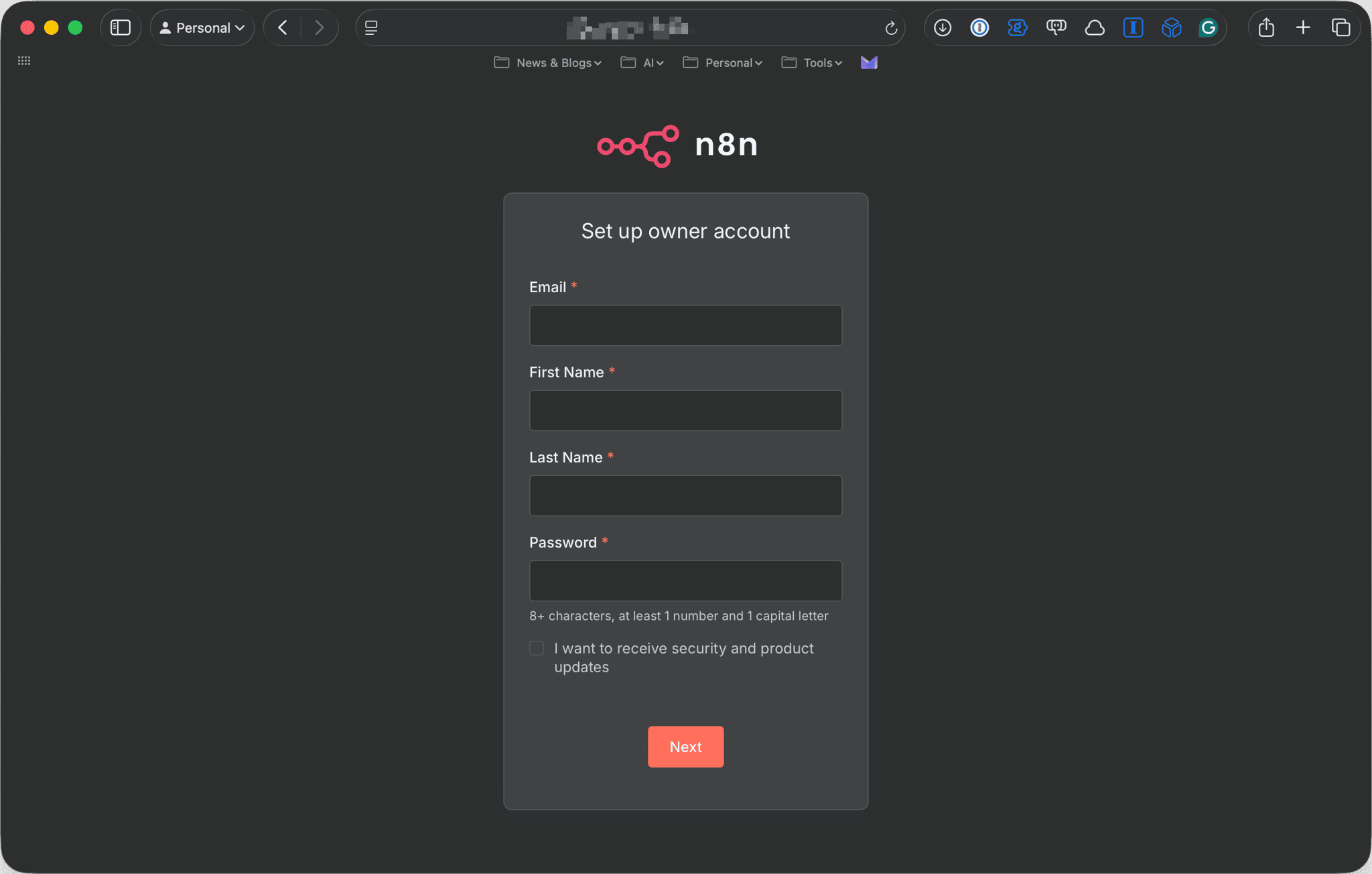
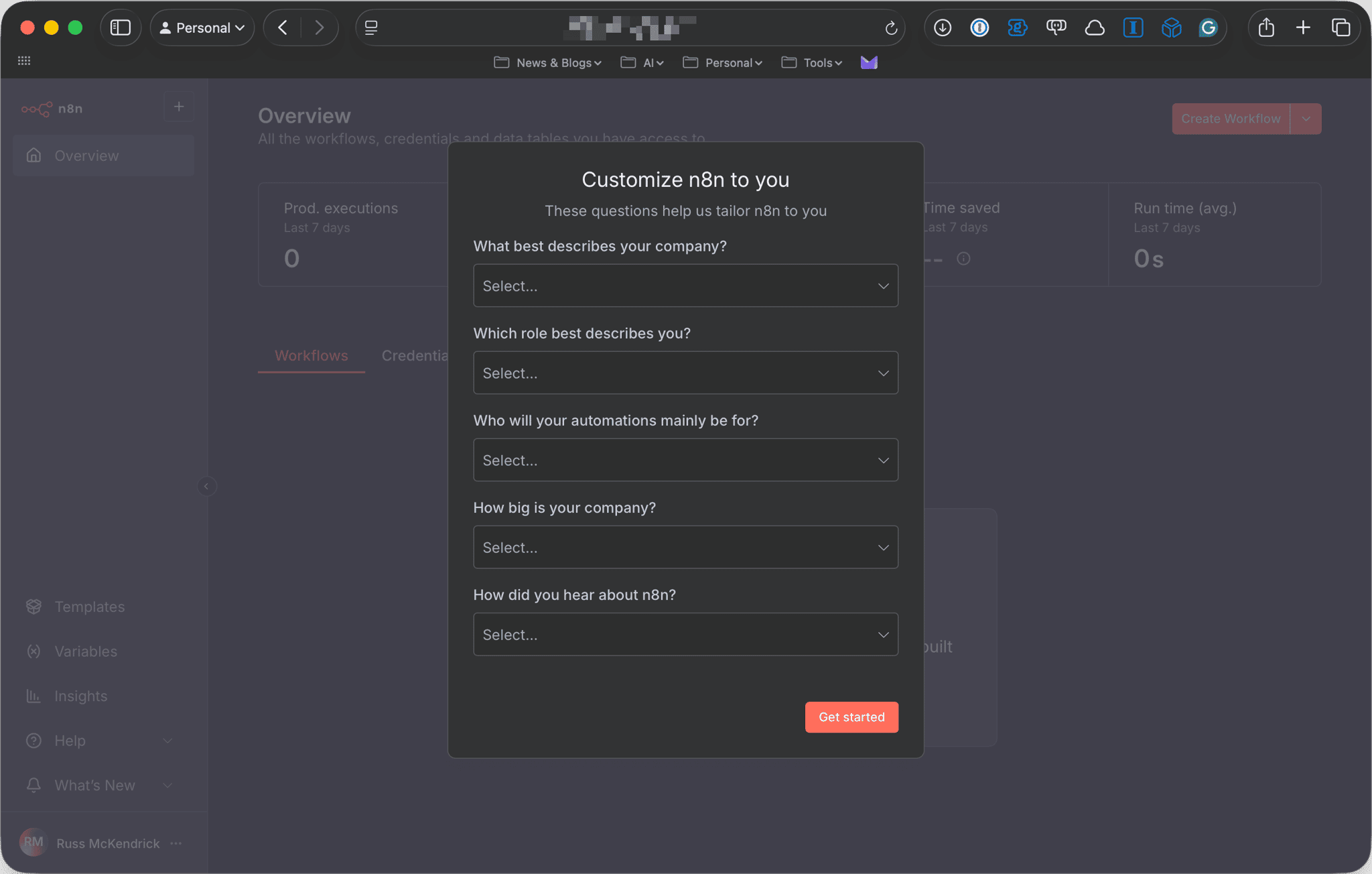
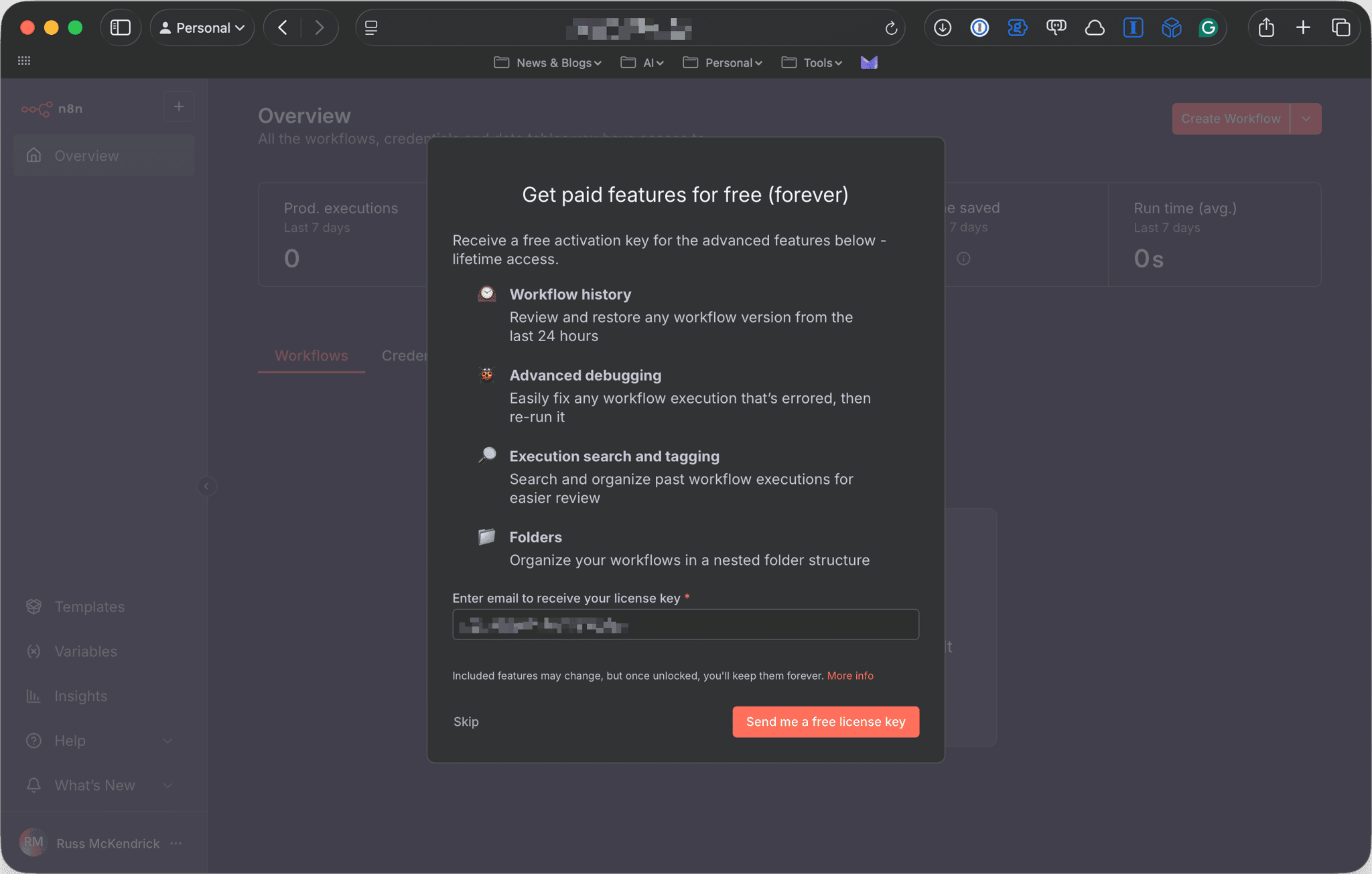
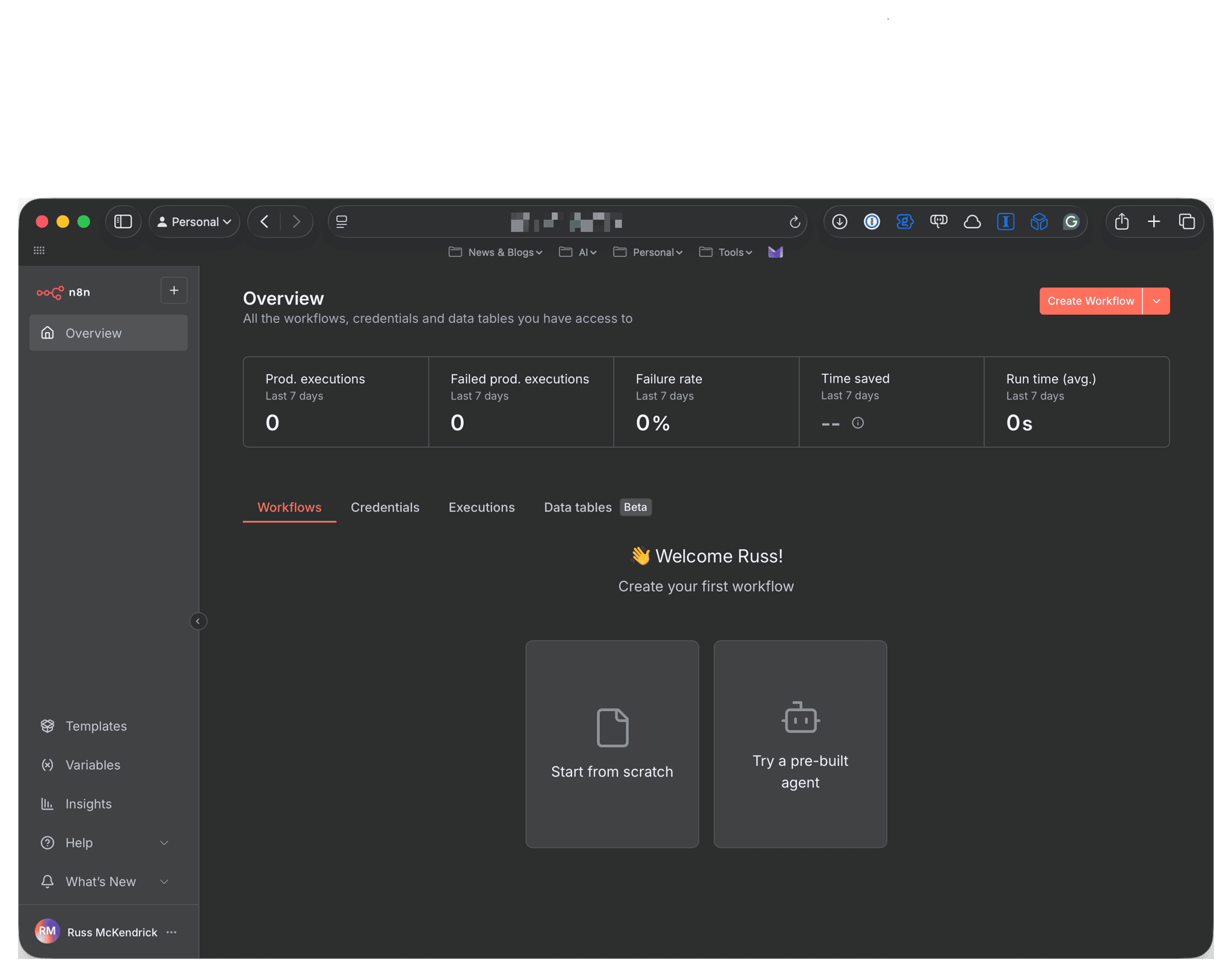
That’s it, you now have a fully working n8n instance running locally and accessible via Cloudflare Tunnel. Install the free license, grab a coffee and get started with n8n - but thats another post.
Housekeeping
If you need to update the n8n instance you can do so by running the following command:
docker compose -f /opt/n8n/docker-compose.yml downdocker compose -f /opt/n8n/docker-compose.yml pulldocker compose -f /opt/n8n/docker-compose.yml up -dThis will stop the current instance, pull the latest images and bring the containers back up.
If you need to remove the instance you can do so by running the following command:
docker compose -f /opt/n8n/docker-compose.yml downThis will remove the containers and networks, to remove the volumes you can run the following command:
docker volume rm n8n_db_storage n8n_n8n_dataMaking it a little more secure
Given that we are running the n8n instance on a local resource, and the tunnel is exposing it to the internet, we can make it a little more secure by fronting the site with a Cloudflare Zero Trust login. This will prevent anyone from accessing the n8n instance without being validated via Cloudflare.
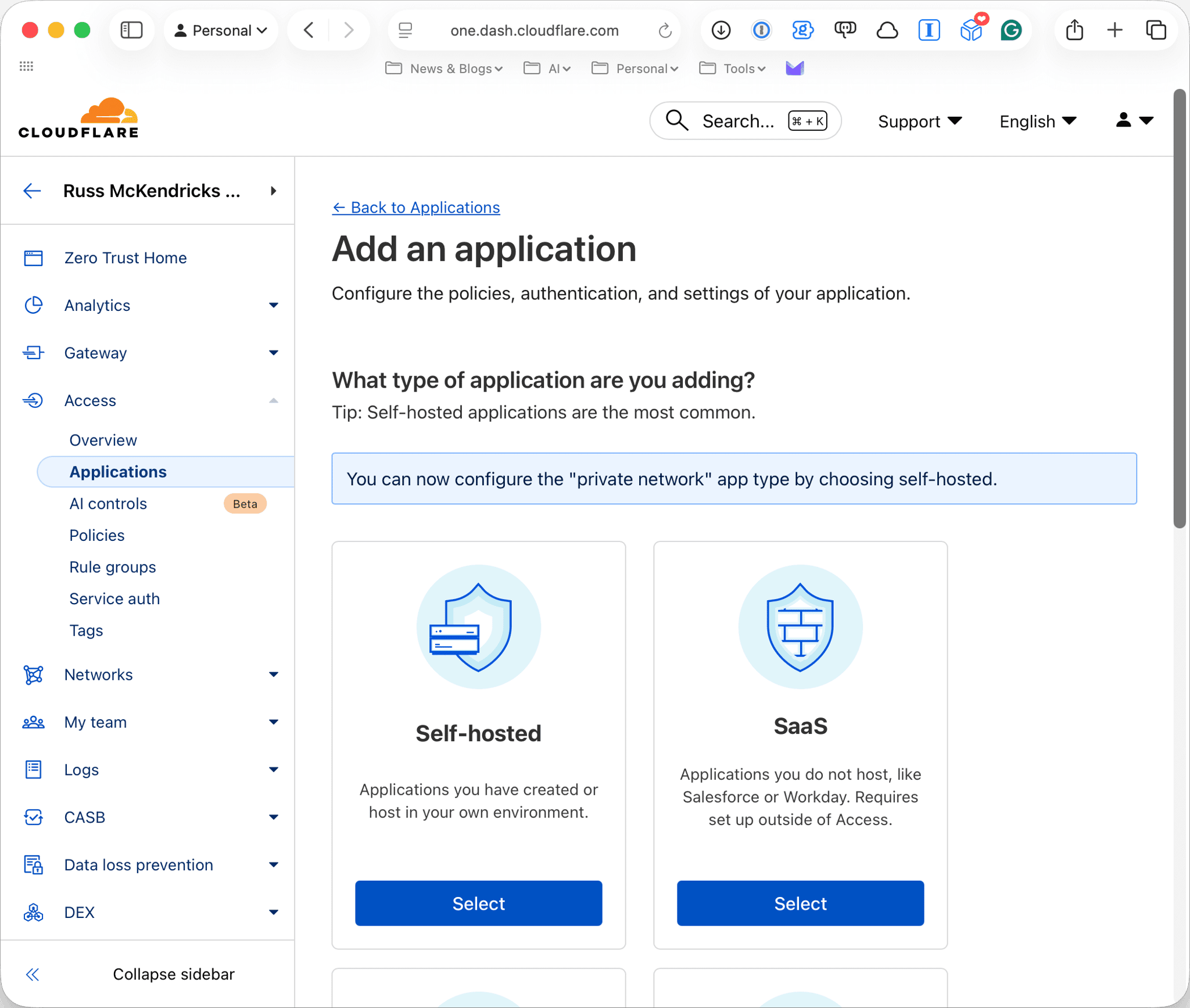
To do this go to the Cloudflare dashboard and navigate to Zero Trust > Access > Applications > Add an Application; the first screen will ask you to select the application type, select Self hosted and click on Next.
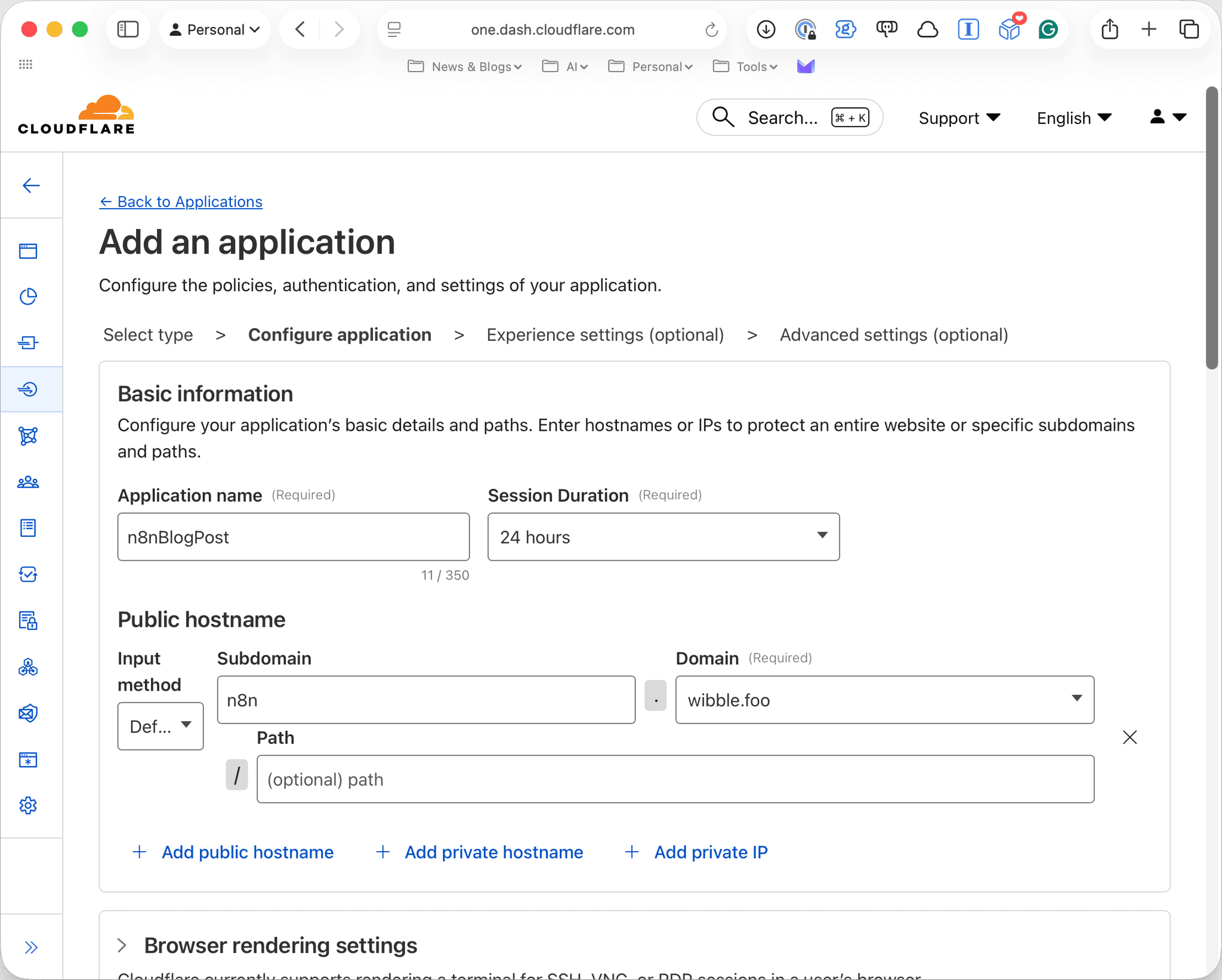
Next give your application a name, in the screens below I have called mine n8nBlogPost, then in the public hostname section enter the URL of your n8n instance, in the screens below I have entered n8n.wibble.foo:
Now we need to add a policy to the application, click on + Create new policy where you will be taken to the Add policy screen, here enter a name for the policy, I have called mine n8nBlogPostPolicy. Then scroll down to the Add rules section, by default there will an Include rule waiting to be added, in the Selector select Emails ending in and enter the domain name of your email provider, in my example I have entered wibble.email. Now click on + Add require, in the Selector this time select Country and enter the country(s) you want to allow access from, in my example I have entered United Kingdom and click on Next.
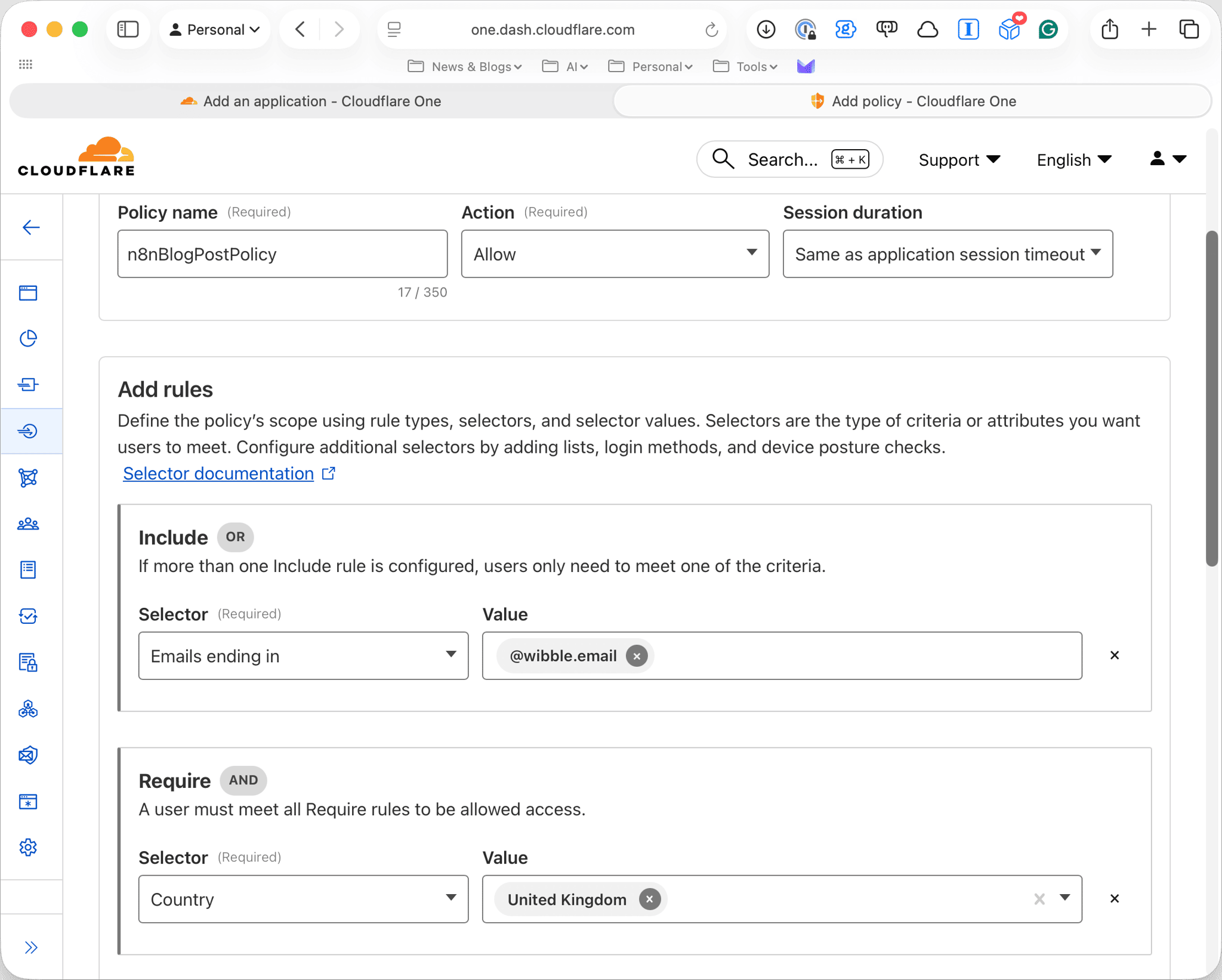
This will create a policy that will allow access to the n8n instance from the United Kingdom for users with an email ending in wibble.email. Click on Save and return to the tab where you are configuring the application, here click on Select existing policy and select the policy you just created.
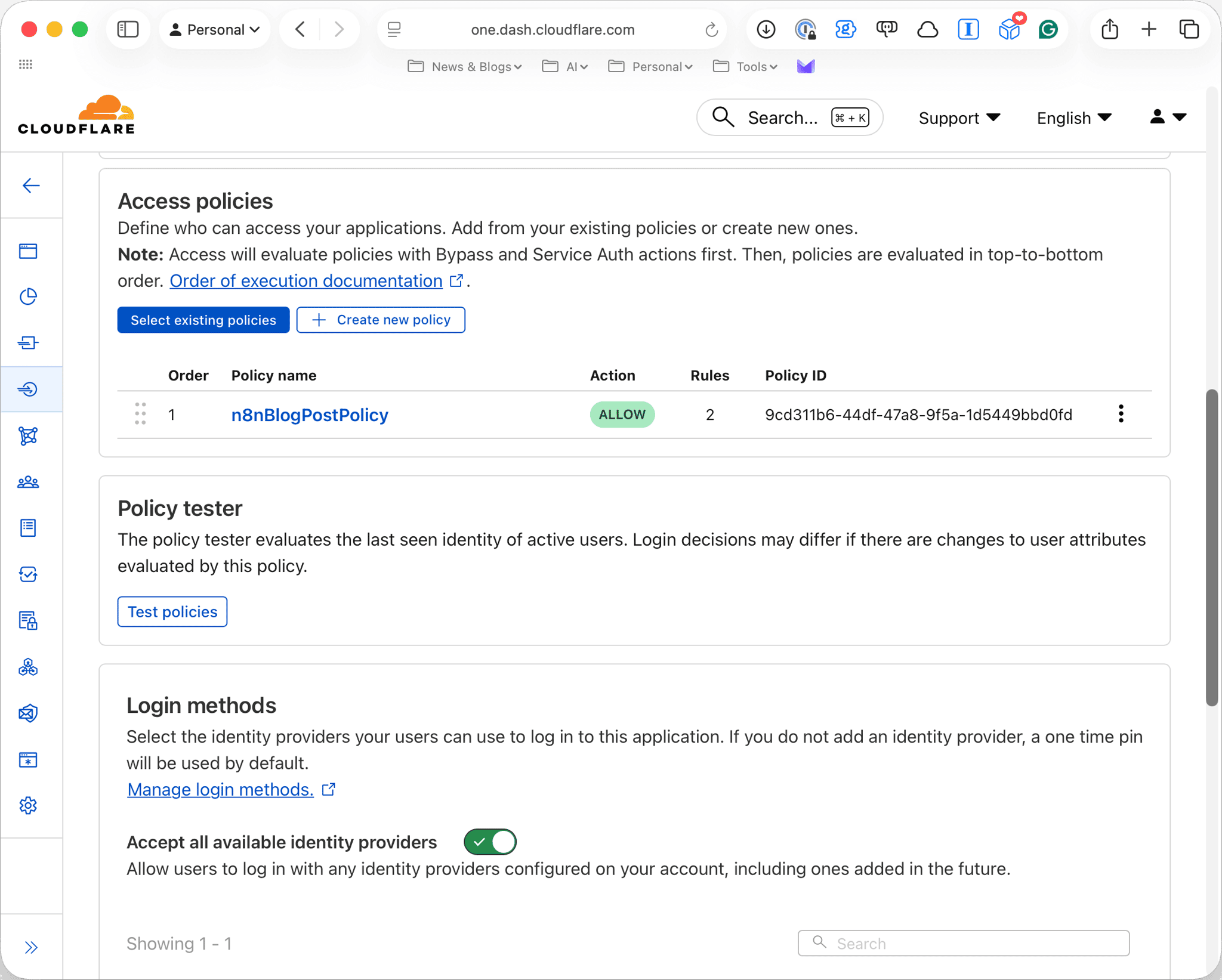
Under Login methods select Accept all available identity providers and click on Next. The next two screens are both optional and can be left at their defaults. Finally, click on Save and you will be taken to the Application screen where you will see your new application listed.
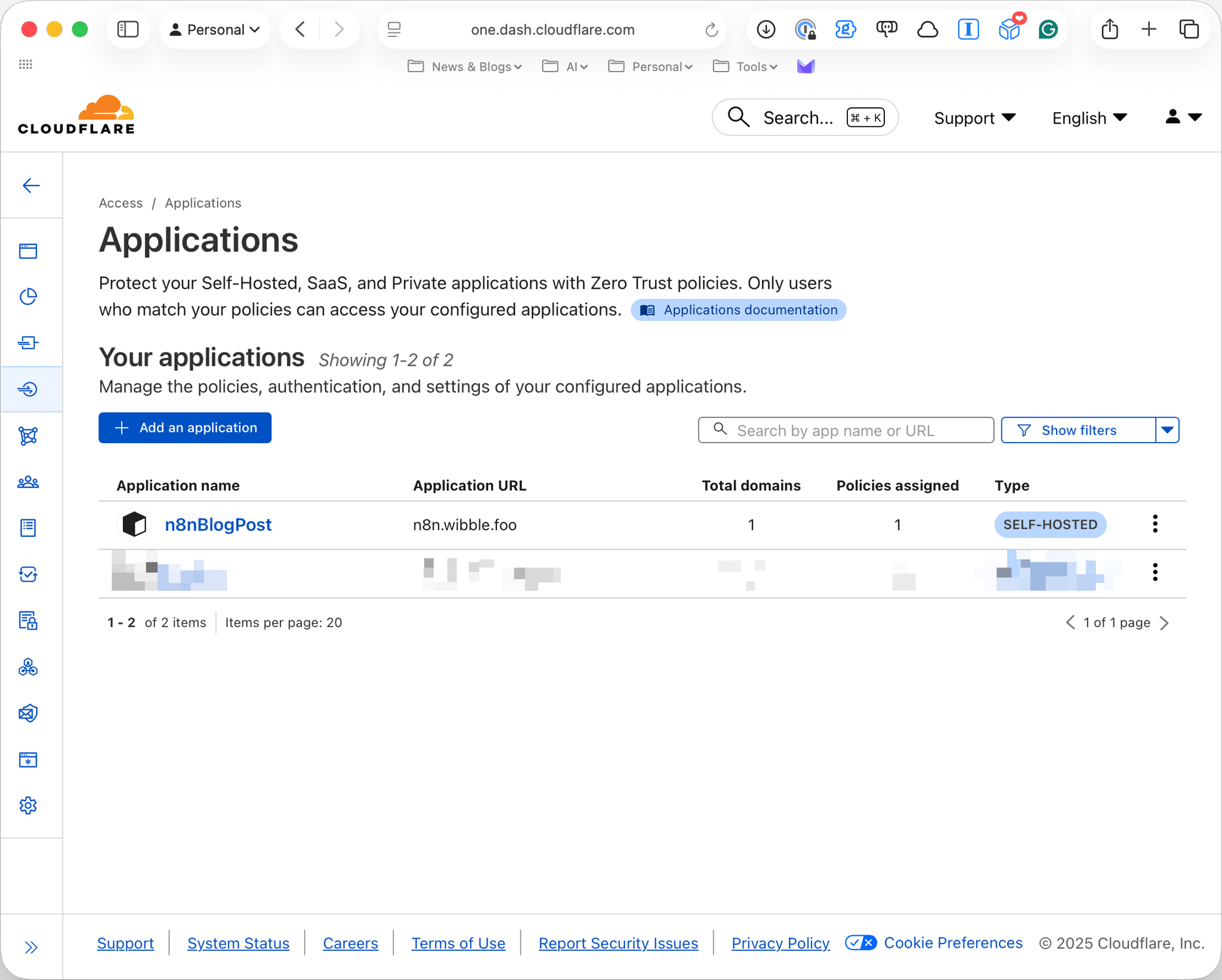
Once configured and goto your n8n domain you should be prompted to login with Cloudflare, once you have done this you will be taken to the n8n editor:
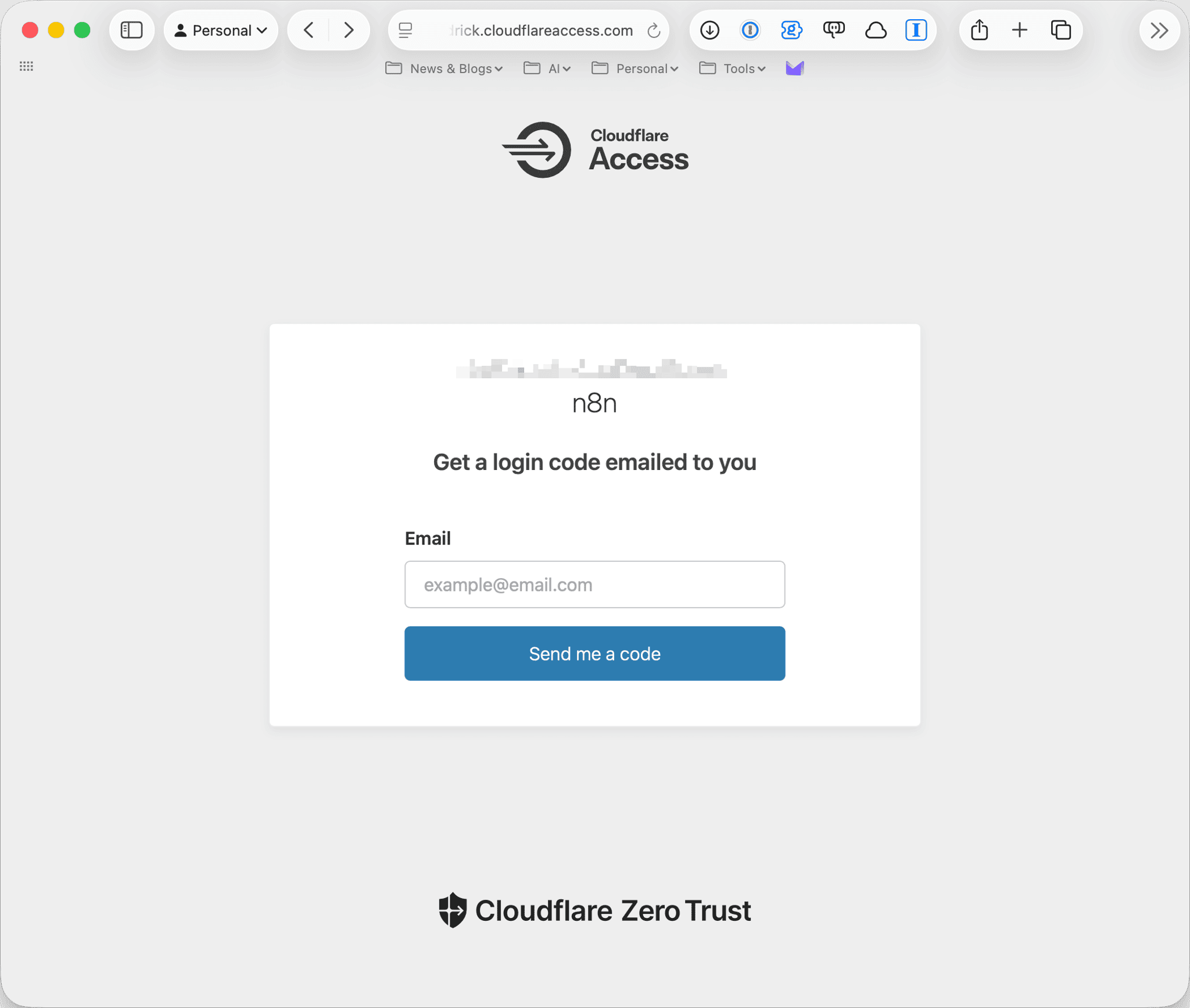
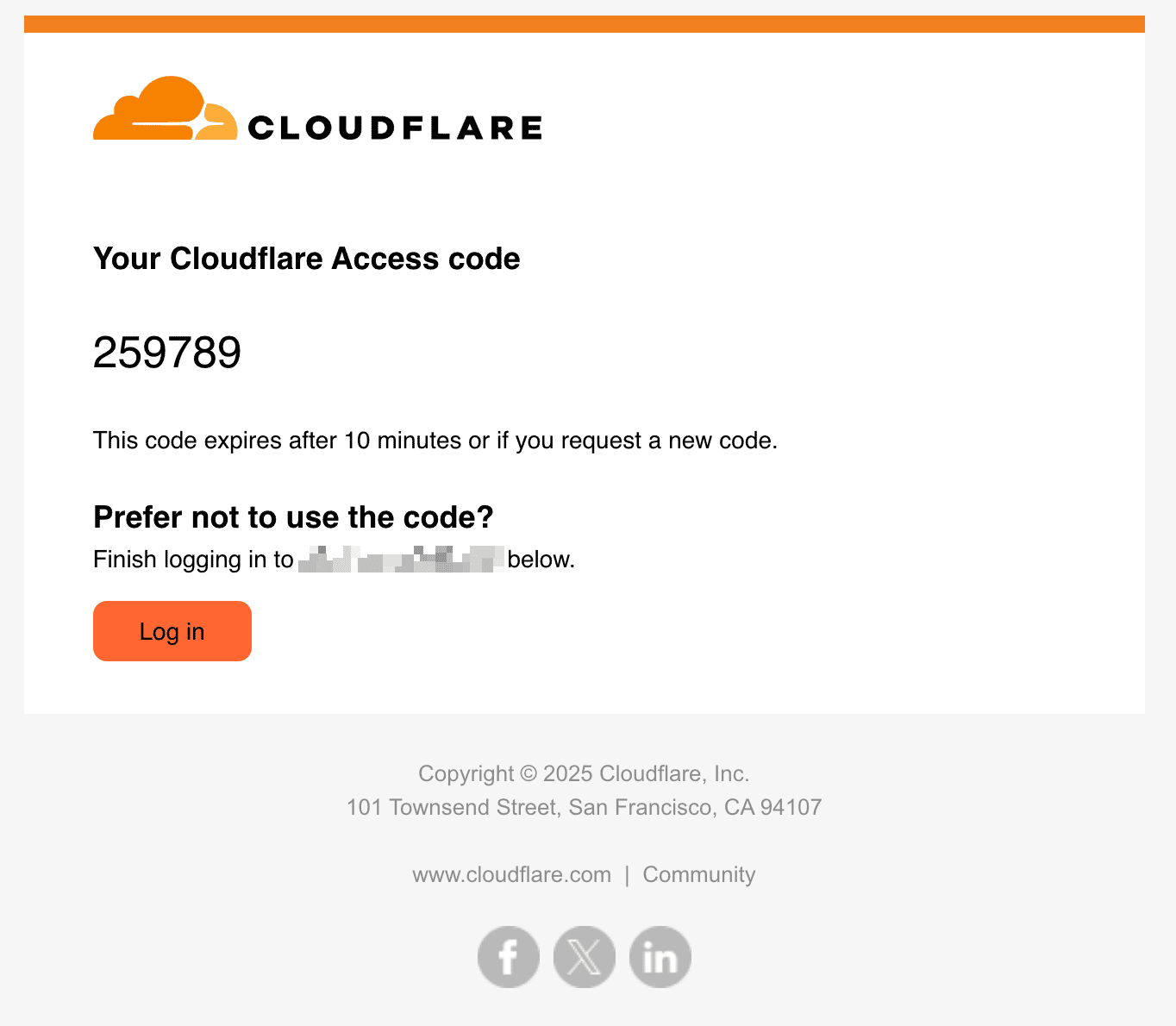
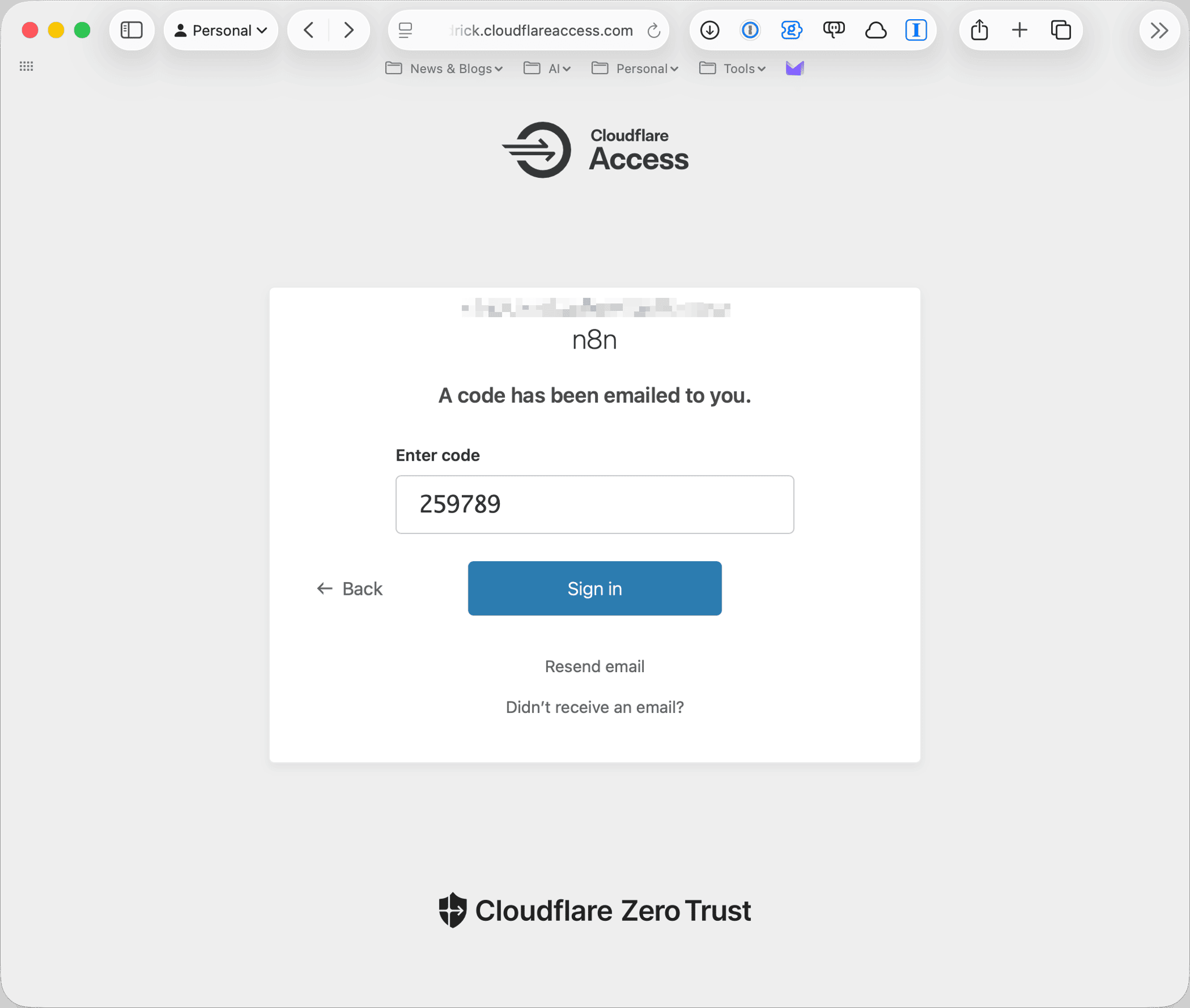
If you were to try and access the n8n instance from outside the United Kingdom you would be denied access:
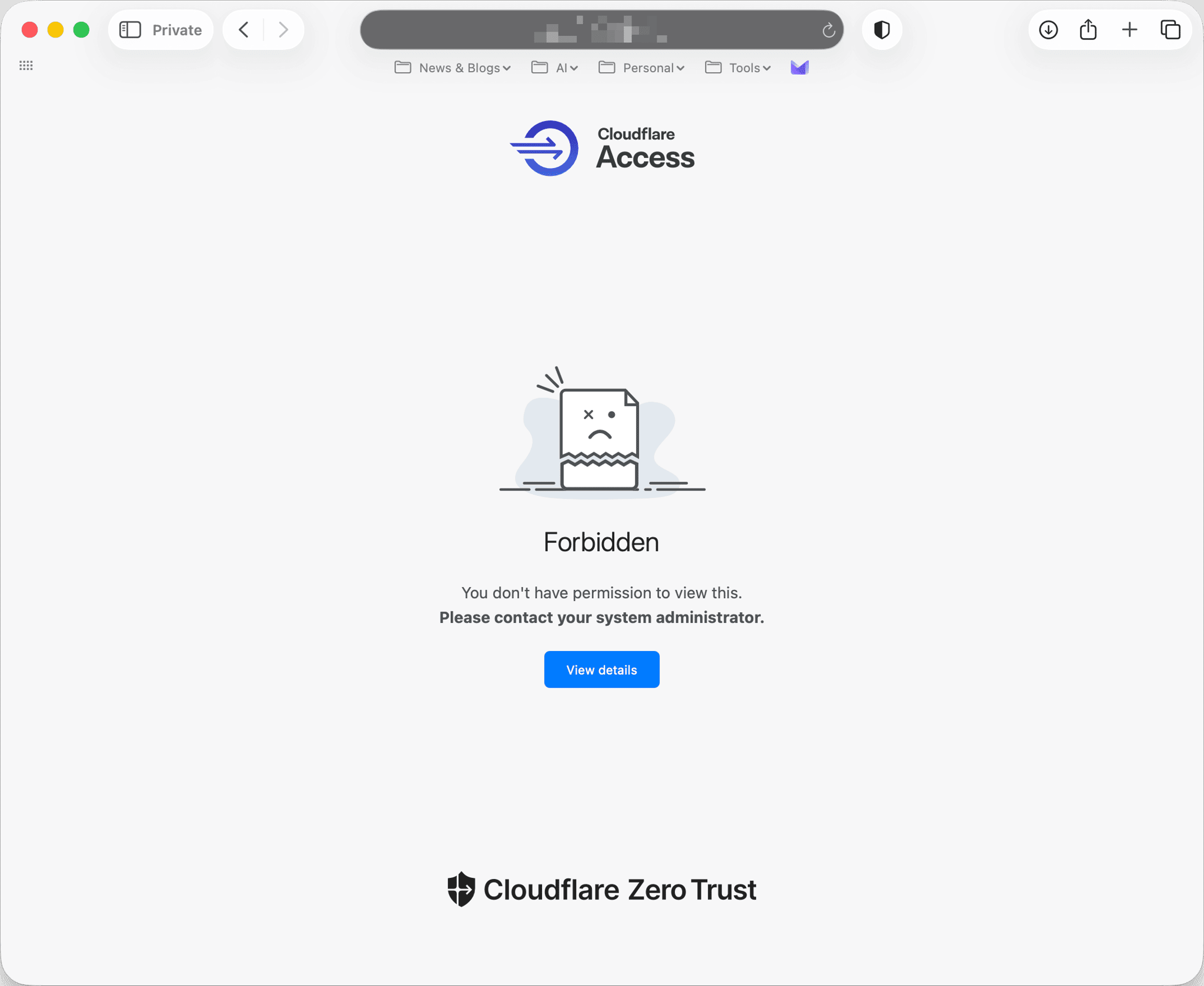
Same for not using the correct email ending in wibble.email. The advantage of this is that unless you meet the criteria you will not be able to access the n8n instance; which means no traffic to your local machine from random people or bots on the internet.
Summary
In this post, we explored how to install n8n on a local resource using Docker and route it via Cloudflare. We saw how easy it is to setup a local n8n instance and how to use Cloudflare Tunnel to route the traffic to it.
Here are the links to n8n and the repository we downloaded the files from:
 GitHub - russmckendrick/local-n8n-with-cloudflare: n8n + Docker + Cloudflare