Creating Custom Skills for Copilot Cowork

Copilot Cowork just landed in Microsoft's Frontier preview programme, and one of its most useful features is the ability to extend it with your own custom skills stored in OneDrive. Here's how to create one.

Russ McKendrick · · 7 min read
There’s a difference between an AI tool that answers questions and one that actually does things. Copilot Cowork is firmly in the latter camp - it sends emails, schedules meetings, creates documents, posts to Teams, and generally gets on with work rather than just describing how you could do it yourself.
It’s also very new. Cowork only became available through Microsoft’s Frontier preview programme at the end of March 2026 - at the time of writing, that’s this week - so if you haven’t come across it yet, that’s entirely understandable. I’ve been using it through the day job’s Microsoft 365 Copilot licences and found it useful for a handful of tasks. What caught my attention most, though, was the custom skills feature.
What Cowork Does Out of the Box
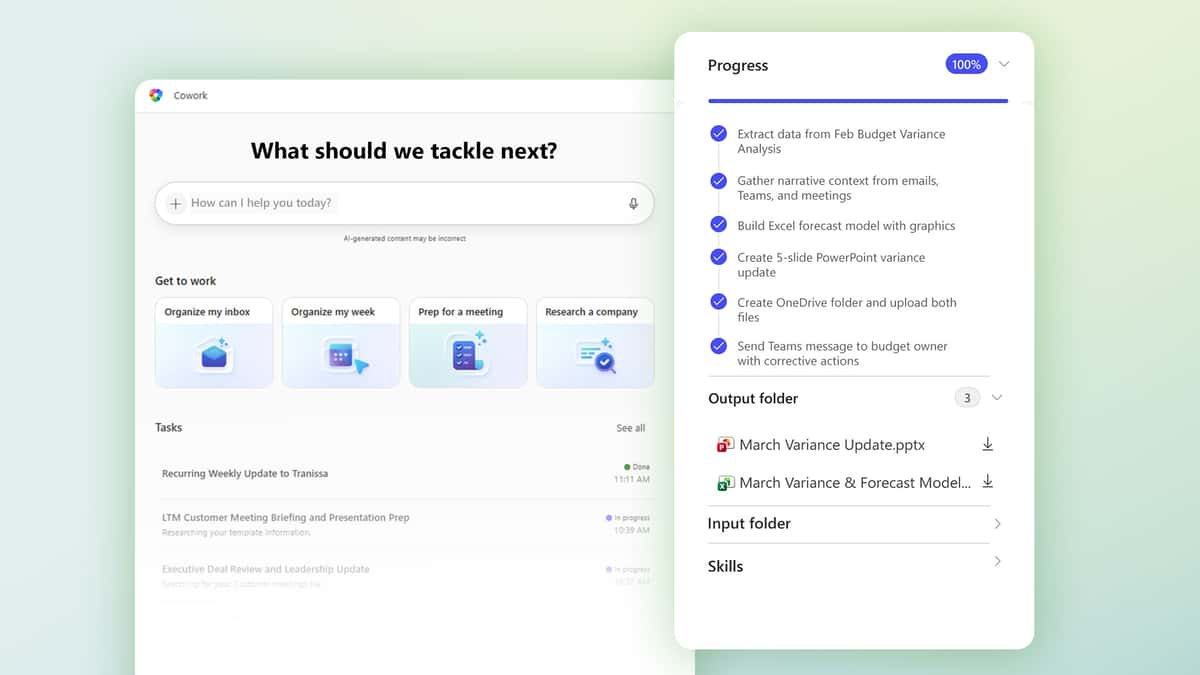
The custom skill system builds on Cowork’s built-in capabilities, so it helps to know what you’re starting with. Cowork ships with 13 built-in skills: Word, Excel, PowerPoint, PDF, Email, Scheduling, Calendar Management, Meetings, Daily Briefing, Enterprise Search, Communications, Deep Research, and Adaptive Cards.
Describe what you need in natural language, and Cowork creates a plan, loads the relevant skills, and works through the task step by step. It shows what it’s doing at each stage and asks for approval before taking irreversible actions, such as sending an email or posting on Teams. Cowork only works with files in OneDrive and SharePoint. If you’re hoping to point it at something on your local machine, you’ll be disappointed - that’s by design, not an oversight.
Where Custom Skills Come In
The 13 built-in skills cover a lot of ground, but they’re generic. They don’t know your team’s document templates, your recurring workflows, or the conventions you’ve built up over the years. That’s the gap custom skills fill.
Custom skills give Cowork additional context and instructions, loaded alongside its built-in capabilities. You can create up to 20 of them, and the mechanism is about as simple as it gets: a Markdown file in a specific folder in your OneDrive.
Anatomy of a SKILL.md
Each custom skill lives in its own subfolder under /Documents/Cowork/Skills/ in your OneDrive, defined in a file called SKILL.md. If you’ve used GitHub Copilot agent skills, the format will be familiar: a YAML frontmatter block followed by Markdown instructions:
---name: skill-namedescription: A description of what the skill does, and when Cowork should use it.---
Your instructions go here in plain Markdown. Be as specific as you need to be.
The name field is a unique identifier, keep it lowercase with hyphens. The description is what Cowork uses to decide whether to load the skill for a given conversation, so make it specific. The body of the file is the actual instructions, and you can be as detailed as you need to be.
Creating Your First Skill
Here’s how.
1. Create the folder structure
In your OneDrive, navigate to Documents. Create a folder called Cowork if it doesn’t already exist, then inside that create a Skills folder. Finally, create a subfolder for your specific skill. The name you give this folder typically matches the name in your SKILL.md frontmatter.
The resulting path should look like:
OneDrive/└── Documents/ └── Cowork/ └── Skills/ └── your-skill-name/ └── SKILL.md2. Write your SKILL.md
Here’s an example of a skill for generating consistently formatted branded Word documents from a standard template:
---name: branded-documentdescription: Generates consistently formatted branded Word documents. Use this when asked to create formal documents, reports, or handover notes that need to follow the standard company template.---
When asked to create a Word document, follow these conventions:
## Document Structure- Always start with a title page including the document title, author, date, and version number- Follow with a brief executive summary (2–3 sentences maximum)- Use Heading 1 for major sections and Heading 2 for subsections- End with a "Next Steps" or "Actions" section where appropriate
## Formatting- Use the Standard body text style for all paragraph text- Tables should use the Table Grid style with a shaded header row- Code or command examples should use the Code style or a monospace font
## Tone- Write in a professional but accessible tone- Use active voice where possible- Avoid jargon unless the document is explicitly technical and the audience is technical
The example above is deliberately simple. In practice, you’d tailor the instructions to match how your team actually works.
3. Save, and you’re done
That’s it (it’s worryingly simple). Cowork discovers custom skills automatically at the start of each conversation, so there’s no registration step and no restart. Save the file to OneDrive, and the next conversation picks it up.
How Cowork Uses Your Skills
When you start a conversation, Cowork evaluates which skills are relevant and loads them, both built-in and custom. The side panel updates in real time to show which are active, so you can confirm your custom skill has loaded before work starts. The description in the front matter drives this selection, so it’s worth getting right. A vague description like “helps with documents” is much less useful than something specific: “generates consistently formatted branded Word documents - use this when creating formal reports or handover notes.” The more specific you are, the more reliably Cowork picks the right skill.
A Few Things Worth Knowing
- It’s a preview feature. Frontier previews can and do change, so don’t be surprised if the behaviour or format shifts over time. Microsoft’s documentation is kept reasonably up to date, but worth checking back against the official docs if something stops working as expected.
- Custom skills aren’t validated by Microsoft. The docs are clear on this: review the outputs from custom skills carefully, particularly early on. You’re extending the model’s behaviour, and as with any prompt engineering, test across a range of inputs before relying on it.
- Each SKILL.md can be up to 1 MB, which is more than enough for detailed instructions. You can also reference supplementary files from within a skill if you have reference material you want Cowork to use.
- Cowork can’t access local files, so any templates or examples your skill references need to be in OneDrive or SharePoint.
Summary
Custom skills in Copilot Cowork are straightforward to set up. A SKILL.md file in a OneDrive folder, and Cowork picks it up automatically. What you get is the ability to bake your team’s working conventions into the model’s context.
I’ll be honest, I was expecting more friction. There’s no registration and no admin configuration to do, and it just works, which is more than you can say for some of the previous Copilot previews.
If you have a Microsoft 365 Copilot licence and access to the Frontier programme, it’s worth asking your admin to enable the Frontier feature and having a look. The Microsoft Learn docs cover the full custom skill format: