Introducing Hosts Butler

A terminal-based hosts file manager built in Rust that I wrote to stop manually editing /etc/hosts with a text editor and hoping I didn't break anything.

Russ McKendrick · · 6 min read
If you’ve spent any time doing local development or managing infrastructure, you’ve almost certainly edited /etc/hosts by hand. It starts simply enough - a couple of entries for local services, maybe a blocked domain or two. Then the file slowly accumulates over months and years until you’re staring at an uncommented wall of IP addresses and hostnames, trying to remember which one maps to which environment.
I got tired of opening the file in a text editor every time I needed to make a change, so I built HostsButler - a keyboard-driven TUI for viewing and managing your system hosts file. Like ssl-toolkit, it was vibe-coded in Rust using Claude Code.

What it does
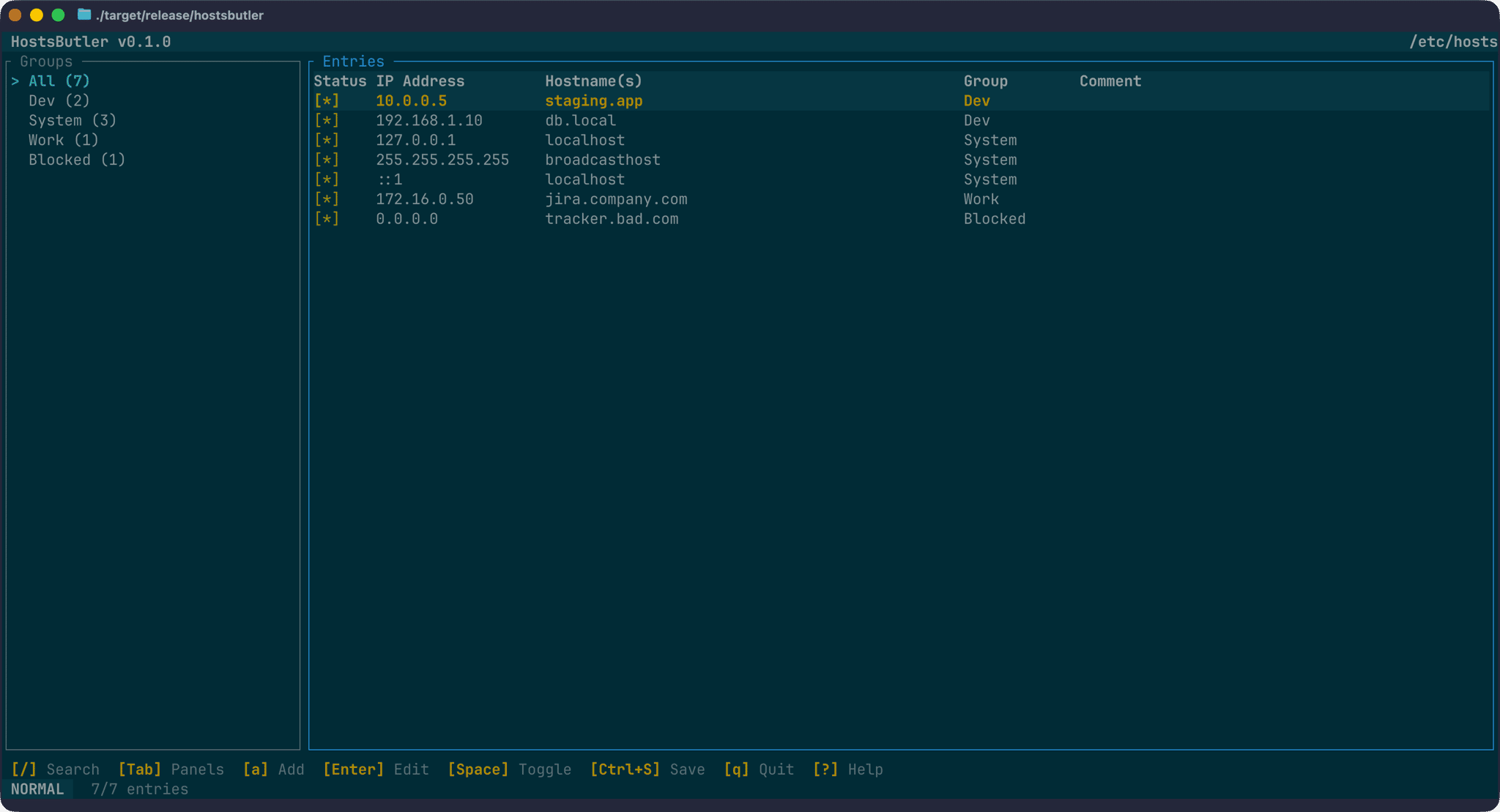
HostsButler gives you a two-panel interface: a group list on the left and a scrollable table of entries on the right. You can add, edit, delete, and toggle entries without ever touching the raw file directly. It handles privilege escalation when writing on macOS and Linux, takes automatic backups before every save, and flushes the DNS cache on success.
The entries in the table come from your existing hosts file, and every comment, blank line, and piece of whitespace is preserved when you save - loading the file and saving without changes produces byte-identical output.
Organising with groups
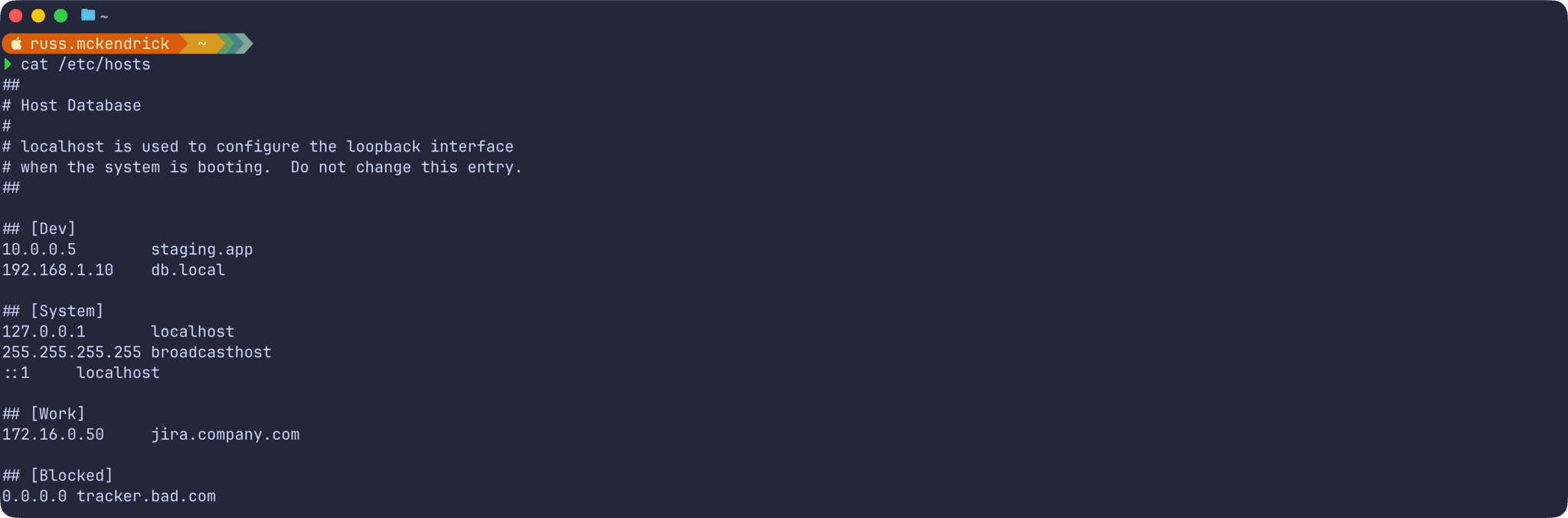
One thing that makes the file easier to manage at scale is groups. HostsButler recognises two comment formats as group headers:
## [Dev]10.0.0.5        staging.app192.168.1.10    db.local
## [System]127.0.0.1       localhost
Any entries below a group header are assigned to that group until the next one appears. In the sidebar, each group shows a count of its entries, and clicking through to a group filters the table accordingly.
When you add or edit an entry, you can type a group name in the form. If the group doesn’t exist yet, HostsButler creates the ## [GroupName] header and places the entry beneath it.
Installation
macOS
brew install russmckendrick/tap/hostsbutlerLinux
ARCH=$(uname -m | sed 's/x86_64/amd64/;s/aarch64/arm64/')curl -sL "https://github.com/russmckendrick/hostsbutler/releases/latest/download/hostsbutler-linux-${ARCH}" -o hostsbutlerchmod +x hostsbutlersudo mv hostsbutler /usr/local/bin/Windows
Invoke-WebRequest -Uri "https://github.com/russmckendrick/hostsbutler/releases/latest/download/hostsbutler-windows-amd64.exe" -OutFile "hostsbutler.exe"Move hostsbutler.exe to a directory in your PATH, or run it from the download location. You’ll need to launch your terminal as Administrator before running it on Windows.
All releases are on the GitHub releases page.
Launching
On macOS and Linux, the file is owned by root, so you’ll need to either run with sudo or let HostsButler prompt for elevation when you go to save:
sudo hostsbutlerOn Windows, run your terminal as Administrator and launch normally:
hostsbutlerIf you just want to browse without making any changes, the --readonly flag skips the privilege check:
hostsbutler --readonlyYou can also point it at a custom file rather than the system hosts file:
hostsbutler --file /path/to/custom/hostsNavigating the interface
The keyboard shortcuts follow vim conventions where it made sense. In the main view:
| Key | Action |
|---|---|
j / ↓ | Move down |
k / ↑ | Move up |
Tab | Switch between the group panel and entry table |
a | Add a new entry |
e or Enter | Edit the selected entry |
d | Delete (with confirmation) |
Space | Toggle enable/disable |
/ | Search |
Ctrl+S | Save |
Ctrl+Z | Undo |
b | Open backup manager |
t | Test DNS resolution for the selected entry |
? | Help overlay |
The search bar supports prefix filters - ip:192.168 or host:local - as well as free text across all fields.
Backups
Before every save, HostsButler creates an automatic backup. The backup manager (b) lists them with timestamps, sizes, and descriptions. From there you can restore a backup, create a manual one with a custom description, or delete old ones.
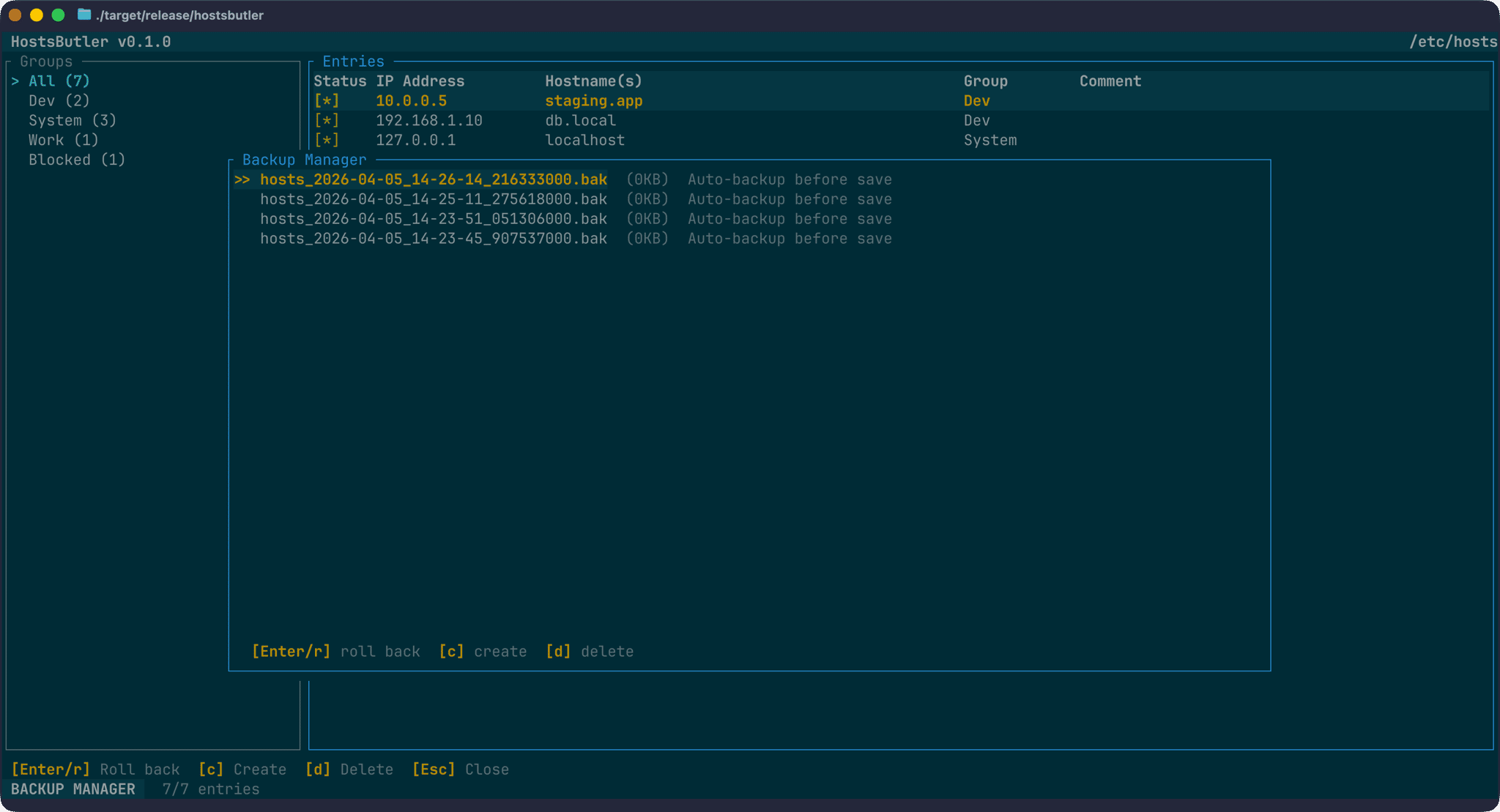
Backups are stored at platform-specific config directories:
- macOS:
~/Library/Application Support/hostsbutler/backups/ - Linux:
~/.config/hostsbutler/backups/ - Windows:
%APPDATA%\hostsbutler\backups\
The last 20 backups are kept, and older ones rotate out automatically.
Import and export
Importing and exporting are currently CLI operations rather than in-app workflows. To export your current entries:
# Export as JSONhostsbutler --export entries.json
# Export as CSVhostsbutler --export entries.csv
# Export as a plain hosts filehostsbutler --export backup.hosts
To import into an existing file:
# Import from JSONhostsbutler --file /etc/hosts --import entries.json
# Import from another hosts filehostsbutler --file /etc/hosts --import backup.hosts
Imports are validated before insertion, and the format is auto-detected from the file extension.
DNS resolution testing
The t key on any selected entry tests the DNS resolution for each of its hostnames against your system resolver and compares the results with the IP in the hosts file. A toast notification shows either OK or MISMATCH for each. Handy for catching stale entries or confirming that a new one has taken effect.
A note on round-trip fidelity
One thing I was particular about was that HostsButler should never silently rewrite your file. If you open the file, make no changes, and save, the output should be byte-identical to what was there before - same whitespace, same comments, same blank lines.
Each entry stores its original raw text alongside any parsed fields. Unmodified lines are serialised from that raw value; only lines that were actually changed get re-serialised into the standard format. This means the tool can sit alongside any other process that also touches the hosts file without quietly normalising everything.
Summary
HostsButler is open source and available on GitHub:
It’s only just been created, so there’s rough around the edges - in-app import is on the list, along with a few other bits I’m working through. If you run into anything or have a feature idea, pull requests and issues are welcome.