A Catch-Up: terminal-svg and Token Use v1

Two projects worth writing about: terminal-svg, a new Rust tool for pixel-perfect terminal screenshots, and Token Use finally reaching v1

Russ McKendrick · · 8 min read
It’s been a busy few months of evenings and weekends, and two of my projects have reached a point where they’re worth writing about. One is brand new: terminal-svg, a tool for turning terminal output into SVG screenshots that actually look right everywhere. The other is Token Use, which has been through more releases than I can count and has finally landed on 1.0.0.
Rather than spin these into two posts, I’ll take them one after the other. Both were vibe-coded in Rust using Claude Code, so if you’ve read the AI Commit, ssl-toolkit or HostsButler posts, the shape of the work will be familiar.
terminal-svg
If you’ve ever tried to put a terminal screenshot in a README or a blog post, you’ll know the two ways it usually goes wrong. Either the tool regex-strips the ANSI codes, which breaks the moment your output has a progress bar or a spinner or anything that redraws a line, or it renders text against a system font, which means the box-drawing characters and powerline segments line up perfectly on your machine and nowhere else. I’d been hitting both often enough — most of the screenshots on this blog are of terminal output — that I decided to build something that did neither.
The result is terminal-svg. Point it at a command, a file, or a pipe and it gives you back an SVG with window chrome, your choice of colour scheme, and the JetBrains Mono Nerd Font it used subsetted and embedded in the file itself. That last part is the bit I care about most: the SVG renders identically on GitHub, in a browser on a machine with no fonts installed, anywhere an <img> tag works.
 GitHub - russmckendrick/terminal-svg: Pixel-perfect SVG screenshots of terminal output, from a single self-contained binary.
How it avoids the usual problems
The output goes through a proper VT state machine (avt, the engine behind asciinema) rather than a regex. Carriage-return progress bars, ESC[K clears, and cursor-up repaints all resolve to exactly the final screen a real terminal would show. For each screenshot it collects only the glyphs actually used and embeds those as WOFF2, which usually adds a few KB rather than a whole font file. Box-drawing aligns, powerline segments work, and wide CJK characters take up exactly two cells. Colour emoji can’t live in a monochrome font subset, so those get emitted as their own positioned text runs and render through the viewer’s native emoji font without knocking the columns after them out of line.
# Run a command in a PTY (it sees a real TTY, so colours are on)terminal-svg -- lsd -la
# Pipe ANSI output through itls --color=always | terminal-svg -o ls.svg
# Render a captured ANSI dump with a different themeterminal-svg dump.ansi -t nord -o dump.svg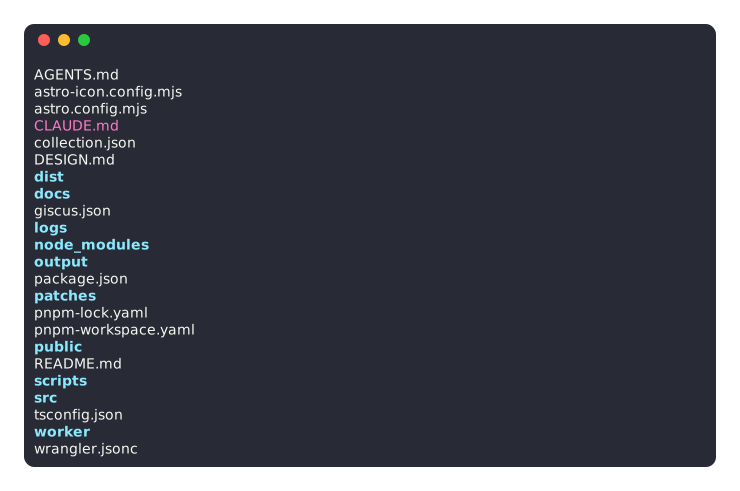
Recording animated SVGs
The part I didn’t expect to enjoy as much as I did is terminal-svg rec. It drops you into your shell, records everything you do, and when you exit it renders an animated SVG replaying the session. It’s a GIF-quality demo at a fraction of the size, the text stays real and selectable, and like everything else it plays anywhere an <img> tag does, GitHub READMEs included, without any JavaScript.
# Record an interactive session; exit the shell to finishterminal-svg rec -o demo.svg
# rec keeps an asciicast next to the SVG, so you can retheme# or re-time the replay later without re-recordingterminal-svg demo.cast -t github-dark --speed 2 --no-loop -o demo-fast.svg
Recordings are standard asciicast v2 files, so asciinema play demo.cast works, and existing asciinema recordings render straight through terminal-svg.
The SVG is its own source
Every SVG carries its own recording, compressed inside a <metadata> block that browsers ignore, along with the options it was rendered with. Lose the .cast and nothing is lost — the SVG re-renders and the recording extracts byte-for-byte. It means you can re-theme a screenshot you saved months ago without keeping the original around.
# Re-render an existing SVG with different optionsterminal-svg demo.svg -t nord --speed 2 -o demo-nord.svg
# Recover the recording from the SVGterminal-svg extract demo.svg -o demo.cast
Because the embedded source contains everything that was captured, including anything a program echoed, there’s a terminal-svg edit for cleaning a take up first (masking a leaked token, say, or taming a run of long pauses), and a --no-embed-source flag if you’d rather it carried nothing at all. There’s also a browser-based visual editor (terminal-svg editor) with a live preview and a timeline panel for fixing typos and retiming events after the fact, but that’s a rabbit hole for another post.
Installing
It’s a single self-contained binary with no runtime dependencies.
brew install russmckendrick/tap/terminal-svgARCH=$(uname -m | sed 's/x86_64/amd64/;s/aarch64/arm64/')curl -LO "https://github.com/russmckendrick/terminal-svg/releases/latest/download/terminal-svg-linux-${ARCH}"chmod +x terminal-svg-linux-${ARCH}sudo mv terminal-svg-linux-${ARCH} /usr/local/bin/terminal-svgInvoke-WebRequest -Uri "https://github.com/russmckendrick/terminal-svg/releases/latest/download/terminal-svg-windows-amd64.exe" -OutFile "terminal-svg.exe"On Windows, drop the .exe somewhere on your PATH. The rec subcommand is macOS and Linux only for now; rendering .cast files works everywhere. All builds are on the GitHub releases page, each with a .sha256 next to it, and there’s a theme gallery at terminal-svg.dev.
Token Use hits v1.0.0
If you’ve read the Token Use post before, you’ll know it started as a small TUI for reading the token and cost data that Claude Code, Codex, Cursor, and Copilot already write to disk. It’s had a long run of small releases since then, and 1.0.0, named Clear Focus, is the biggest change since I started it.
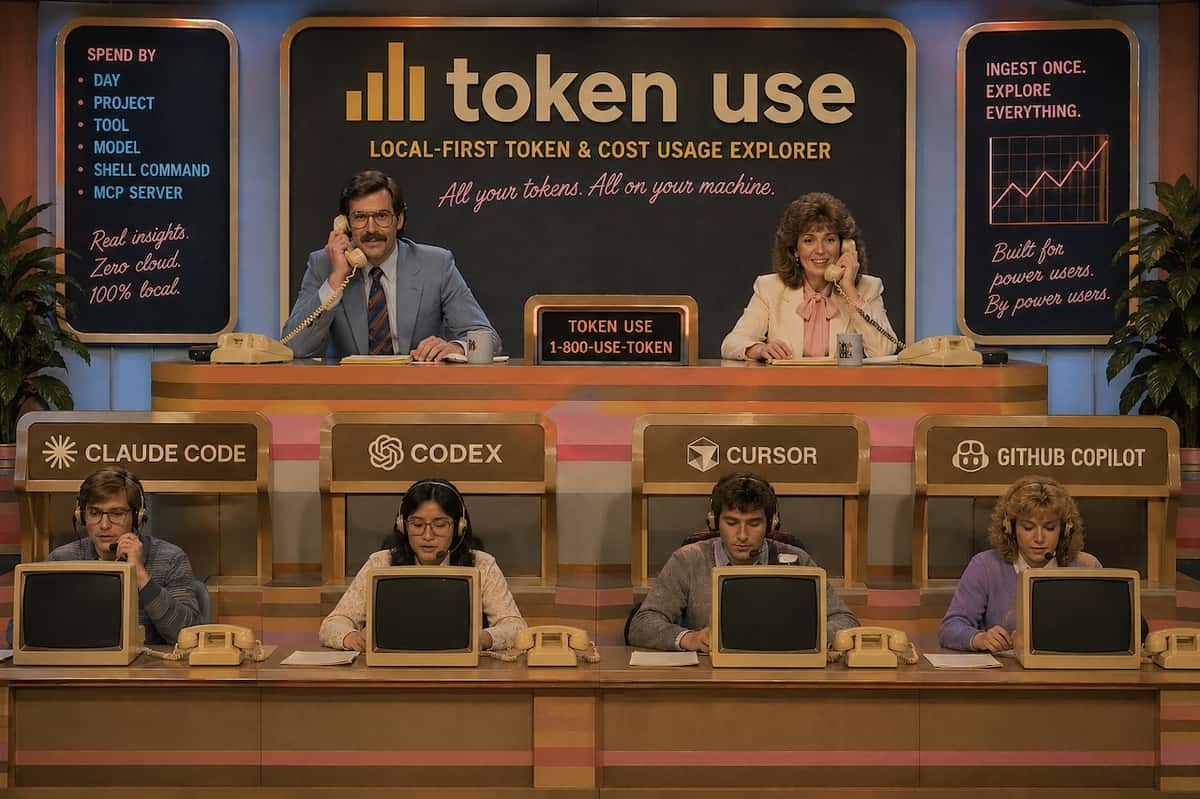
Two things happened in this release. The first is that the desktop app got rebuilt properly. It used to be more or less a copy of the terminal layout wrapped in a window; now it’s a sidebar application with its own screens — Overview, Analytics, Tools, Models, Projects, and Config — plus direct pages for each supported tool. It still shares the same Rust data layer as the TUI, so the numbers can’t drift between the two, but it stopped pretending to be a terminal. The Projects screen now does a proper local drill-down: pick a project to see its sessions, pick a session to see its calls, open a call for its full token breakdown. The TUI got the same attention from the other direction and is now tightened down to three views: Overview, Deep Dive, and Usage.
The second thing is that I took some features out. Earlier versions had an Insights area that generated recommendations by shelling out to a local codex, claude, or gemini and asking it what your usage meant. There was an Agent Setup page doing something similar for config auditing. Both sat outside the job the tool is actually good at, added a second layer of generated interpretation on top of your data, and threw confusing errors when one of those CLIs wasn’t installed. So they’re gone, end to end — the advice engine, the prompts, the snapshots, all of it.
I’ll be honest, cutting features on the way to a 1.0.0 felt slightly backwards while I was doing it. But it left the tool much easier to describe: Token Use reads your local usage records, normalises them, prices them, and shows you the result. It doesn’t start another model to tell you what the numbers mean. Everything still stays local — there’s no platform API key, no proxy, no telemetry, and the only network calls are the confirmed pricing and currency downloads and the opt-in quota sync, exactly as before.
The other change is a shared model registry. Real tool logs are full of awkward model ids: dated Claude pins, vendor-prefixed Gemini paths, Cursor’s auto and default, Copilot routers that hide which provider actually served the request. All of that now folds into one set of canonical rows through src/models/registry.json, shared by the TUI, the desktop app, and the visual reports, so a model shows up the same way everywhere instead of three slightly different ways.
# The terminal UIbrew install russmckendrick/tap/tokenusetokenuse
# The macOS desktop appbrew install --cask russmckendrick/tap/tokenuse-desktopopen -a "Token Use"
Linux, Windows, and manual desktop downloads are on GitHub Releases, and there’s more at tokenuse.app.
Wrapping up
Two fairly different projects, then. terminal-svg scratches a very specific itch I’ve had for years: screenshots that look the same for everyone who loads the page. It’s already rendering most of the terminal output on this blog, including its own README. Token Use reaching 1.0.0 is less about new features and more about deciding what the tool is for and cutting the rest, which turned out to be the more useful exercise of the two.
Both are on GitHub, both are open source, and both have rough edges I’m still working through. If you give either a go and something breaks or you have an idea, pull requests and issues are welcome.